This article is a tutorial designed for beginners who want to correctly and completely install an anti-detection browser. Many novices aim to use anti-detection browsers for multi-account marketing and create multiple browser fingerprints to fulfill their business needs but don't know how to install them. By reading this article thoroughly, you will definitely learn the relevant methods and important precautions. Here, I also want to thank you for finding and reading this article, and I sincerely hope it can help more people!
Below, we plan to start with the most basic steps, such as finding the anti-detection browser of the brand you want to download from your browser. In this article, we will use MostLogin Browser as an example. Of course, the installation steps for products of other brands are similar, so reading just this one article is sufficient.
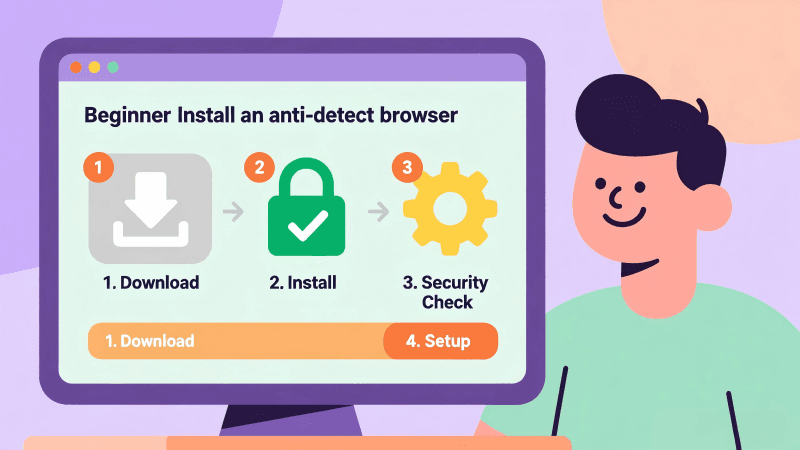
What we need to prepare in advance: a fully functional computer, a stable network connection, and it is recommended to have more than 1GB of hard disk storage space (generally, it won't take up that much).
Step 1: Visit the official website of the anti-detection browser and download it
Taking MostLogin Anti-Detection Browser as an example, we need to search for content like "MostLogin Anti-Detection Browser" on various search engines such as Google/Bing. Generally, you can click to enter the official website marked with "Genuine".

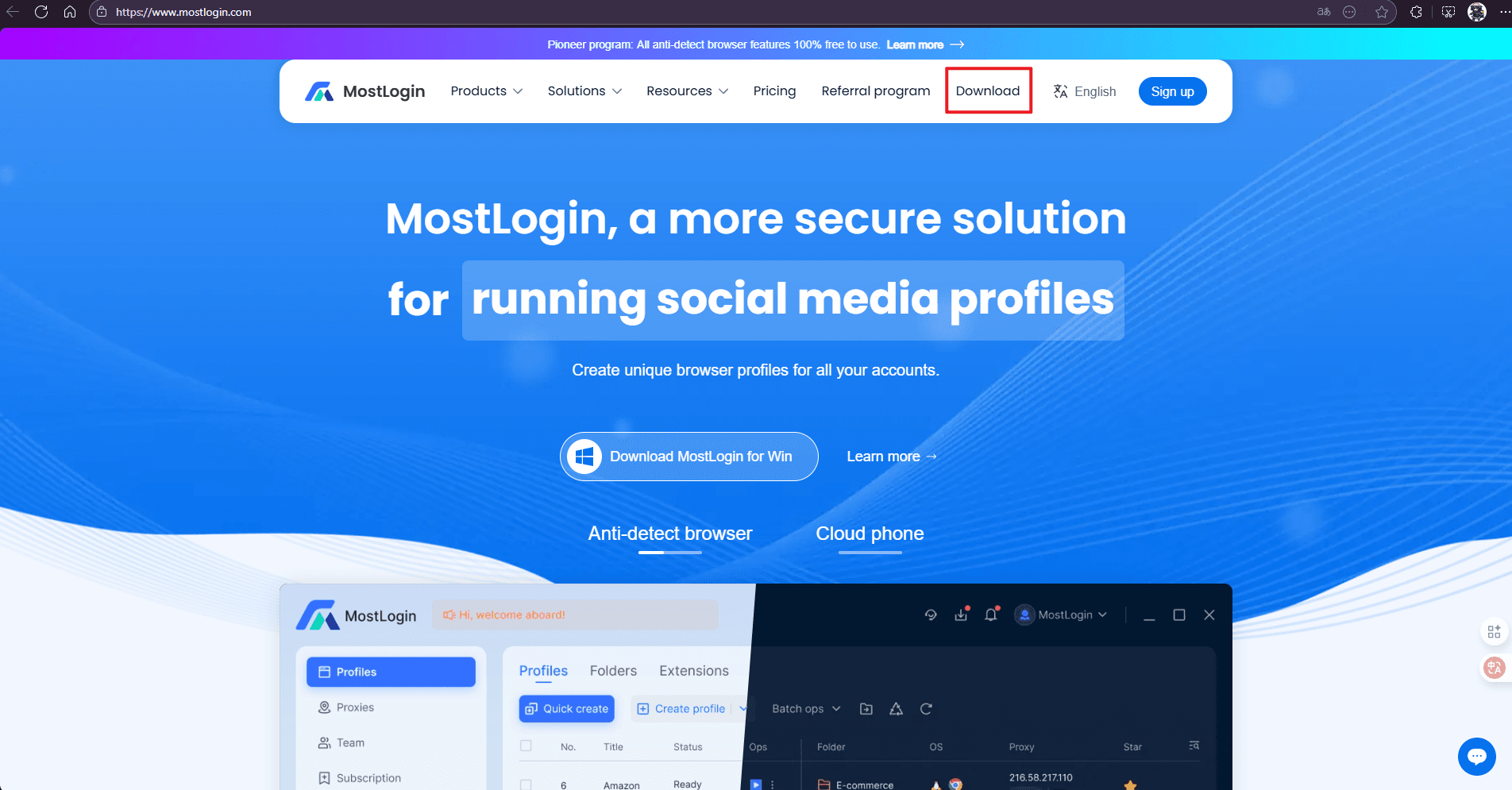
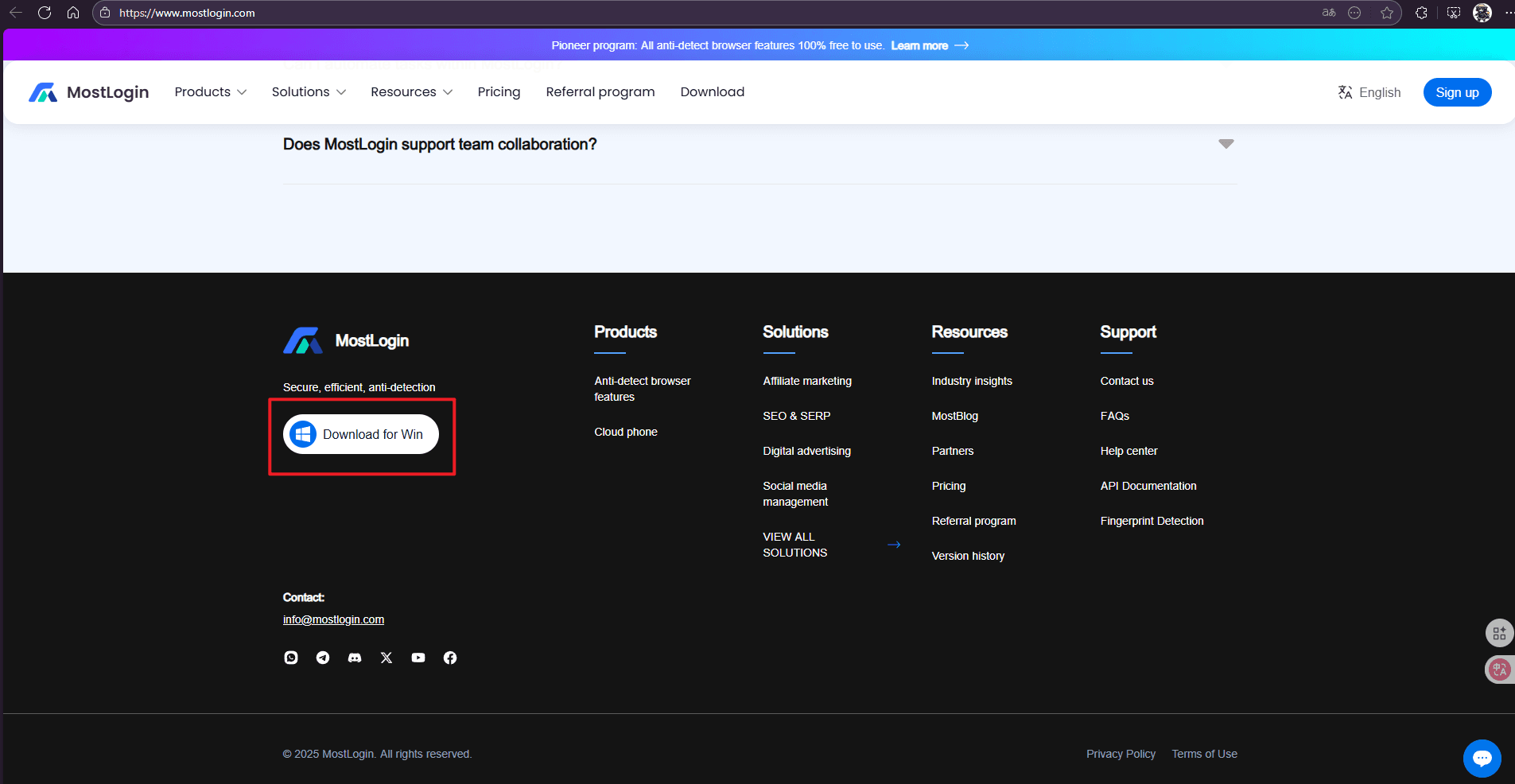
After entering the official website, we can generally see a "Download" button at the top. If it's not available at the top of the page, we recommend checking the bottom of the page.
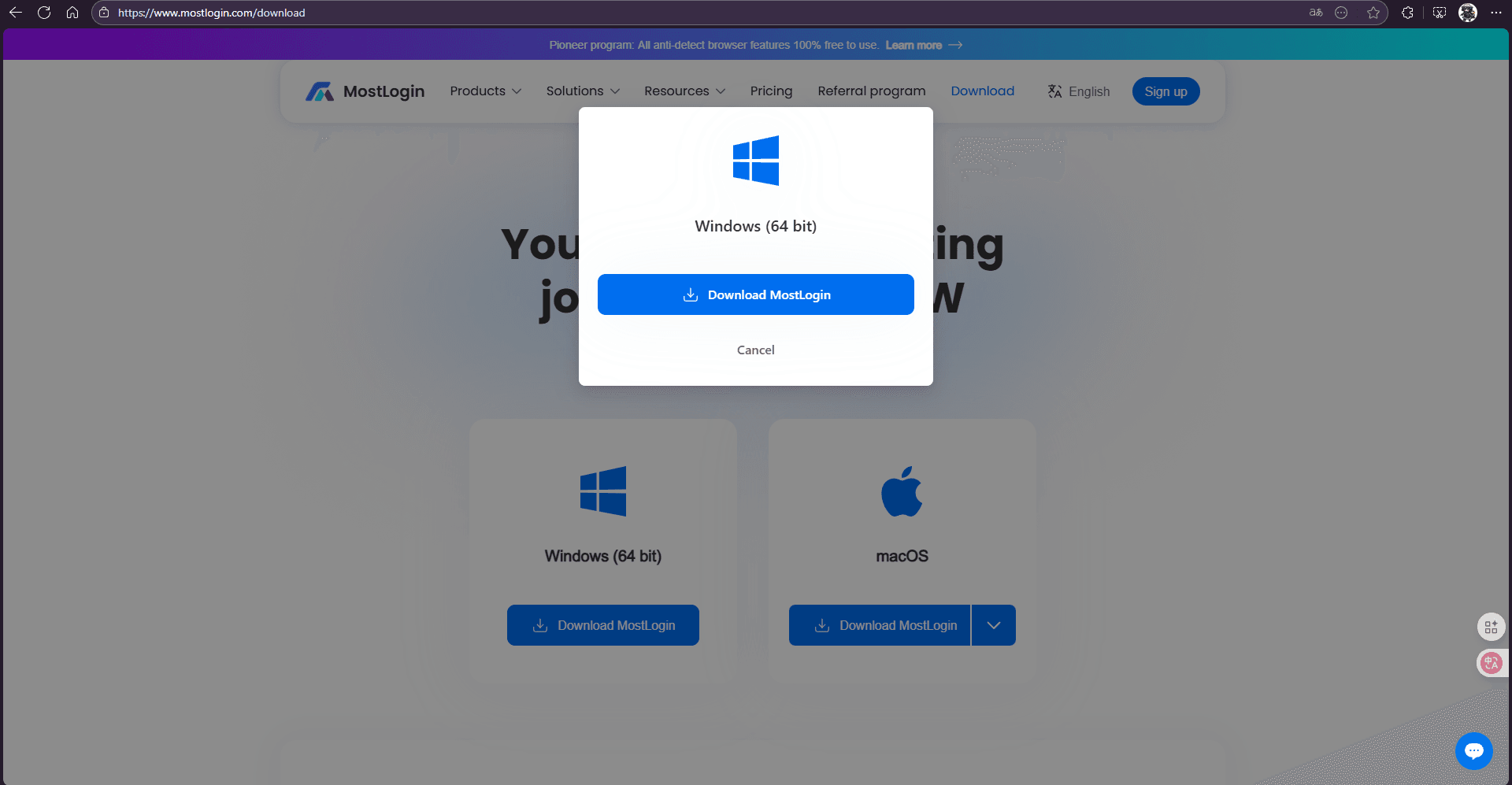
After clicking the button, we will generally be redirected to the download page, where we will also be asked to select your operating system (usually Windows/macOS). Select the operating system corresponding to your computer and click to download.
Step 2: Verify the file security and install
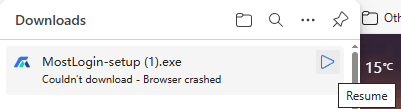
Generally speaking, when downloading, the browser will automatically detect whether the installation package you downloaded is pirated or incorrect. If there are no issues, we can directly click the installation package to start the installation process.
The steps for downloading the anti-detection browser and verifying file security are generally the same for Windows/macOS, but there are differences in the installation process.
Windows Installation Steps:
1. Locate your "Downloads" folder and double-click "MostLogin-setup.exe" (it may be another similar file name).
2. If a "User Account Control" (UAC) prompt appears asking "Do you want to allow this app to make changes to your device?", please click the "Yes" button.
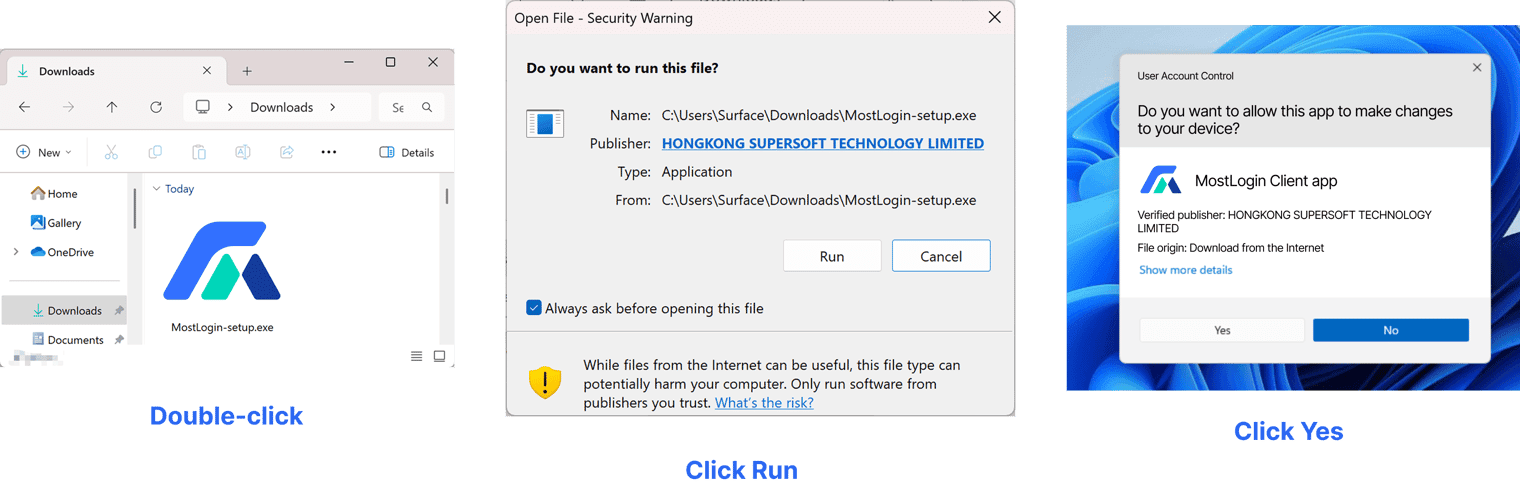
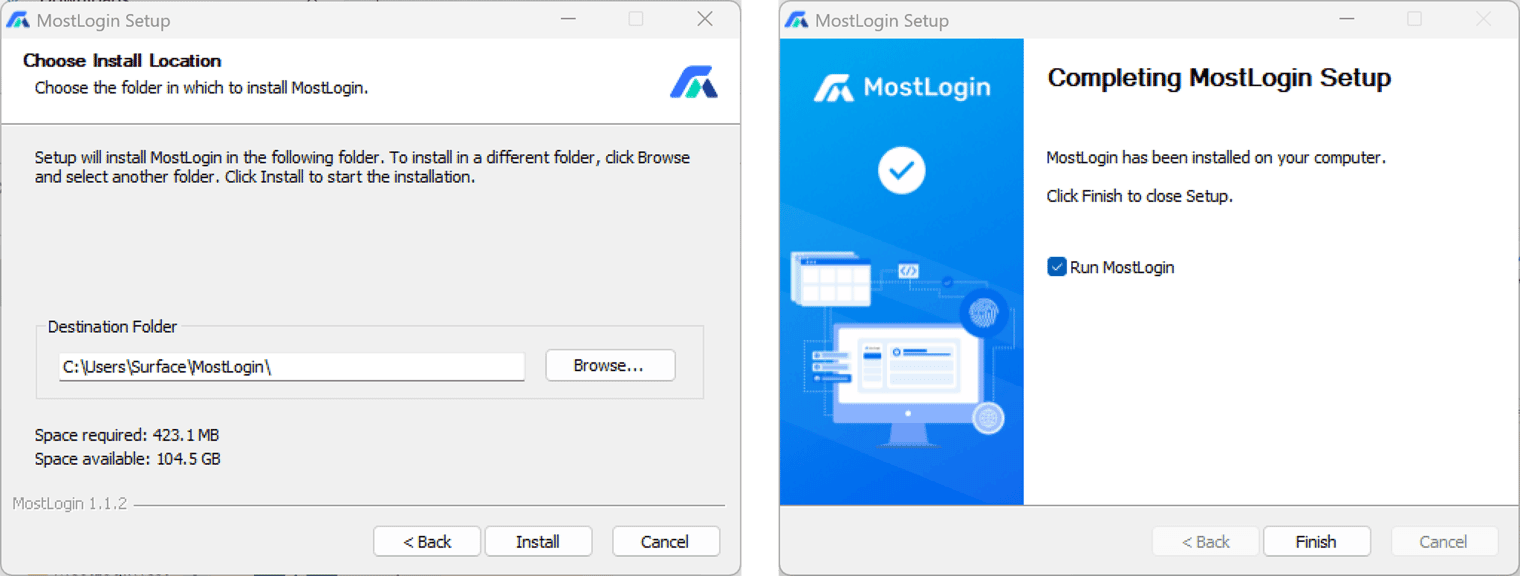
3. Then the welcome screen will appear: click "Next". After reading the license agreement, check "I accept the agreement" and continue clicking "Next". You can use the default path (selected by the system) for the installation location, or click "Browse" to change it. Continue clicking "Install" and wait. After the installation is complete, a completion screen will be displayed, and you can choose whether to start MostLogin immediately. Click "Finish" to exit the installation wizard automatically.
macOS Installation Steps:
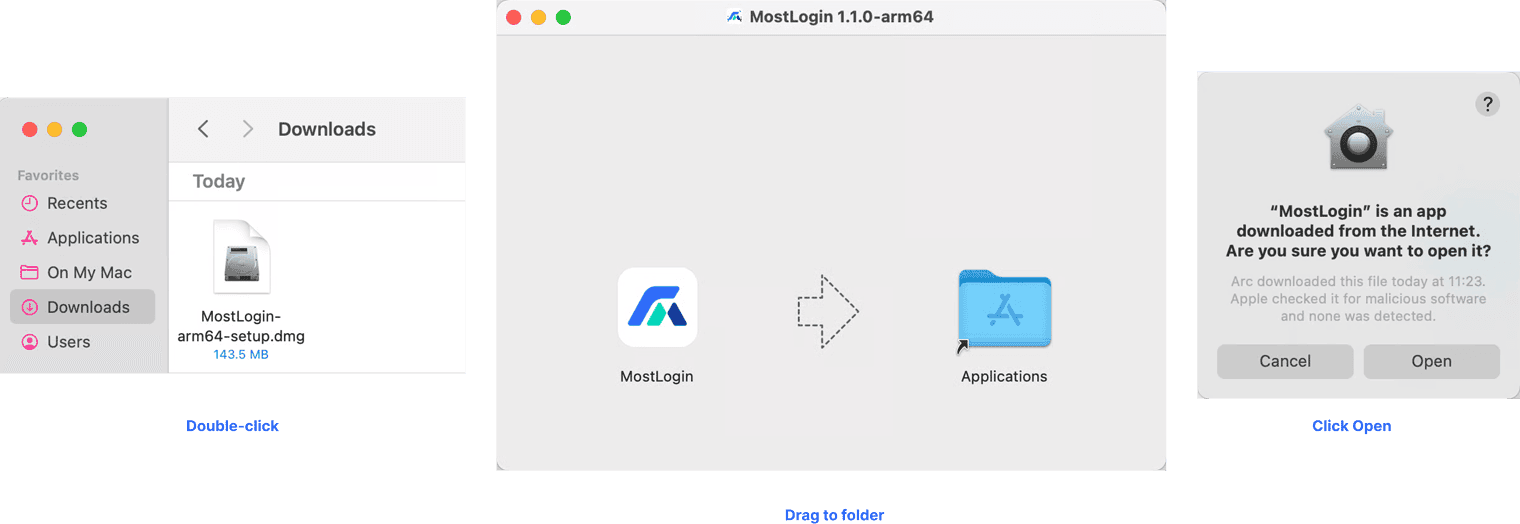
1. Locate your "Downloads" folder and double-click "MostLogin-setup.dmg" (it may be another similar file name), and the system will automatically open a Finder window.
2. In the pop-up Finder window, drag MostLogin.app to the "Applications" folder.
3. Open the "Applications" folder and double-click MostLogin.app to launch the software. When opening it for the first time, macOS may prompt "App from the Internet", just click "Open".
If the installation fails, we need to check if there is insufficient storage space or if all the required permission settings for the installation have been allowed.
Step 3: Open the software to check if it works
After the installation is complete, we need to check if the software can be used normally. After entering the software, we can choose multiple login methods to log in.
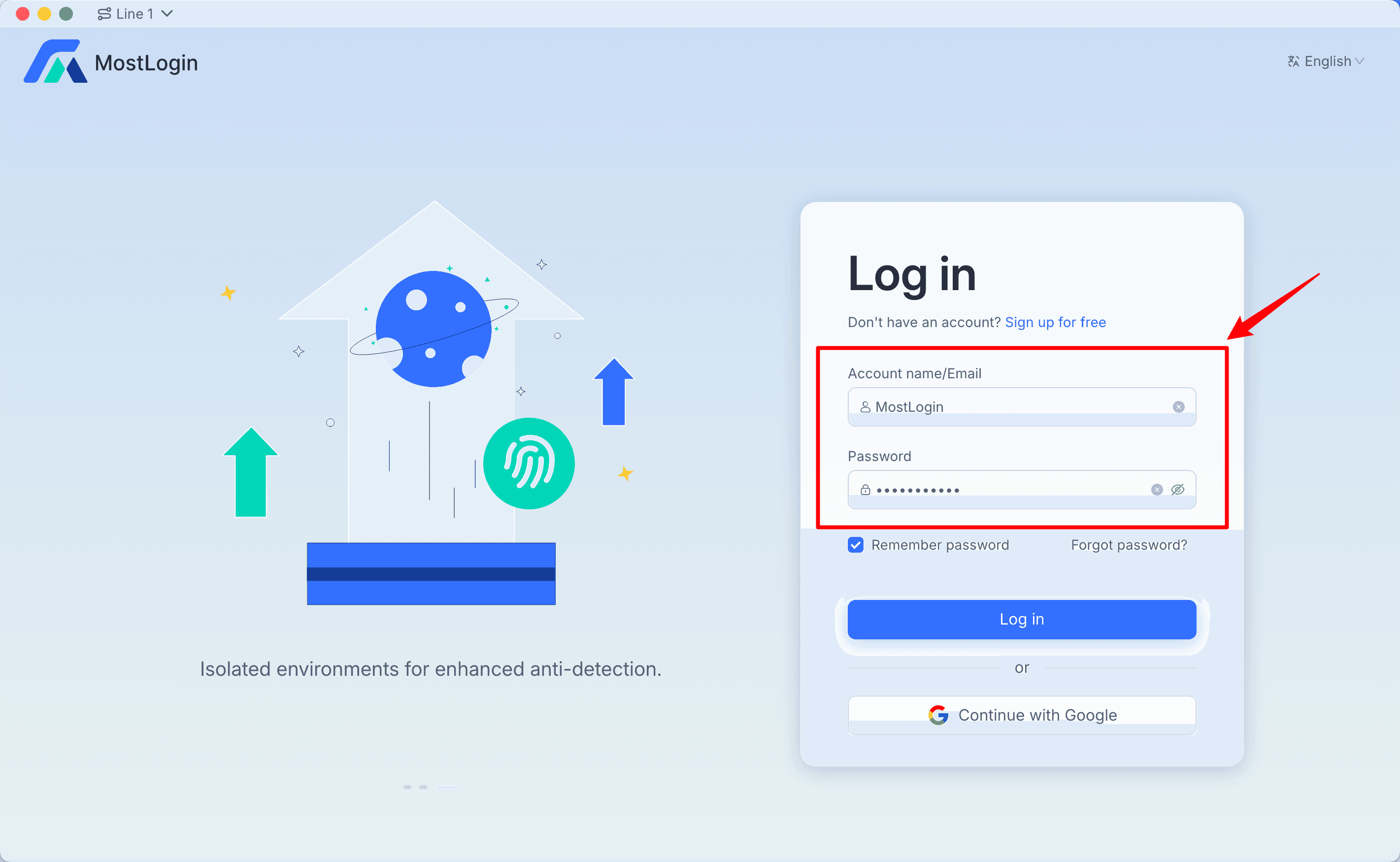
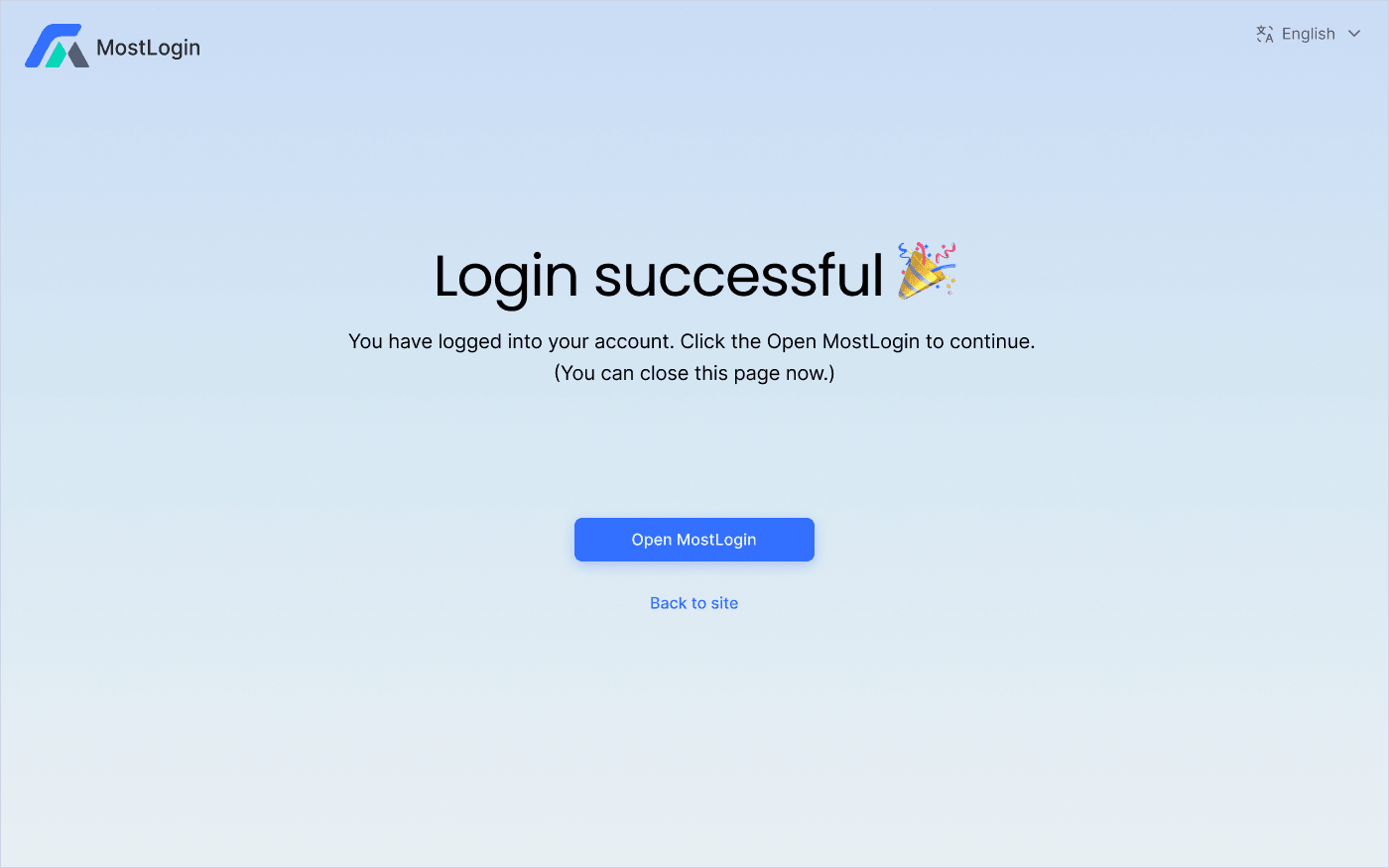
After successful login, such a prompt will appear. Click "Open MostLogin" and we can use the anti-detection browser normally. This overall installation process is correct.
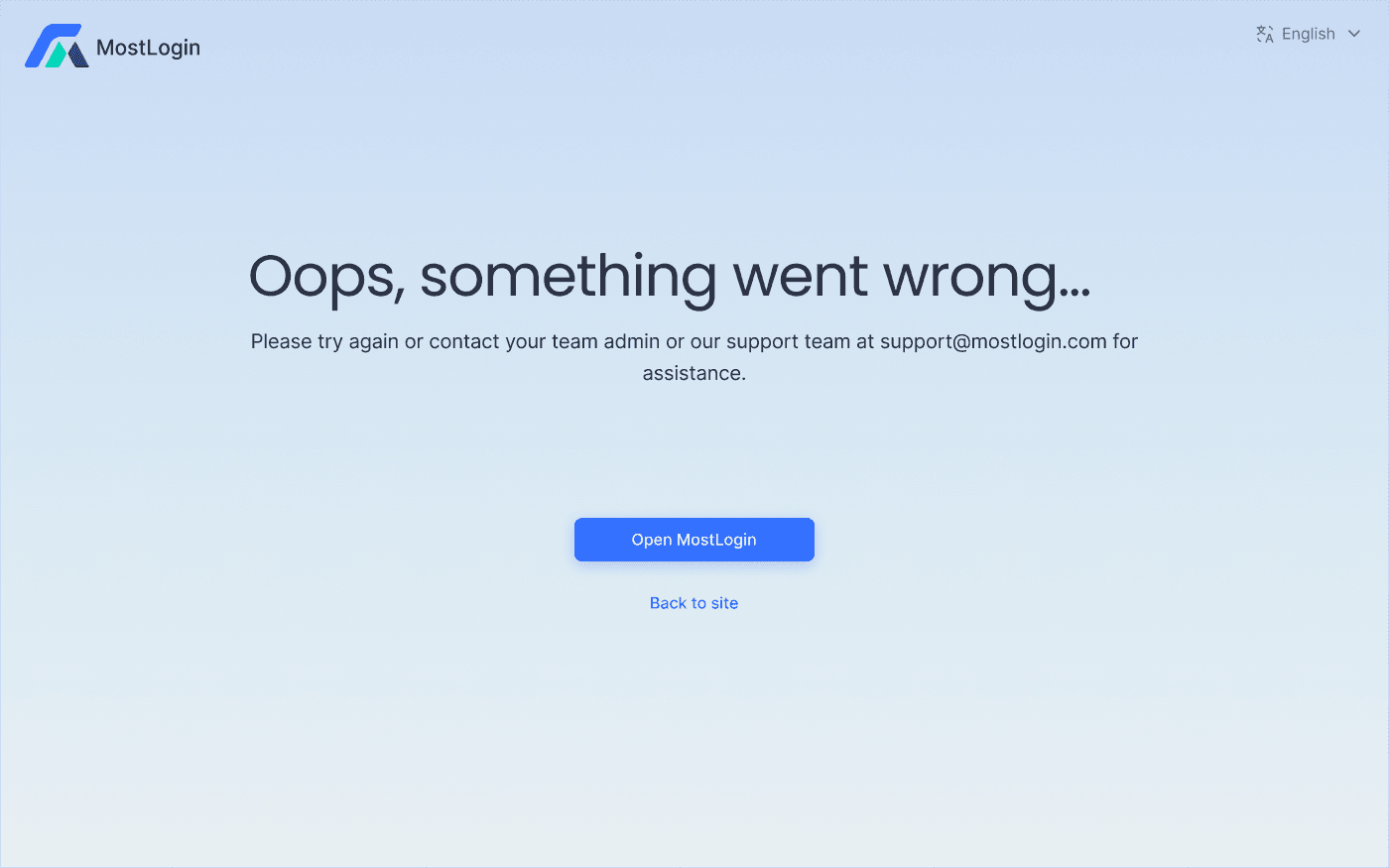
If such a problem is prompted, there may be issues with the previous steps or other problems. You can contact the customer service of the corresponding brand's anti-detection browser for assistance. MostLogin's contact information is: support@mostlogin.com
FAQ:
How can I get the anti-detection browser installation package?
Regardless of the product, the safest way is to visit the official website of the brand and download the installation package corresponding to your operating system. Try to avoid downloading from third-party sources (as you may mistakenly get pirated or outdated versions).
Which operating system version should I download?
You need to choose based on the operating system of the computer you are currently using. If you are unsure about the differences, you can refer to relevant articles for clarification.
macOS prompts "Cannot verify developer" when opening the software for the first time?
This is normal. After confirming that the software is genuine, go to the Privacy & Security section in System Settings and select Allow the app to run.
Windows shows a UAC prompt "Do you want to allow this app to make changes to your device?" during installation?
After confirming that the software is genuine, click "Yes"; otherwise, the installation cannot proceed.
Double-clicking the installation package has no response?
This is usually caused by insufficient storage space, incomplete download, security software interception, or browser blocking. It is recommended to re-download the package and check if the system is blocking it.
The software fails to launch after installation?
This situation is mostly due to permission issues, outdated system versions, or security software blocking. Try restarting your system or reinstalling the application.
Do I need exactly 1GB of space to install this software?
In fact, anti-detection browsers (including MostLogin) are not very large in size—usually tens to hundreds of MB. Reserving 1GB of space is mainly to ensure more stable installation and subsequent use.
The Best Anti-Detection Browser - MostLogin
MostLogin Anti-Detection Browser helps users solve high-frequency issues such as multi-account management, environment isolation, and account risk control.
For operational questions, please refer to the Official Help Center