This article mainly explains how to install an anti-detect browser step by step, helping users who want to use an anti-detect browser but don't know how to install it solve related problems. I will take MostLogin Anti-Detect Browser as an example to show the detailed installation steps, and answer some common questions about installation at the end, hoping to assist users with relevant needs.
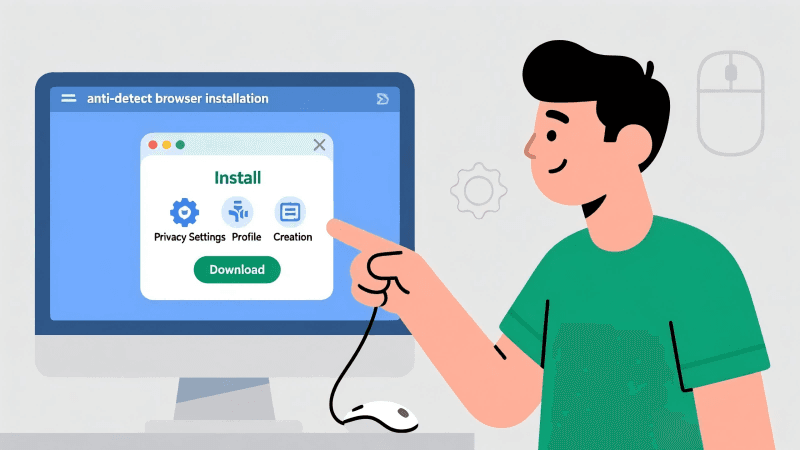
What is an Anti-Detect Browser?
An anti-detect browser is a professional tool used to simulate different browser fingerprint environments. Its function is to make each browser environment act like an independent device, so that major platforms cannot track and link your multiple accounts through device information and other data, preventing your accounts from being banned or penalized collectively. This tool is generally used in fields such as cross-border e-commerce, multi-account marketing, advertising, and social media management, helping users securely manage multiple accounts and reduce the risk of account suspension.
What Should We Pay Attention to Before Installation?
Confirm supported platforms: Most anti-detect browsers support Windows and macOS; other platforms depend on the specific software.
Functional computer: Compatible with Windows, macOS, and other platforms supported by the software.
Stable internet connection: Avoid network interruptions during operation that may affect subsequent downloads or activation.
Sufficient hard disk space: It is recommended to reserve at least 1GB of free space.
Download from the official website: Prevent installing pirated versions, malware-infected files, or outdated versions.
Disable unnecessary blocking software: Some security software may incorrectly identify the installation package.
Step 1: Download the Browser
Open Google/Bing and search for the anti-detect browser brand you want to download, such as "MostLogin Anti Detect Browser".

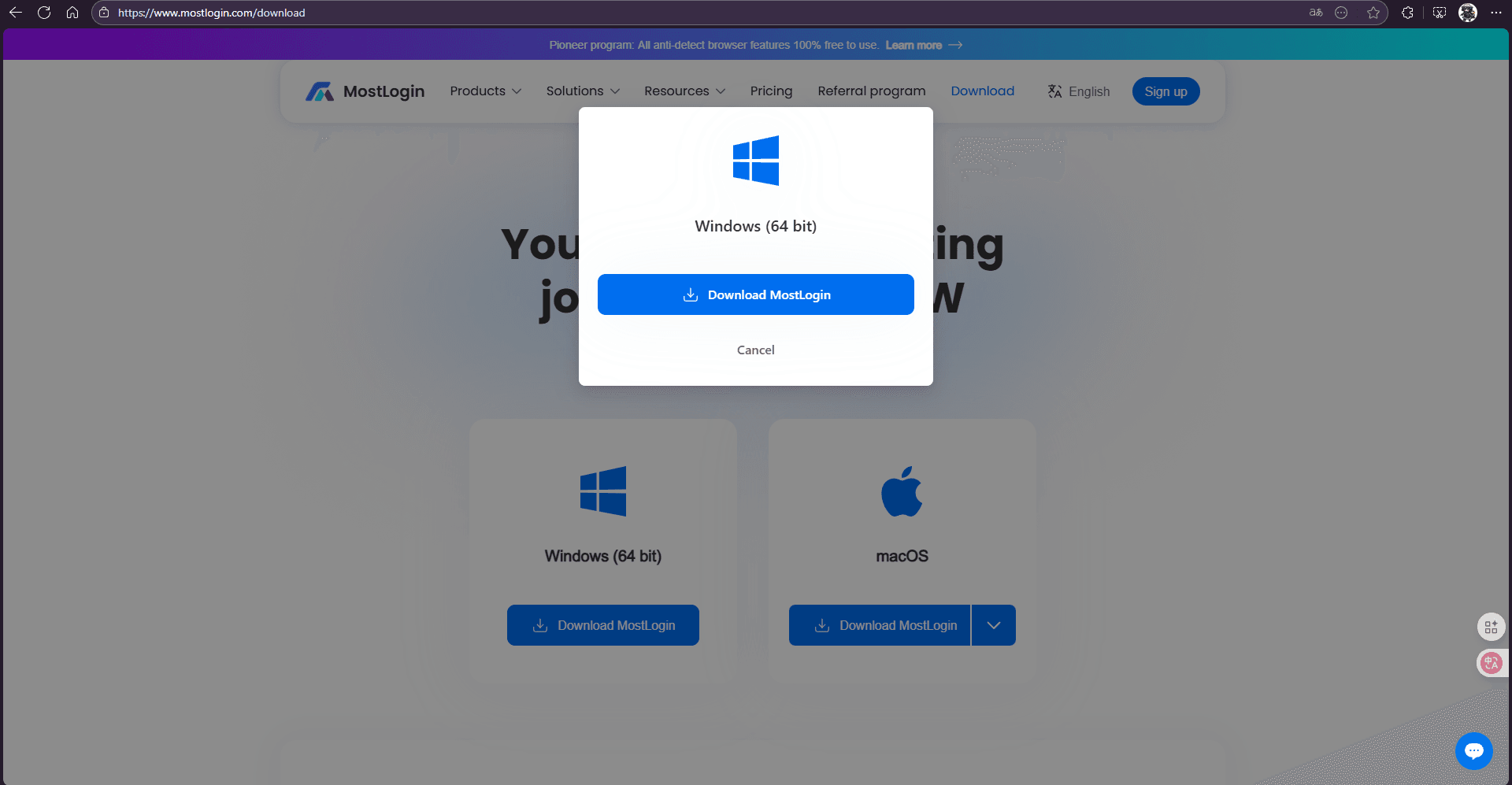
Access the official website (marked with an official badge) and click the "Download" button at the top or bottom of the page. We only recommend downloading the installation package from the official website; third-party sources may contain viruses, pirated versions, modified files, or outdated releases.
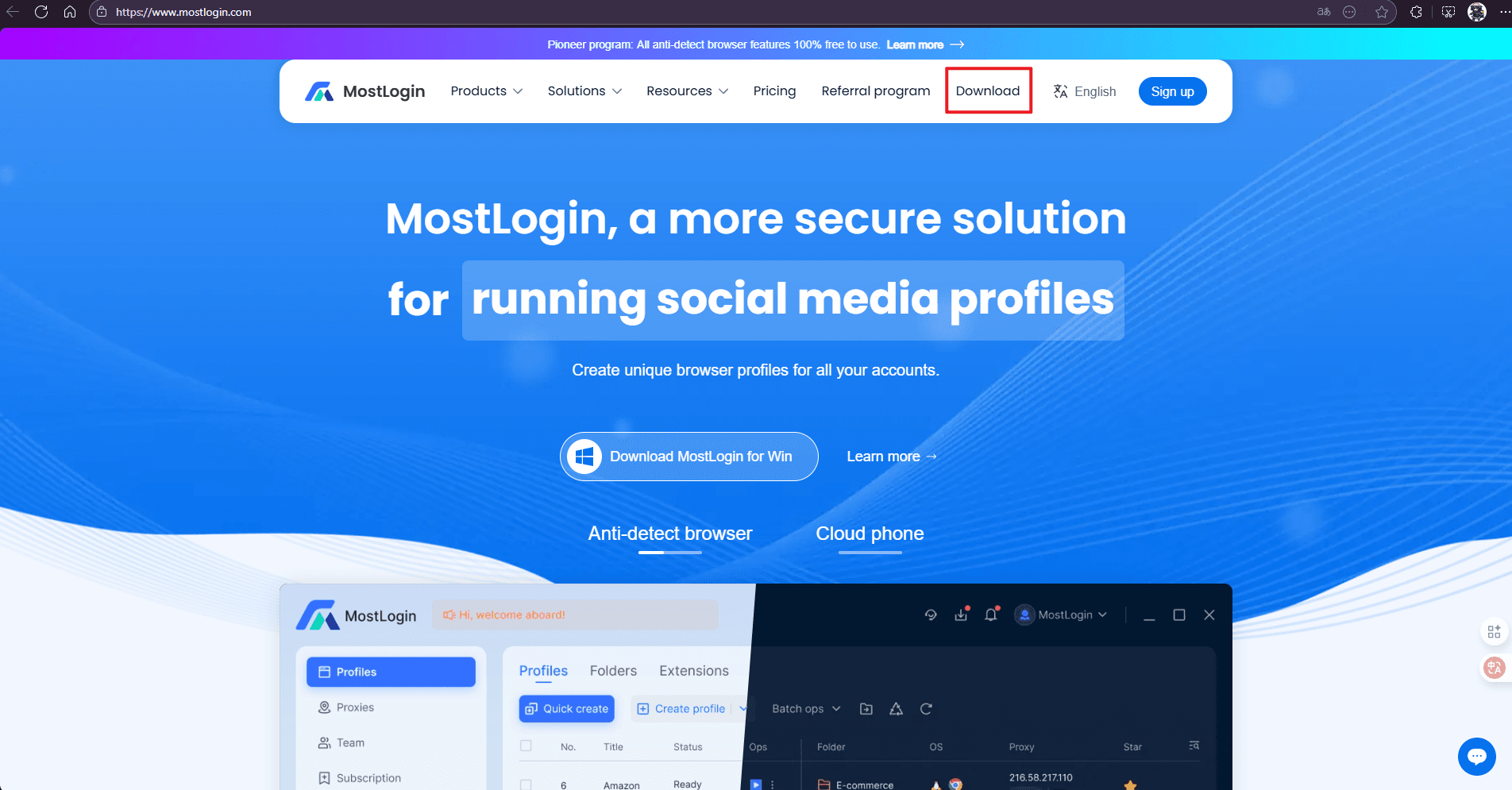
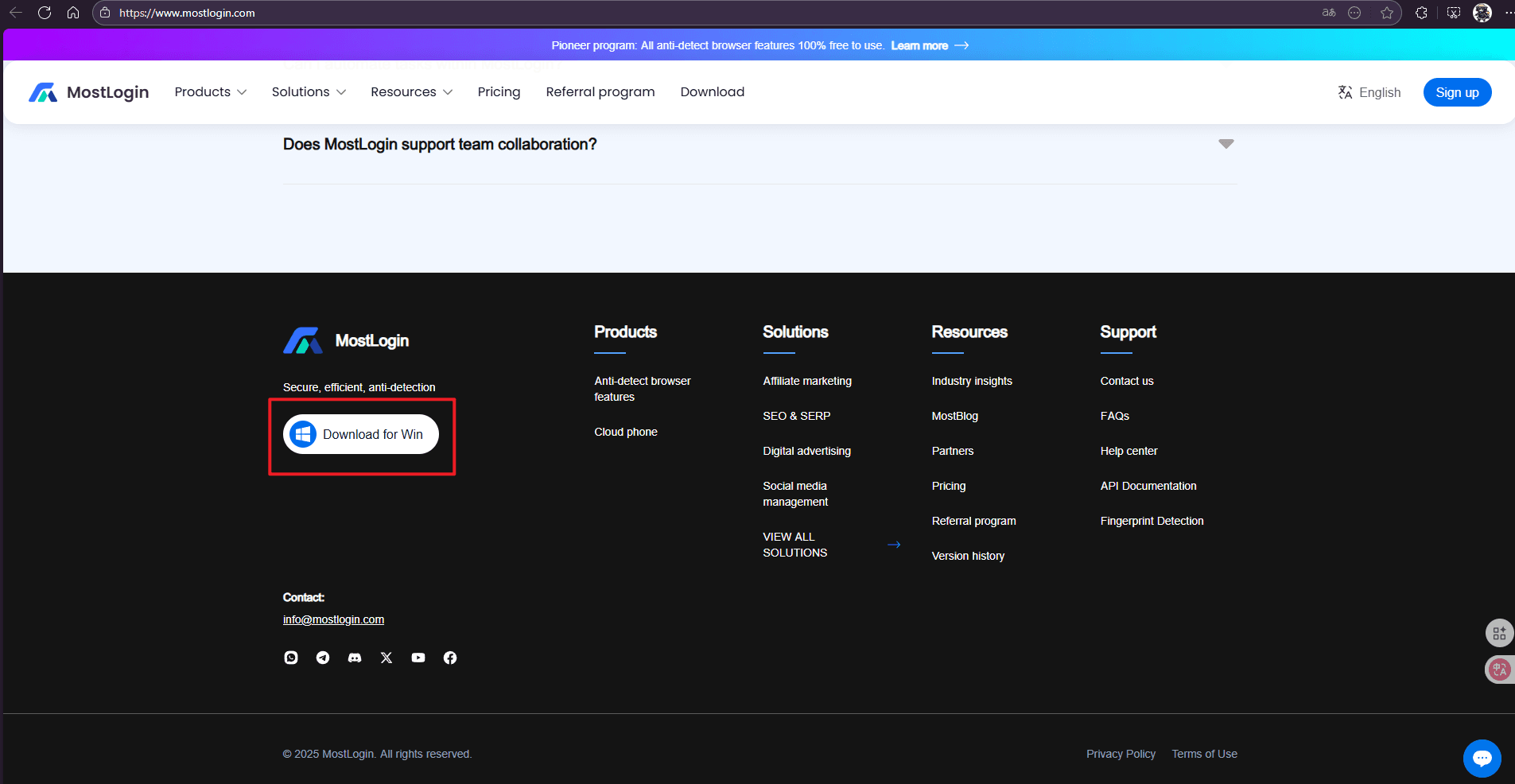
Important Notes for This Step:
- Check system compatibility (Windows/macOS)
- Ensure you are downloading the latest version
- Verify the file size is normal (if the file is abnormally small or large, we recommend re-downloading it.)
Step 2: Install the Browser
After the download is complete, follow the installation instructions for your operating system.
Windows Installation Steps:
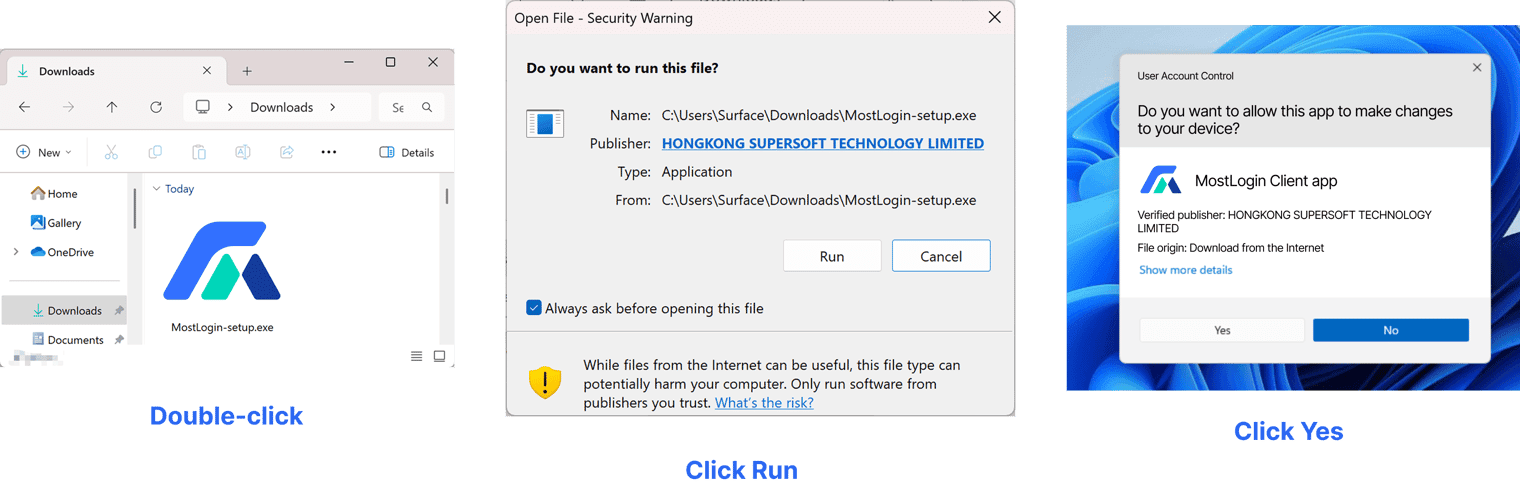
Open the Downloads folder and double-click the installation package (usually named MostLogin-setup.exe).
The system will display a UAC prompt: "Do you want to allow this app to make changes to your device?" Select "Yes".
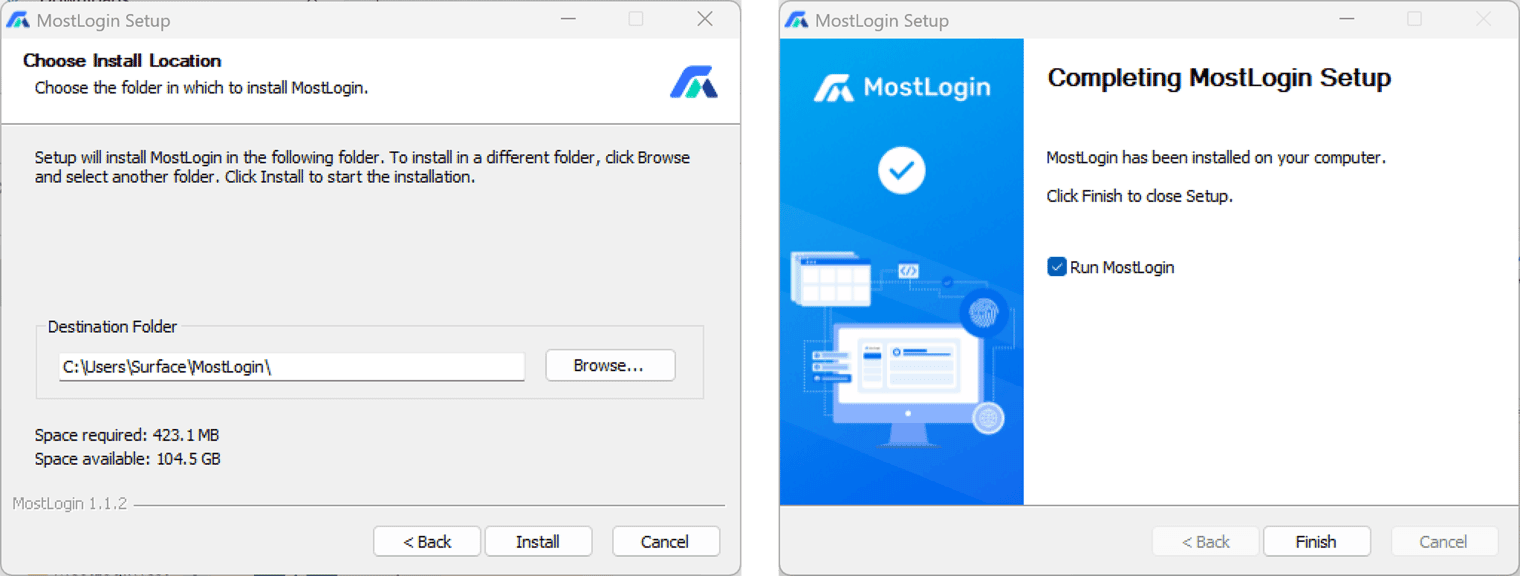
Once the installer launches, click "Next", read the license agreement and check "I accept", then choose the installation path (the default path is recommended).
Click the "Install" button and wait for the installation to complete. You can then click "Finish" or select to launch the browser immediately.
Installation Screenshots:
macOS Installation Steps:
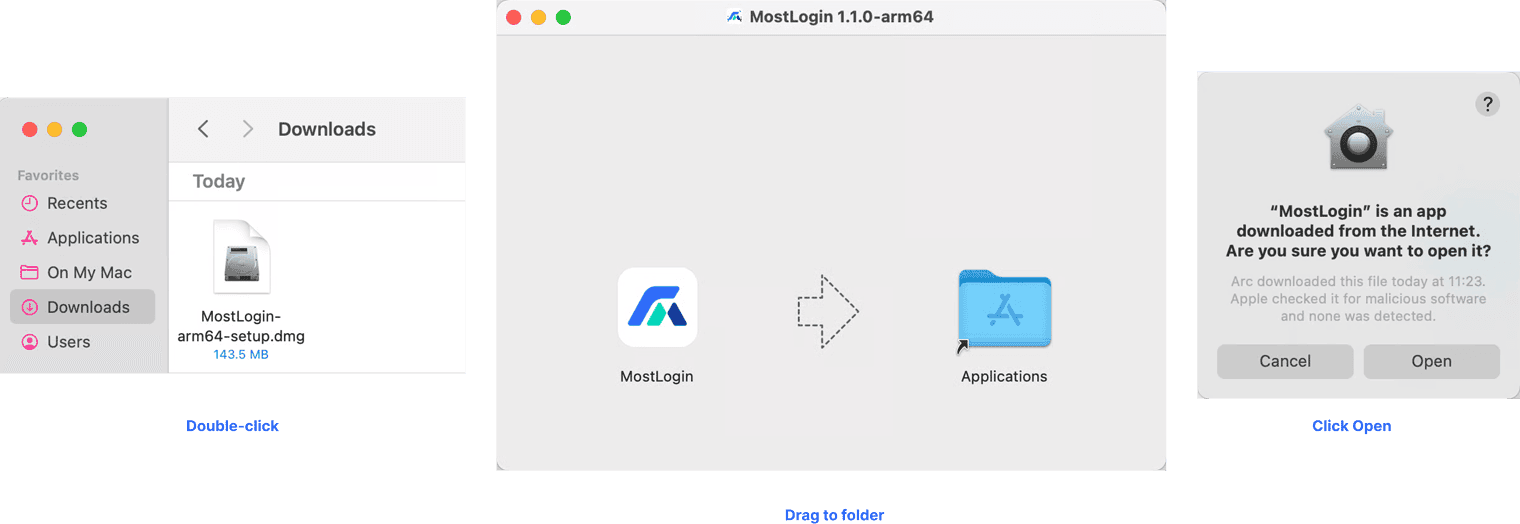
Open the downloaded .dmg or .pkg file. Drag MostLogin.app into the Applications folder.
When opening the browser for the first time, a prompt "App downloaded from the internet" may appear; click "Open" to proceed.
If the system blocks the app, go to System Settings → Privacy & Security and click "Allow this app".
Installation Screenshots:
Step 3: Login and Configuration
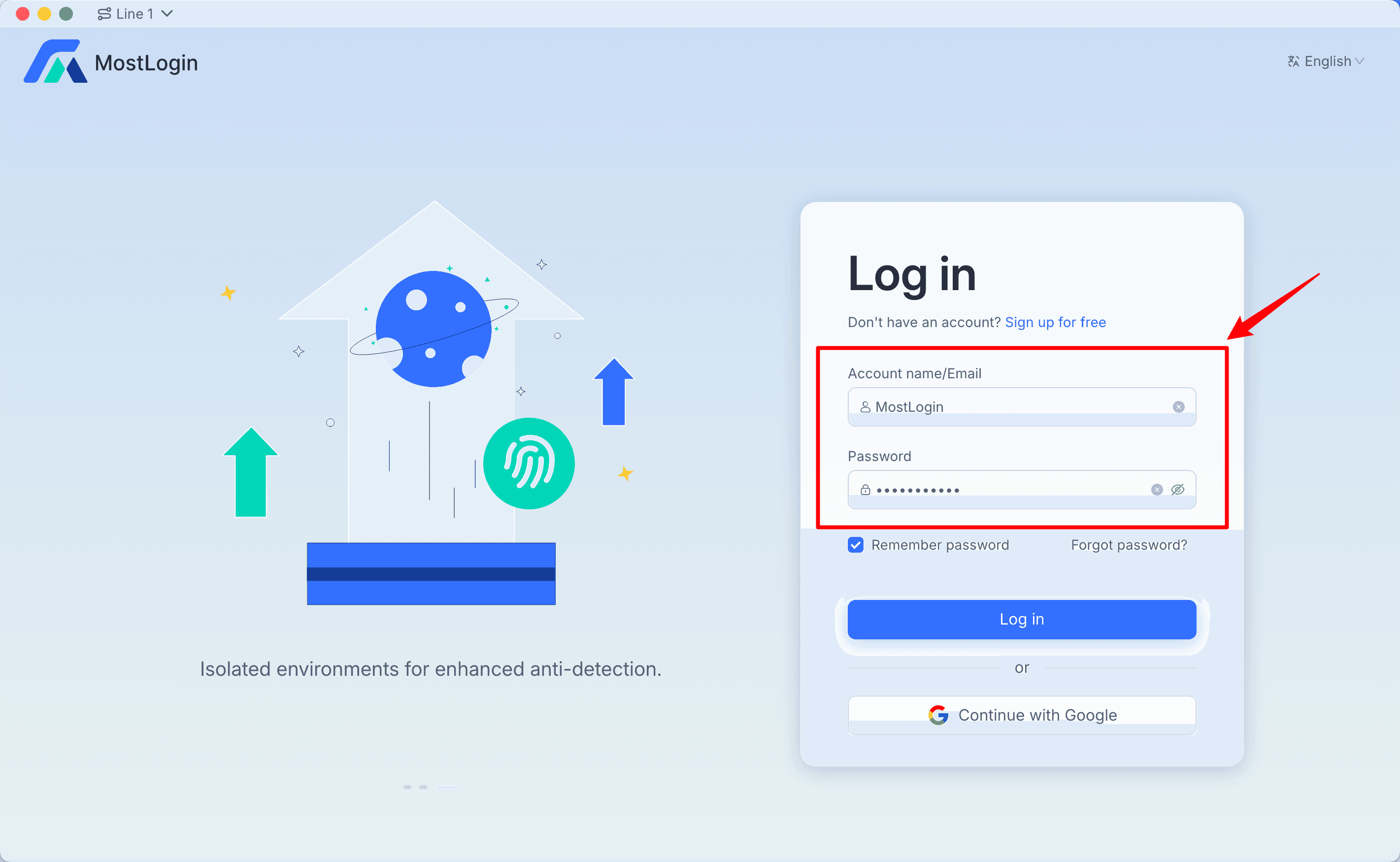
After installation, verify that the software runs properly. Launch the browser and choose from multiple login methods.
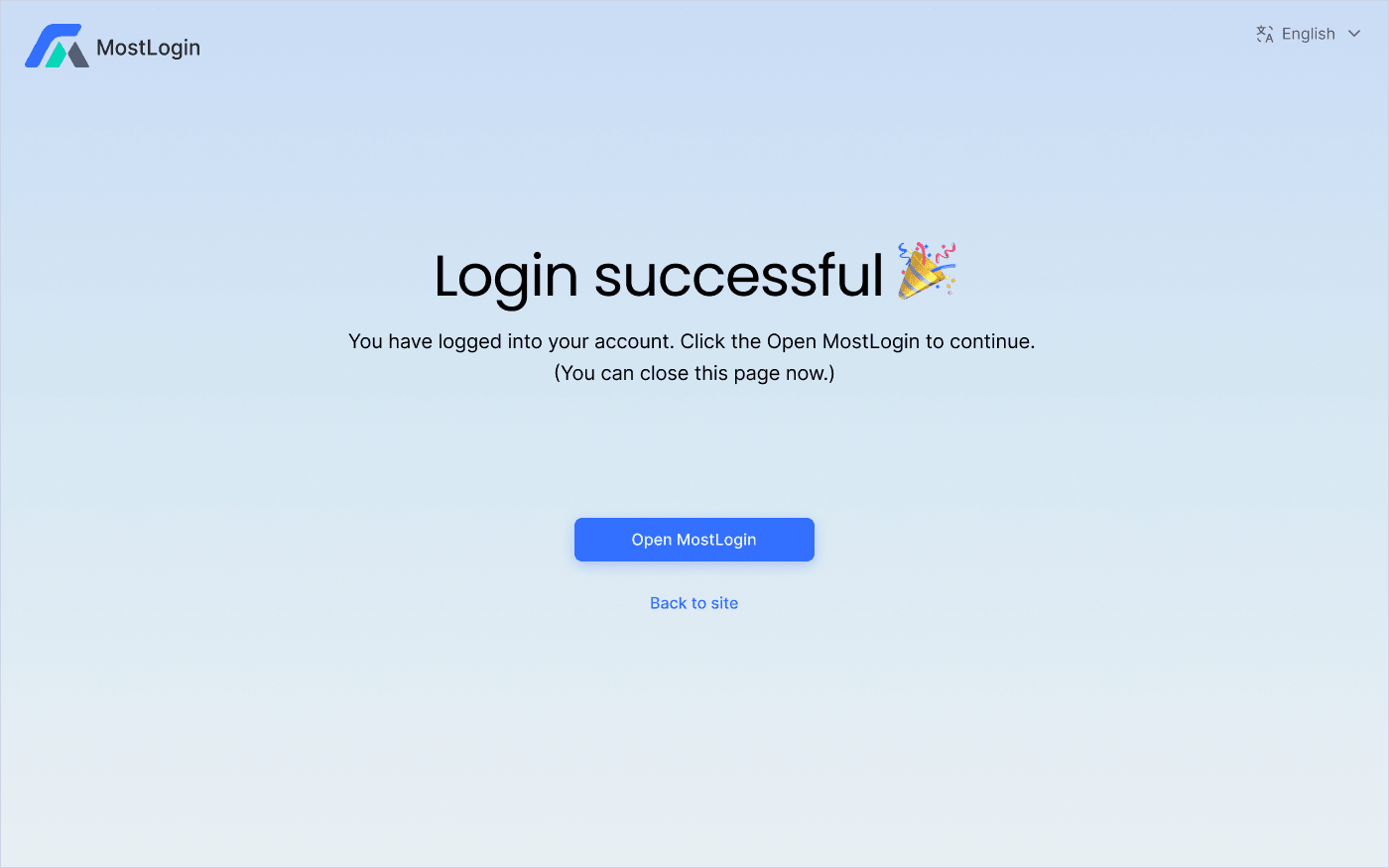
After successful login, the following prompt will appear. Click "Open MostLogin" to start using the anti-detect browser—your installation is now complete!
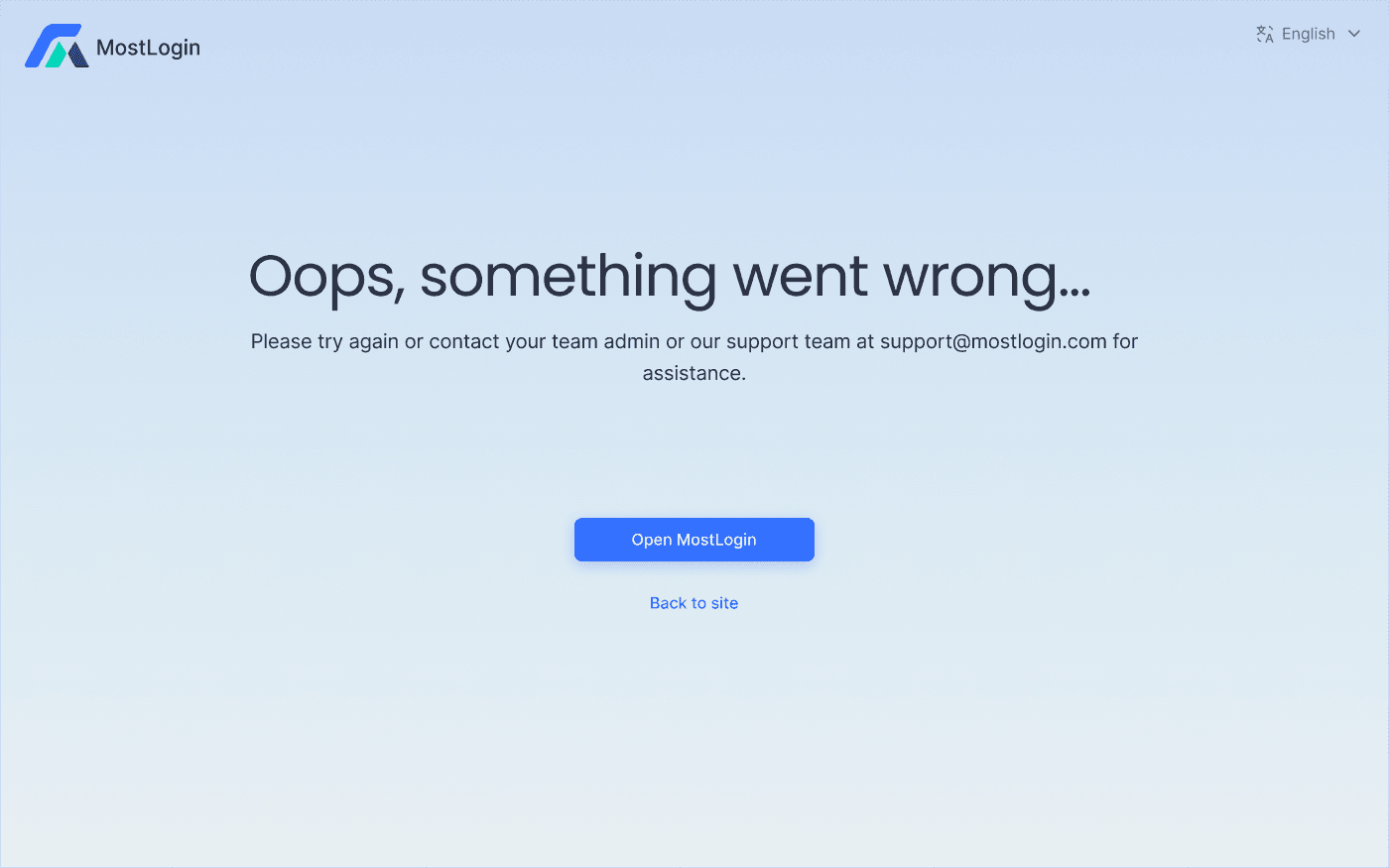
If you encounter the following error, there may be an issue with previous steps or other technical problems. Contact the anti-detect browser's customer support for assistance. MostLogin's support email: support@mostlogin.com
About Configuration:
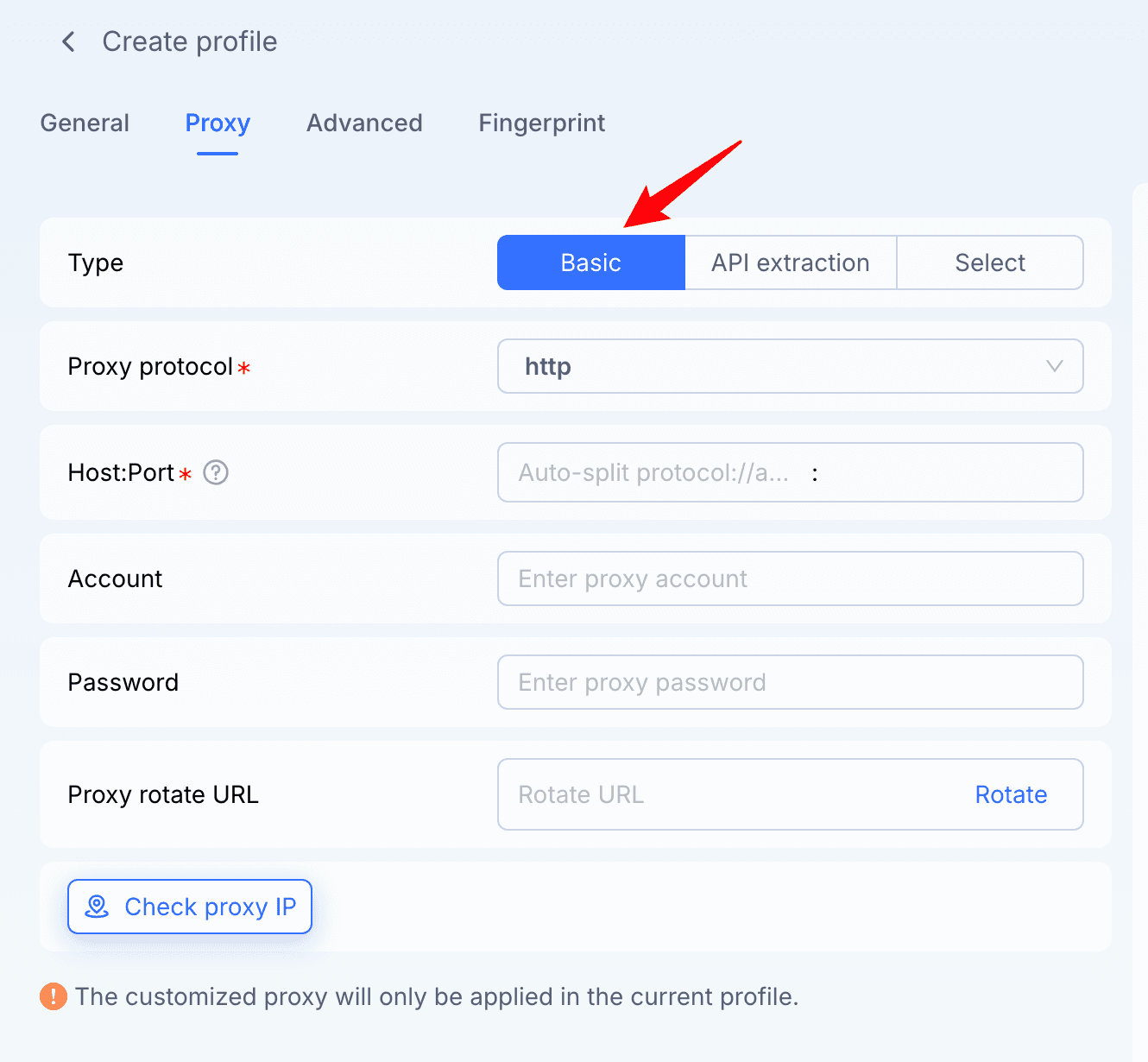
For new users, MostLogin provides 3 pre-configured profiles for Windows, macOS, and Linux. These profiles do not include proxy settings—we recommend customizing them before use, as all parameters can be adjusted according to your needs.
Basic Profile Creation Steps:
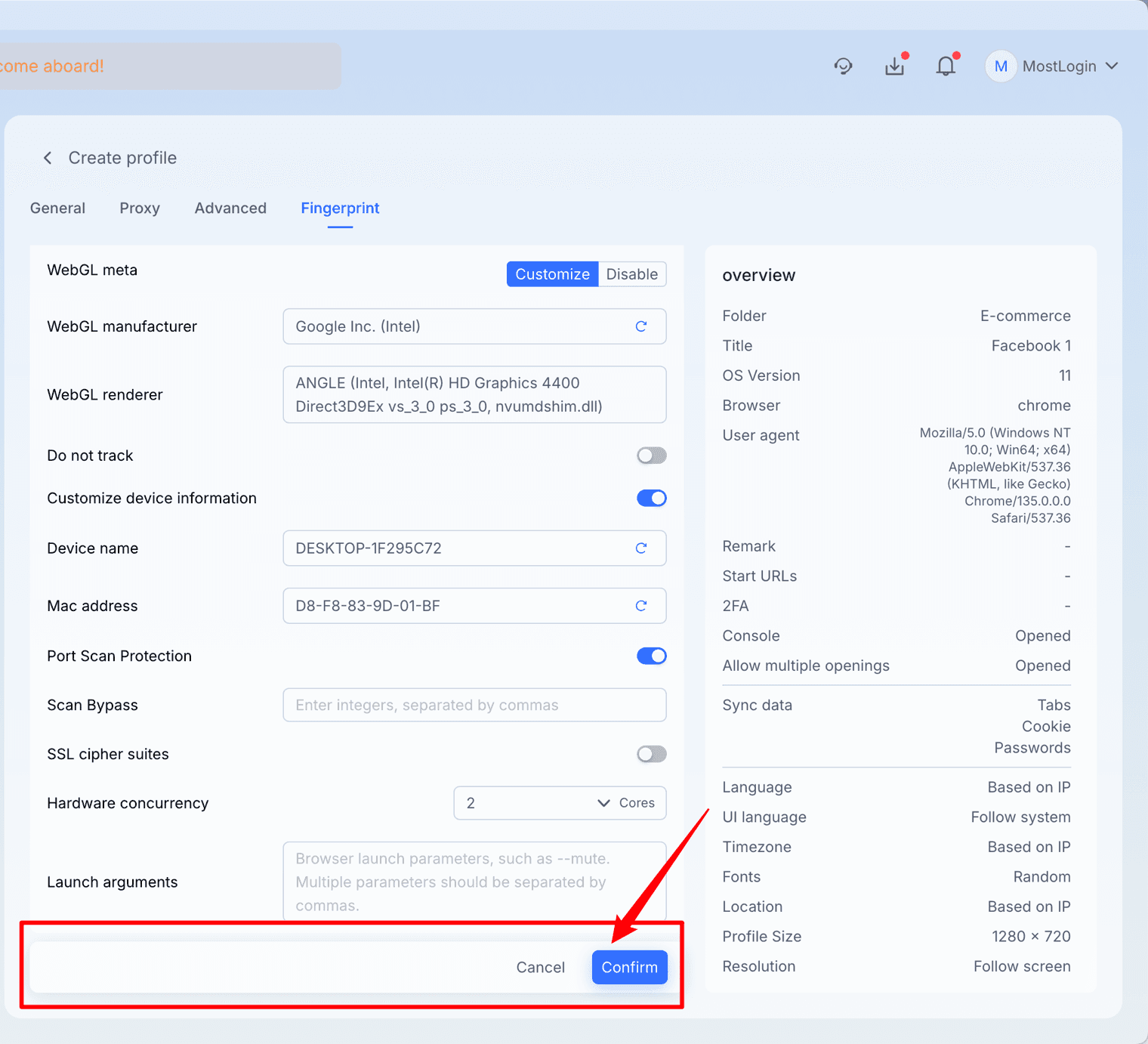
After logging in, find "Create New Profile" on the main interface or select Quick Configuration.
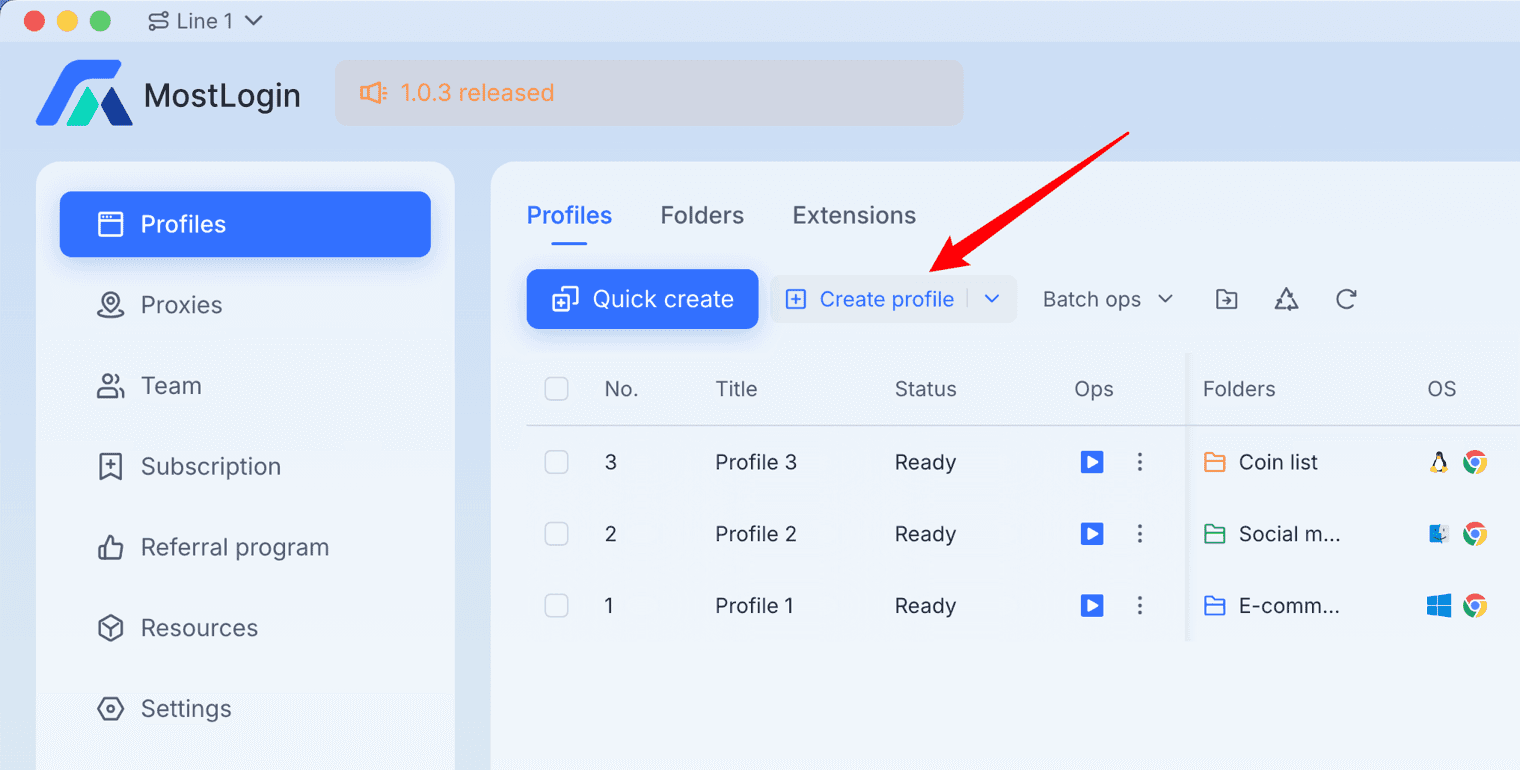
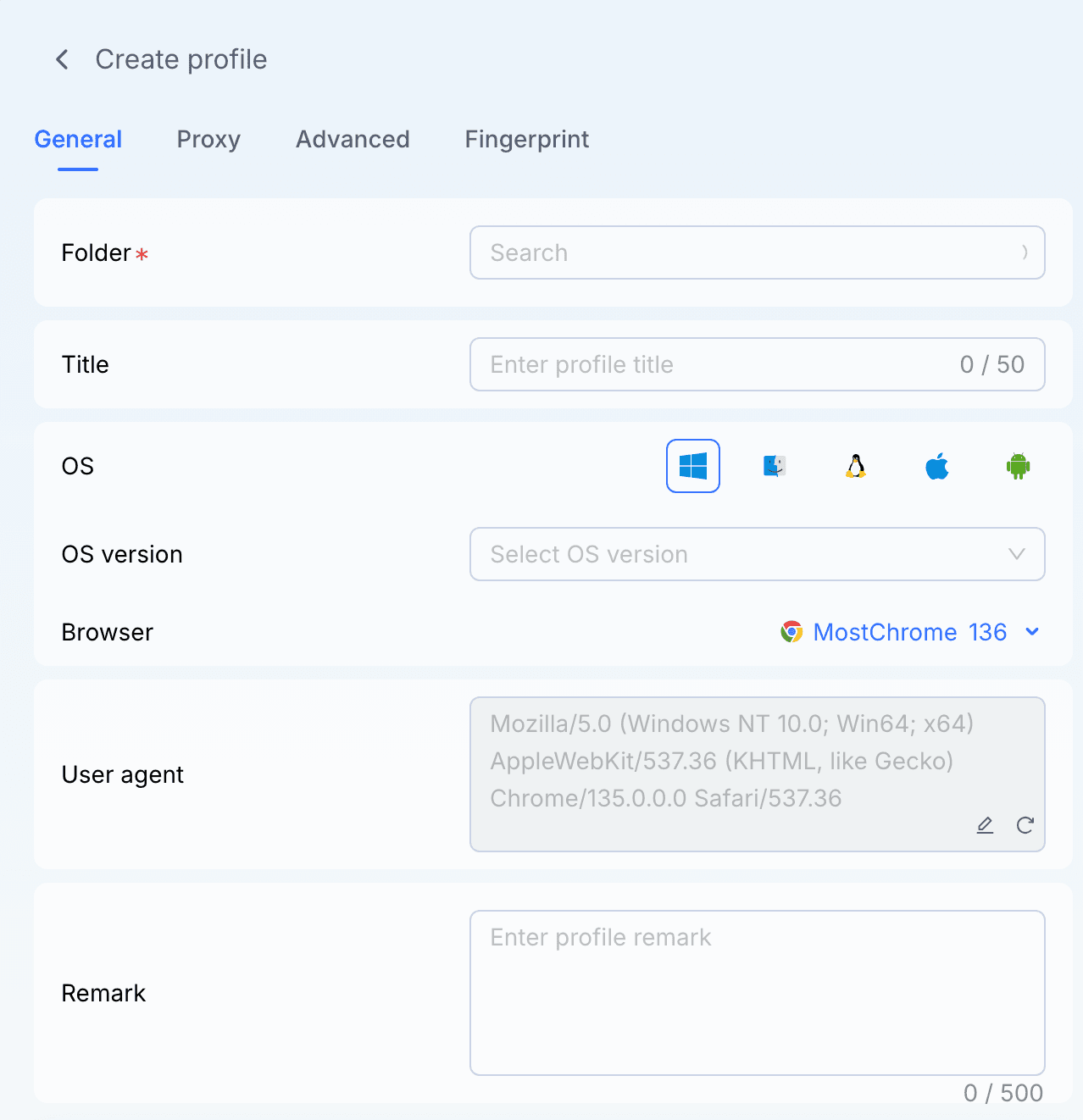
Enter basic information such as profile name and tags.
Configure IP or proxy settings.
Finally, save the configuration.
Common Installation Issues & Solutions:
What if double-clicking the installation package does nothing?
This is usually caused by an incomplete download, browser blocking, or security software interference. Re-download the installation package and temporarily disable your security software.
Why does Windows show "Do you want to allow this app to make changes to your device"?
This is a normal UAC prompt that appears when installing most software. Click "Yes" to continue—otherwise, the installation will be interrupted.
What if I get an "insufficient space" error during installation?
Free up disk space or change the installation path to another hard drive. Generally, 1GB of free space is sufficient for installation.
What if macOS shows "Cannot verify developer"?
Go to "System Settings → Privacy & Security" and allow the app to run. This is a standard macOS prompt for first-time installations of third-party software.
Where can I find the software after installing it on a Mac?
MostLogin.app will be located in the "Applications" folder—simply open it to launch the browser.
What if the software crashes immediately after opening?
This may be due to outdated software/operating system, insufficient permissions, or corrupted files. We recommend restarting your computer → reinstalling the latest version → allowing the app in permission settings.
Why is the installation speed very slow?
Slow installation may be caused by low disk read/write speeds, too many background programs, or real-time scanning by security software. Closing unnecessary applications can significantly speed up the process.
Can I use the same installation package on multiple devices?
Yes, but only on devices with the same operating system (e.g., all Windows or all macOS). There is no limit to the number of devices for installation.
The Best Anti-Detect Browser - MostLogin
MostLogin Anti-Detect Browser helps users solve high-frequency issues such as multi-account management, environment isolation, and account risk control.
For operational questions, refer to the Official Help Center