Managing cross-border stores and client social media accounts involves more than switching between logins. Each business needs a consistent account environment, and team members need access that matches their responsibilities. As account portfolios evolve, repeated setup, proxy configuration, and profile organization can take time away from daily operations.
MostLogin’s antidetect browser brings isolated profiles, proxy management, batch tools, and team permissions into one application, helping you manage account environments across different clients, stores, and campaigns.
Create Separate Browser Profiles for Different Accounts
Give Each Account a Dedicated Environment
Create a dedicated profile for each authorized account that requires a separate environment. A retailer’s store account and an agency client’s social account, for example, should have clearly assigned workspaces.
Each MostLogin profile maintains its own fingerprint settings, cookies, and local storage. These separate environments help reduce data mixing and environmental overlap between unrelated accounts.
The priority is consistency. Cookies retain session information, while browser characteristics contribute to the environment a platform observes. Maintaining an established environment is more useful than repeatedly creating new profiles or changing settings without a reason.
Environment separation does not remove relationships established through account ownership, billing details, or business activity. It also cannot guarantee protection from verification or restrictions.
Make Profiles Easy to Identify
Name profiles according to their business purpose. “ Instagram 1 — Content Team” gives an operator more context than an unexplained number.
Return to the same profile for subsequent work on that account. Before entering credentials or uploading business information, confirm that the profile belongs to the intended store, client, or campaign.
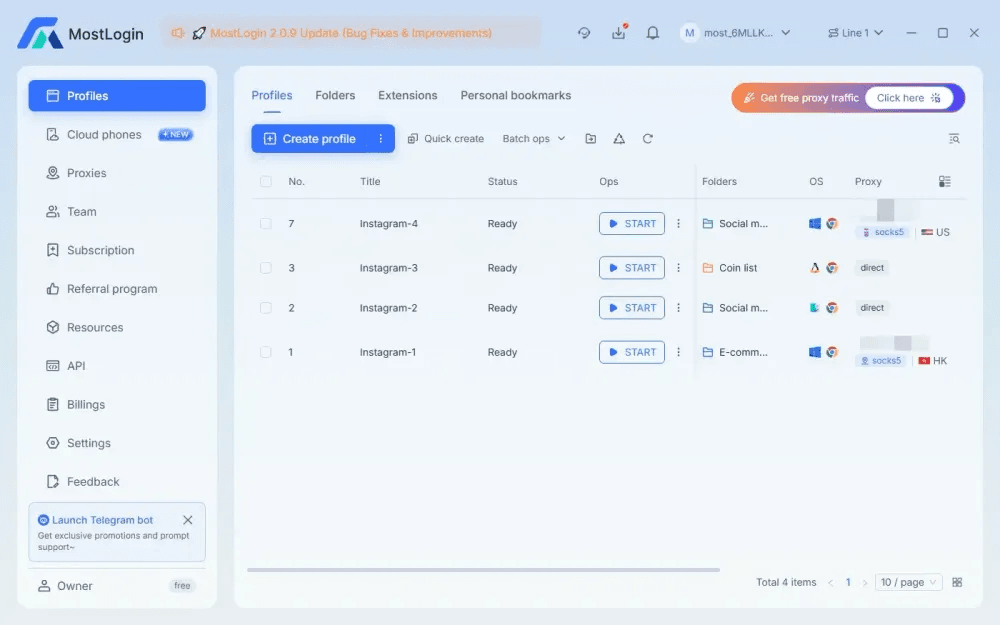
Keep technical settings consistent with the intended environment. User Agent information describes browser and operating-system characteristics, but changing it alone does not create a complete, independent account environment.
Manage Proxies for Each Browser Profile
A separate profile does not automatically provide a separate public IP address. The profile manages the browser environment; the proxy manages the network exit.
Assign the intended proxy to its corresponding profile, then check the connection before signing in. Confirm that the exit location fits the legitimate business requirement and investigate unexpected changes rather than ignoring them.
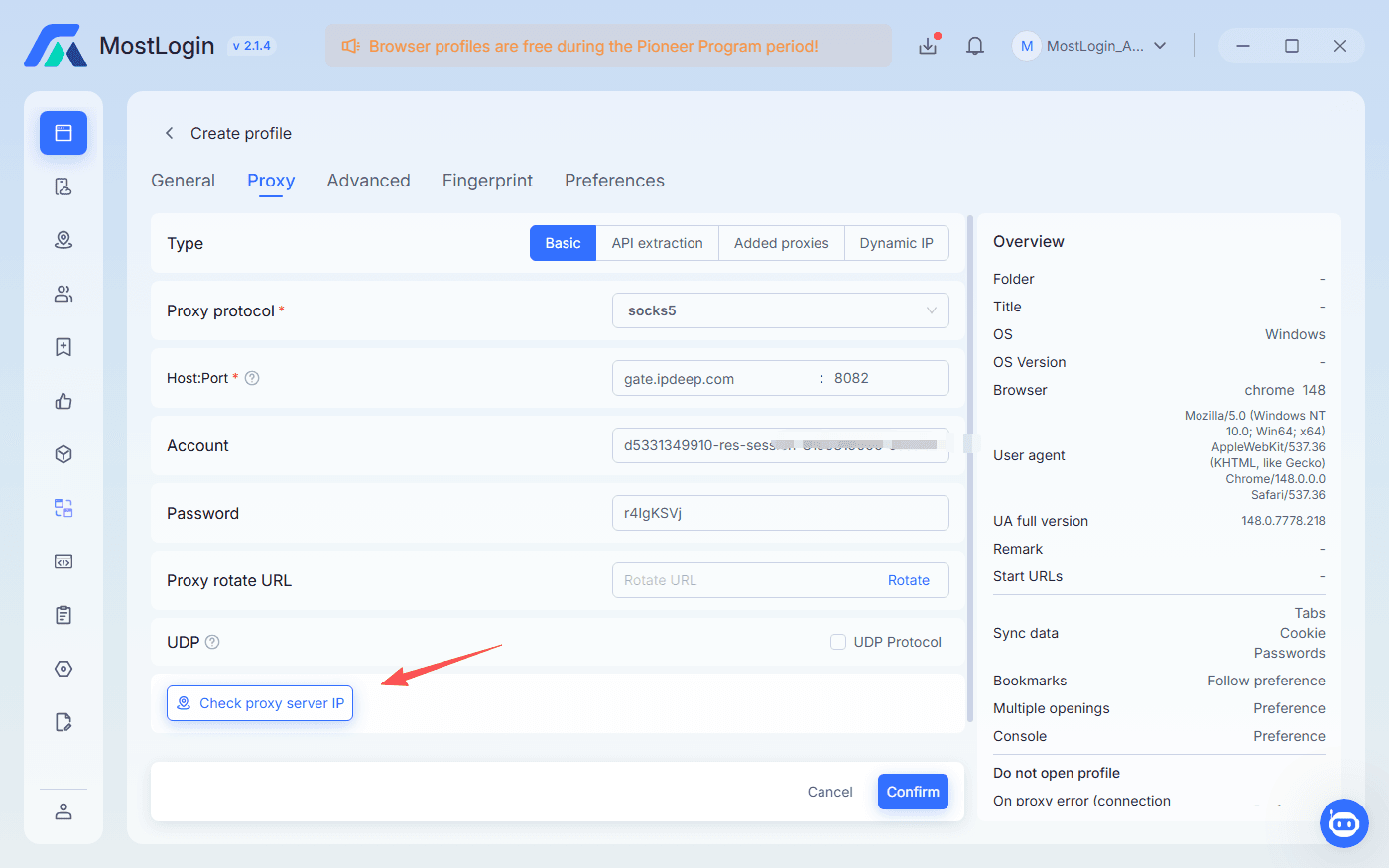
Our proxy tools support batch updates, reducing repetitive work when several profiles need a configuration change. For SX.ORG users, the integrated API synchronization imports existing proxy lists without repeatedly copying connection details.
A defined profile–proxy arrangement also gives team members a consistent connection to use. They do not have to choose a network from memory each time they open an account.
Frequent IP changes are not a substitute for stable account operations. A proxy cannot compensate for unauthorized accounts or prohibited activity, and an independent IP does not guarantee that a platform will treat accounts as unrelated.
Maintain Sessions and Manage Profiles in Batches
Resume Work in the Correct Profile
Open the account’s existing profile when returning to daily tasks. Our isolated sessions let operators continue work without mixing unrelated account data in a shared browsing environment.
A store operator can resume order management in one profile while a social media specialist works in a separate client profile. Clear naming and consistent assignments make the correct environment easier to identify.
Session retention is not permanent authentication. Platforms may expire sessions, request two-factor authentication, or require identity checks. Keep approved verification and recovery methods available.
Apply Shared Changes Without Repeating Every Task
Create profiles in batches, edit groups of profiles, and update proxy assignments without repeating the same configuration process for every environment. These tools reduce manual work as your account portfolio grows.
Apply changes only to profiles that share the same requirement. Before a batch update, review the selected environments—particularly when they belong to different clients or business units.
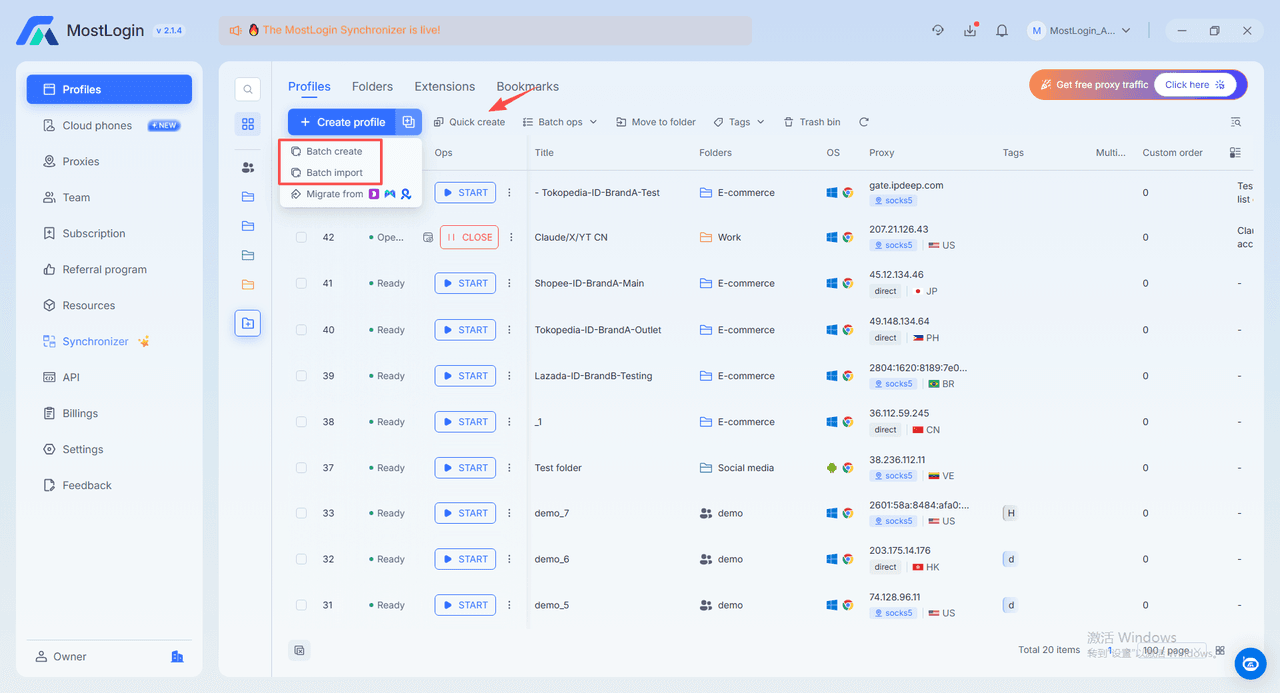
Our extension management tools also support custom uploads, synchronization across profiles, and global enablement. Teams using the same business extensions can manage them centrally rather than rebuilding the setup profile by profile.
For repetitive workflows, our built-in MCP server connects MostLogin with compatible AI agents, including Claude Code and Cursor. Use natural-language instructions to create and launch profiles, configure proxies, or manage session data, reducing repeated manual setup. The connection requires MostLogin’s Local API service to be enabled and authorized, with the application running in the background.
Review the target profiles and requested changes before running batch or AI-assisted tasks. Platform-facing actions still need to comply with the relevant service’s rules.
Share Profiles and Control Team Access
Assign access according to responsibility. A content specialist may need a client’s publishing profile without needing access to store administration or another client’s accounts.
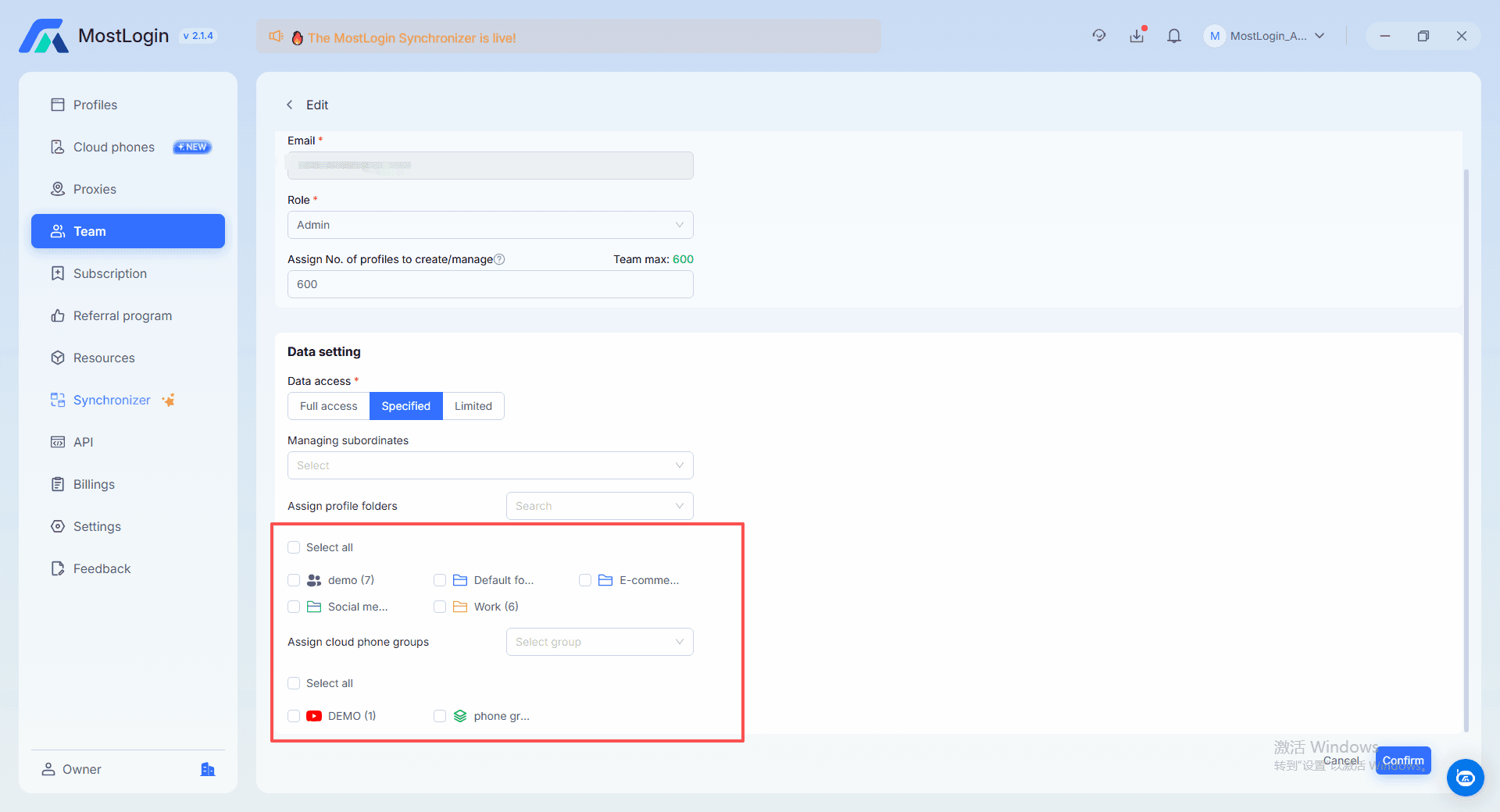
Share relevant profiles, configure role-based permissions, and review operation logs to keep responsibilities clear. Our team controls help you allocate environments without treating every member as an unrestricted administrator.
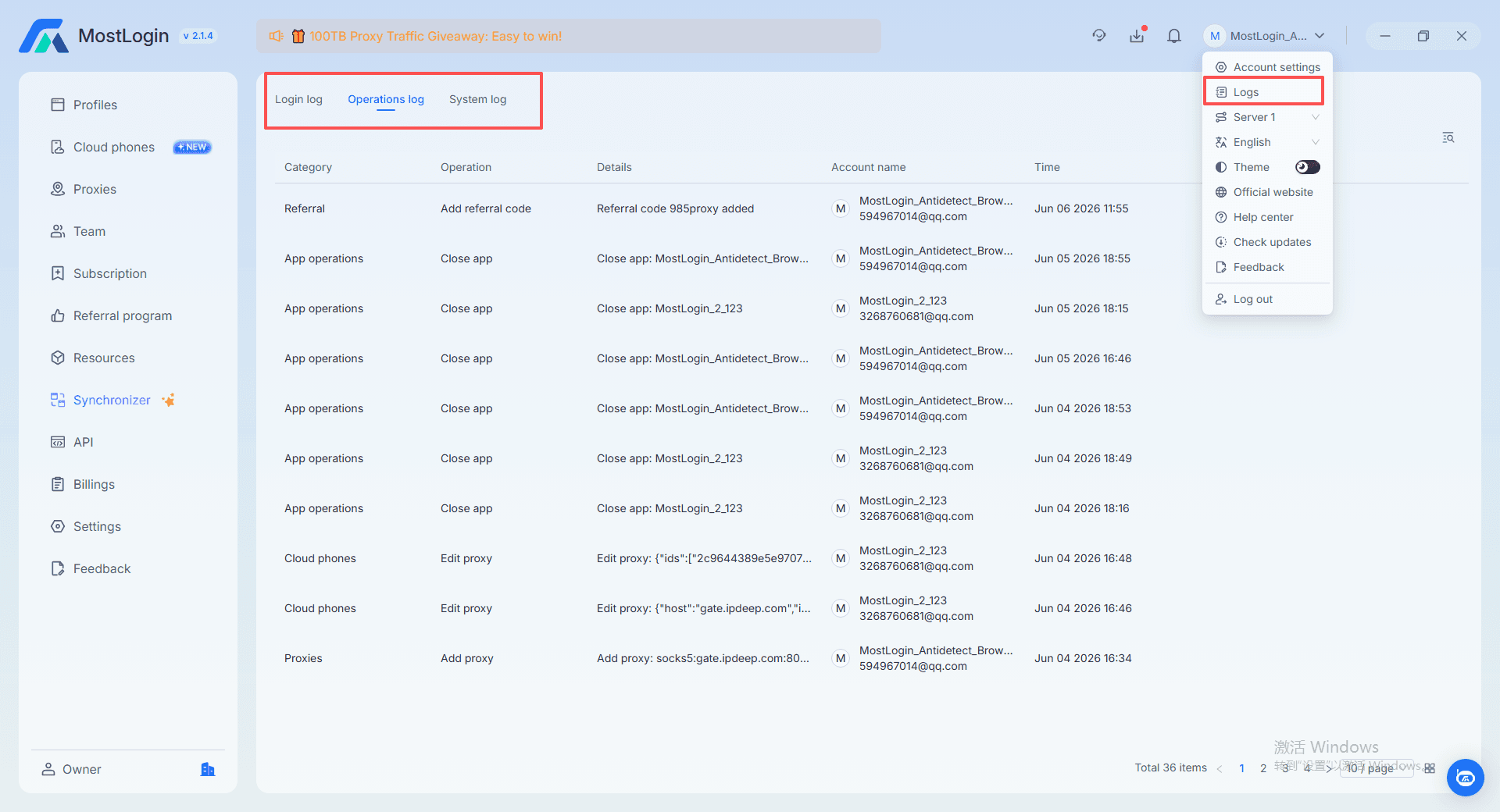
During a handover, review browser access alongside the platform’s own permissions. Remove access that is no longer needed and confirm who is responsible for ongoing work.
Profile sharing does not replace authorization from the account owner. Use platform-native staff roles where available, and follow the service’s requirements for shared account access.
Migrate Existing Profiles to MostLogin
If you already maintain profiles in another antidetect browser, you may not need to rebuild them manually when moving to MostLogin.
Our profile migration feature supports Dolphin{anty}, MoreLogin, and Multilogin X. Bring supported profiles into MostLogin with less repeated setup, rather than recreating every established store or client environment from scratch.
Before moving important accounts, confirm the current migration requirements and test a small, non-critical sample. Check the proxy connection, relevant settings, expected session data, and assigned access.
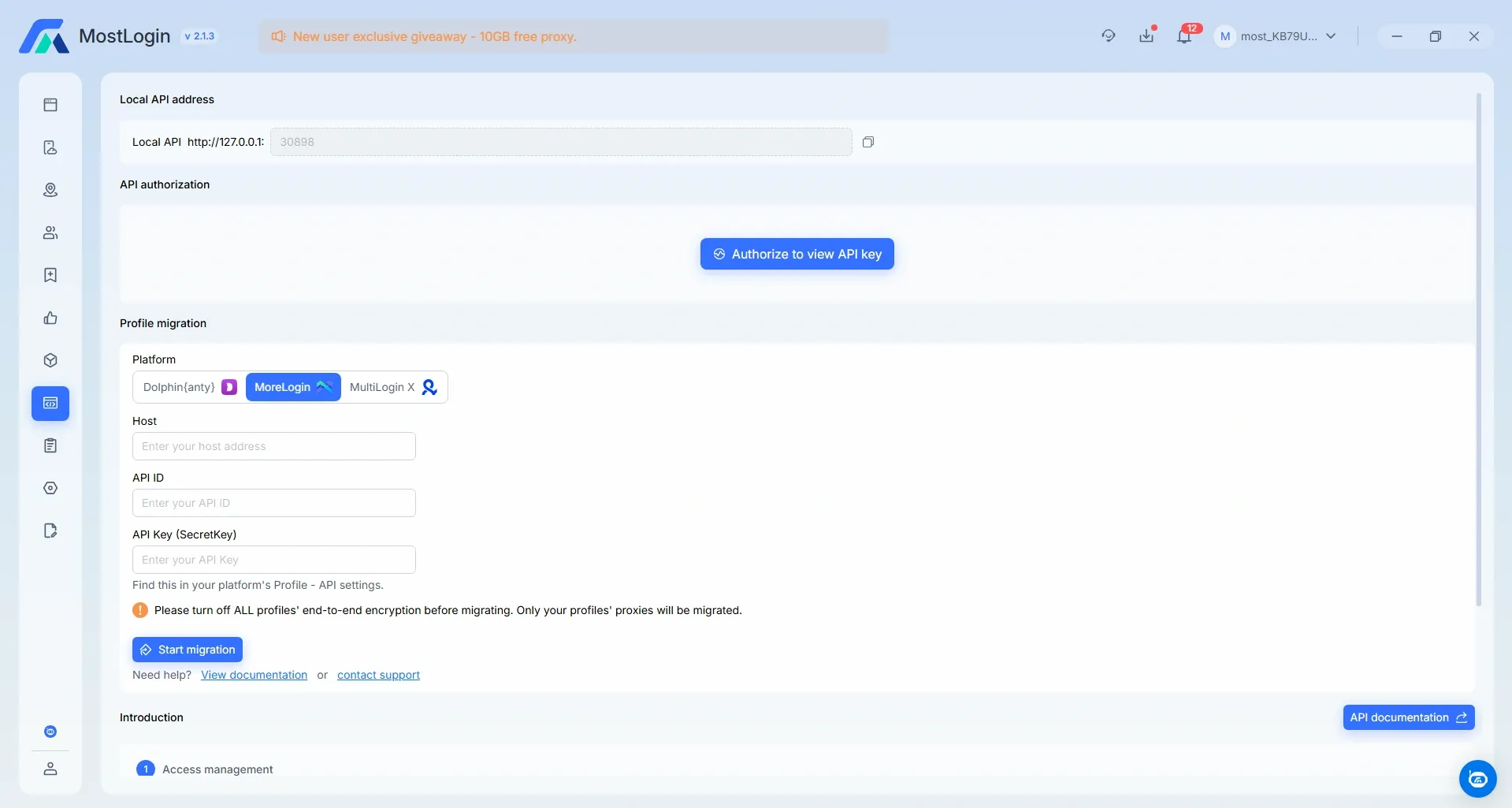
Some settings, extensions, or active sessions may need attention after migration. Keeping the source environment available until the new setup has been verified gives you a reference for comparison. Testing the migration separately from other configuration changes also makes discrepancies easier to identify.
Choose a MostLogin Plan That Fits Your Workload
Assess Your Profile and Team Requirements
Count the browser profiles you actively maintain, then include near-term additions for new stores, clients, or campaigns. Existing profiles you plan to migrate should be included in that total. Buying far beyond your expected workload adds capacity without necessarily improving operations.
Next, consider how your team will use those profiles. Shared access, recovery options, and API request limits can matter as much as profile quantity. Our plans include batch management, profile sharing, and role-based permissions, while some Starter capabilities are limited and API limits increase across paid tiers.
Match Your Workload to a Plan
For a small evaluation involving up to five profiles, start with Starter. If you need 20–500 profiles, choose Plus, starting at $3 per month for 20 profiles on monthly billing. For 600–10,000 profiles, Pro starts at $70 per month for 600 profiles. Operations requiring 10,100 profiles or more can consider Enterprise, starting at $550 per month.
Annual billing applies a listed 30% discount, bringing those starting prices to monthly equivalents of $2.10 for Plus, $49 for Pro, and $385 for Enterprise. These are annual-plan equivalents, not month-to-month prices; rates increase with the selected profile capacity.
Compare MostLogin browser plans and pricing against your current workload, and budget separately for any external proxy services you use. Begin with the capacity you need, then expand as account assignments and team requirements grow.
Frequently Asked Questions
What Should I Check Before Migrating Important Profiles?
Test a small sample first. Confirm the proxy connection, expected settings, account access, and available verification methods before moving the remaining profiles.
Can Multiple Team Members Open the Same Profile?
Our paid plans support multi-open by members, while Starter has limitations. Coordinate sensitive work and follow the platform’s rules for shared access.
Can I Change Plans as My Workload Grows?
Yes. Upgrade or downgrade through the Subscription section. Plan changes take effect immediately.
Conclusion
A manageable multi-account setup gives each business a clear environment, an appropriate connection, and defined team access. Our profile, proxy, collaboration, and migration tools bring those tasks together without requiring you to rebuild every workflow manually.
Download MostLogin for Windows or macOS and begin with a small set of authorized accounts. Validate daily operations or migration results first, then choose the capacity that matches your workload.