When you have dozens or even hundreds of browser profiles in MostLogin, account management can quickly become messy:
Different platform accounts get mixed together
Finding an account requires scrolling through long lists
Team members may open the wrong profile
To solve these issues, the latest version of MostLogin officially introduces the Tag System.
You can now add tags to browser profiles or cloud phone profiles for clearer organization and easier account management.
With tags, you can manage dozens or even thousands of accounts more efficiently.
1. Create Custom Tags
You can create tags freely based on your own workflow.
Tags can be used for:
Browser profiles
Cloud phone profiles
This helps you manage different types of account environments in a more organized way.
Steps
1.Open the MostLogin Console
2.Go to the Browser Profile List
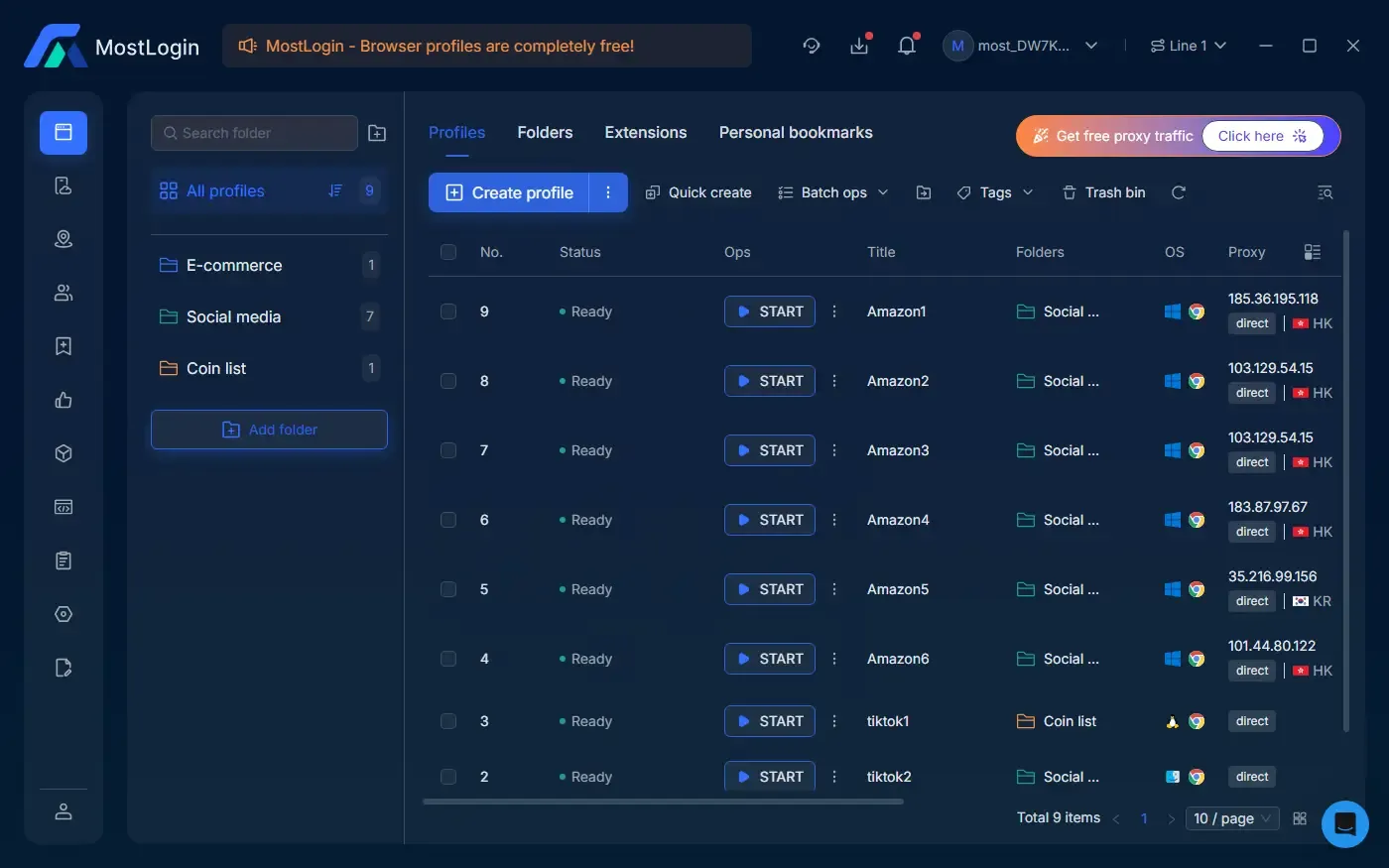
3. Click Add Tag
4. Enter a tag name and choose a color
5. Click OK
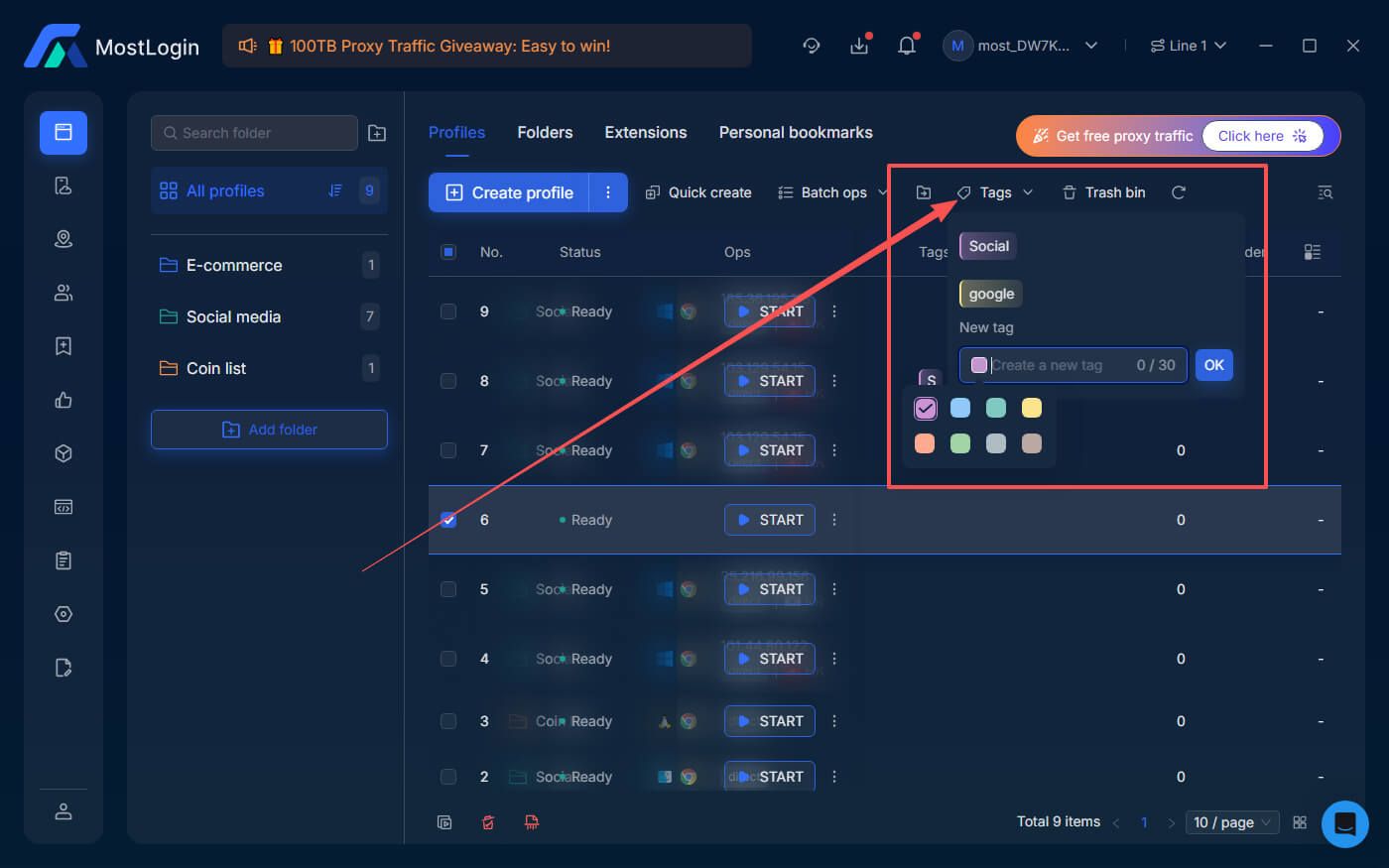
You can create tags such as:
- TikTok
- X
- Warming Up
- Active
- Banned
- Client A
- Client B
- Data Collection Project
MostLogin supports:
Custom tag names and color-coded labels
Up to 50 tags with a paid subscription
2. Add Multiple Tags to Browser Profiles or Cloud Phone Profiles
In real-world operations, an account often doesn’t belong to just one category.
For example:
Platform: TikTok
Project: Client A
Status: Active
MostLogin now supports adding multiple tags to a single browser or cloud phone profile.
Steps:
1.Go to the Browser Profile List
2.Click the profile you want to tag
3.Select Edit Tags
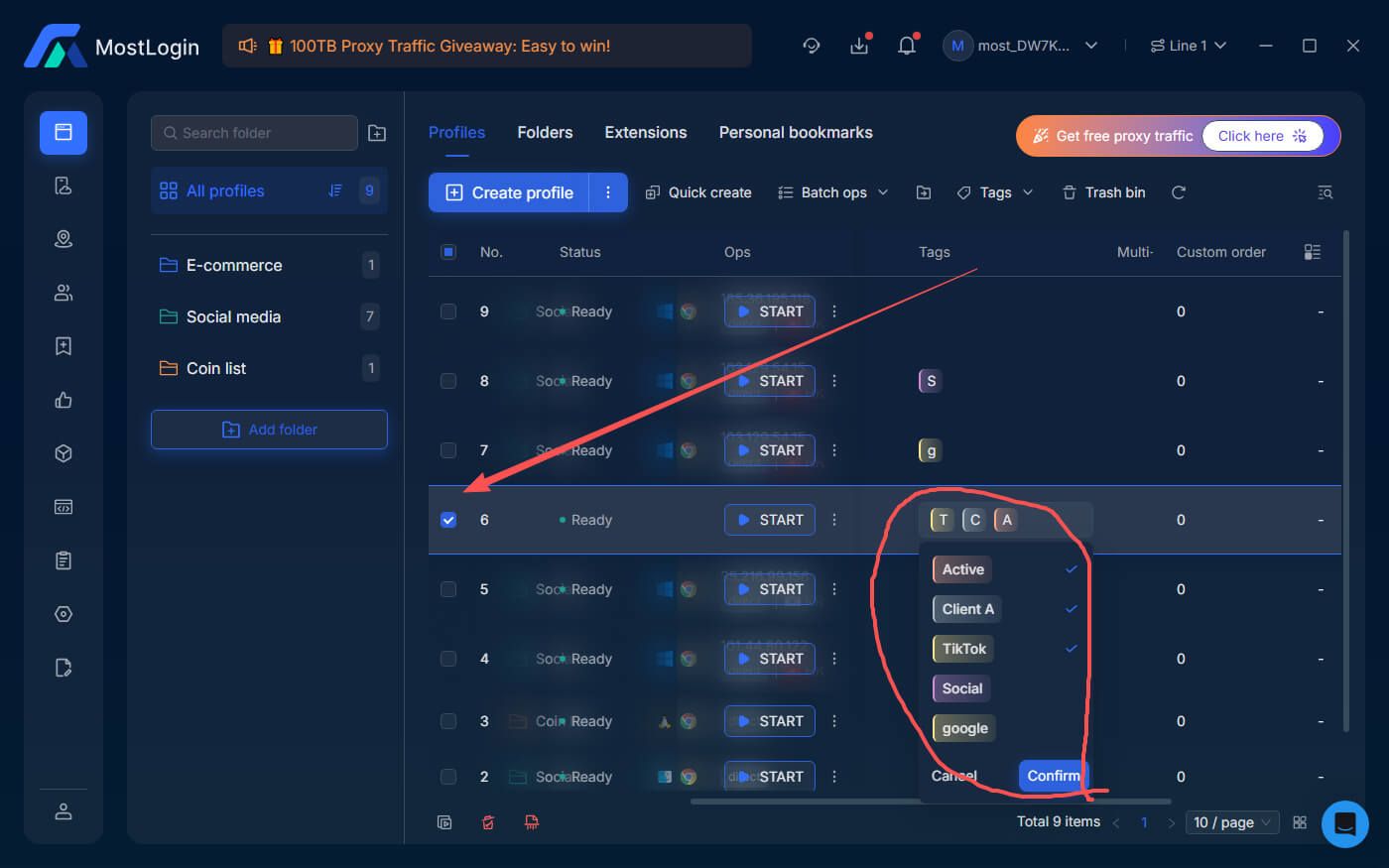
4.Select or add multiple tags
5.Click Save
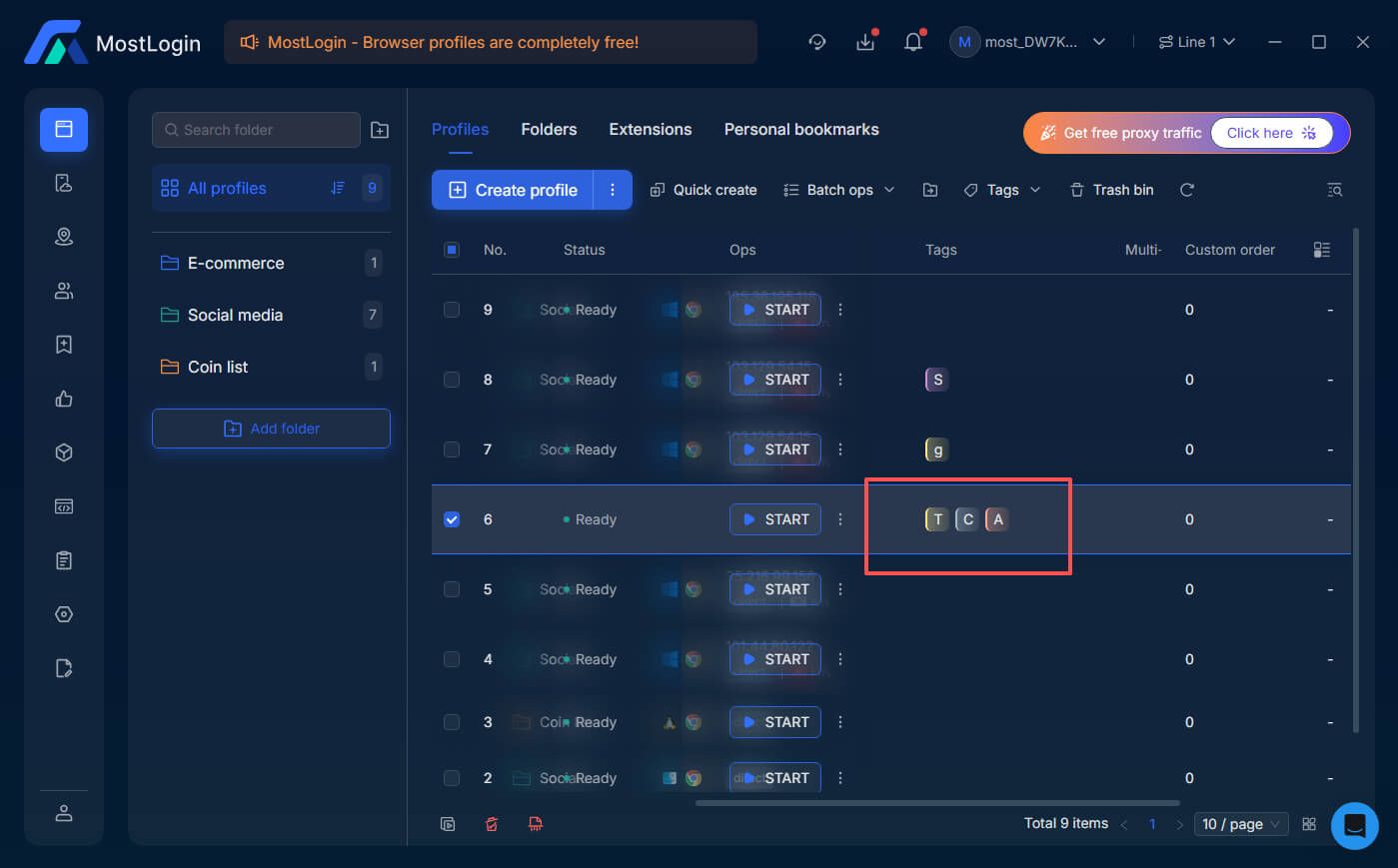
This way, one account can be labeled as:
TikTok + Client A + Active
3.Instant Tag Filtering
When the number of profiles reaches 100+ or even 1000+, finding a specific account can become very time-consuming.
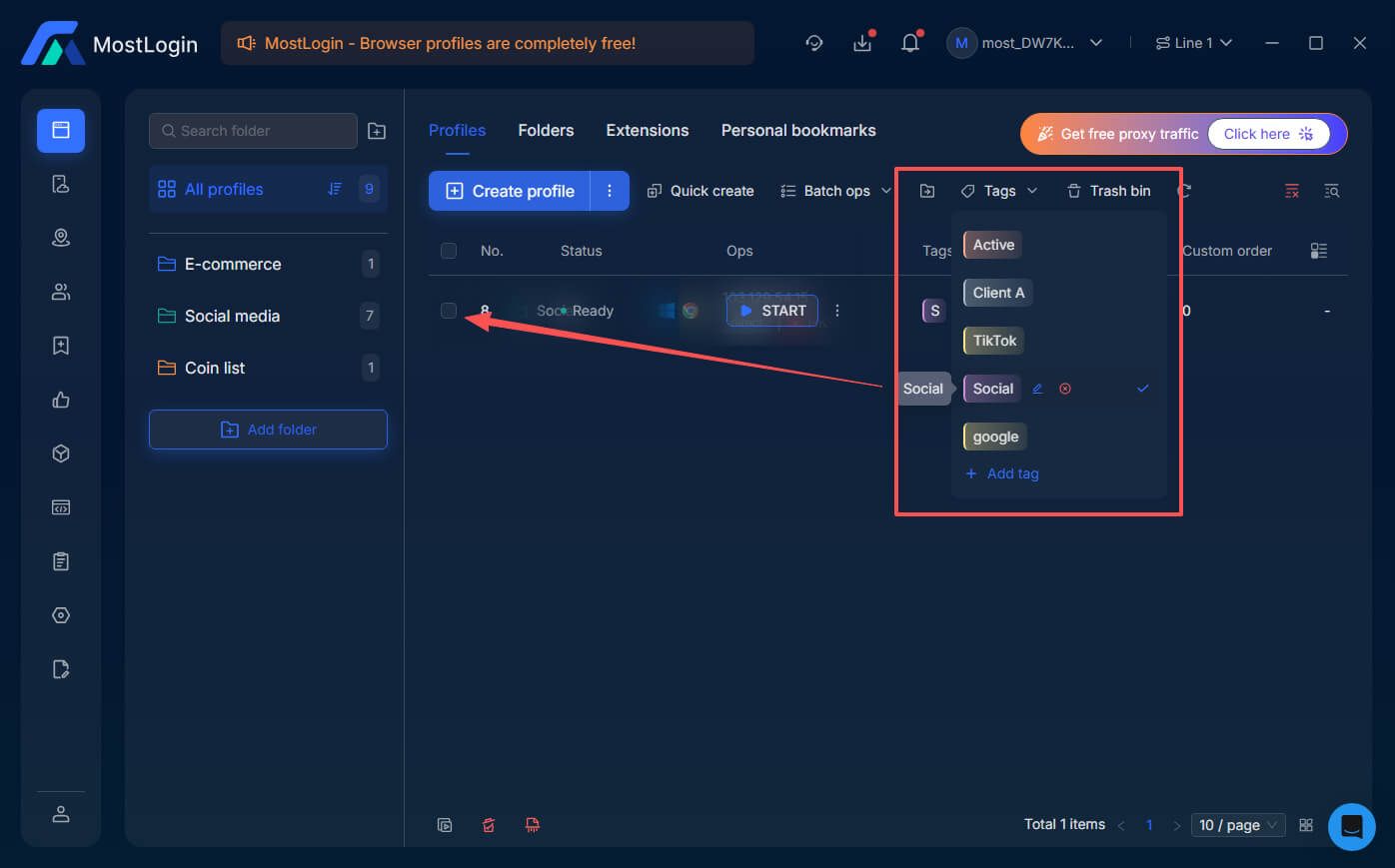
MostLogin’s tag filtering feature helps you locate the accounts you need in just a few seconds.
Steps
1.Open the Profile List
2.Click Tags
3.Select the tags you want to view
The system will automatically hide other profiles and display only the matching accounts, so you don’t need to search manually—greatly improving management efficiency.
Why Use Tagging?
MostLogin Tag System Is Now Live
Easily add tags to browser profiles to organize, filter, and manage accounts.
View Help Docs