Managing several authorized accounts from one computer becomes difficult when every account depends on its own cookies, browser settings, proxy, and login session. A simple script can automate clicks, but it does not solve the bigger problem: each account needs a stable and clearly separated operating environment.
That is why a reliable multi-accounting browser automation setup should be planned around isolated browser profiles first and automation second. Once the environments are organized correctly, scripts, APIs, and AI-assisted workflows become much easier to maintain.
What Does a Multi-Accounting Browser Automation Script Actually Need?
A useful automation setup has three layers: the account, the browser environment, and the automation workflow.
Account and profile separation
Each authorized account should have its own browser Profile. The Profile should keep its cookies, local storage, login state, browser settings, and other session data separate from unrelated accounts.
This prevents a common operational problem: opening several accounts in the same browser environment and then losing track of which cookies or session belongs to which account.
A dedicated multi-account management browser can provide this separation through independent browser Profiles and persistent sessions. MostLogin also supports batch Profile management, team collaboration, proxy configuration, and API-based automation.
Browser fingerprint consistency
A browser fingerprint is the combination of technical signals a browser exposes, such as operating system information, User-Agent, screen characteristics, fonts, WebGL, Canvas, and other browser-level attributes.
The goal should not be to change these values constantly. A better approach is to keep a stable environment for each legitimate account and avoid unnecessary changes.
Network consistency
The IP address is another important part of the environment. If several unrelated accounts continuously share the same network configuration, account management becomes harder to organize.
Proxy assignment should therefore be planned at the Profile level when the business use case requires separate network environments.
Step 1: Build an Account-to-Profile Map
Before writing a script, create a simple inventory of your accounts.
Record the important fields
A practical spreadsheet or internal management system can contain:
- Account name
- Platform
- Profile ID
- Market
- Assigned proxy
- Account owner
- Account status
- Last activity
This allows a team to identify the purpose of a Profile without putting passwords or other sensitive credentials into the Profile name.
This small step becomes increasingly important as the number of accounts grows.
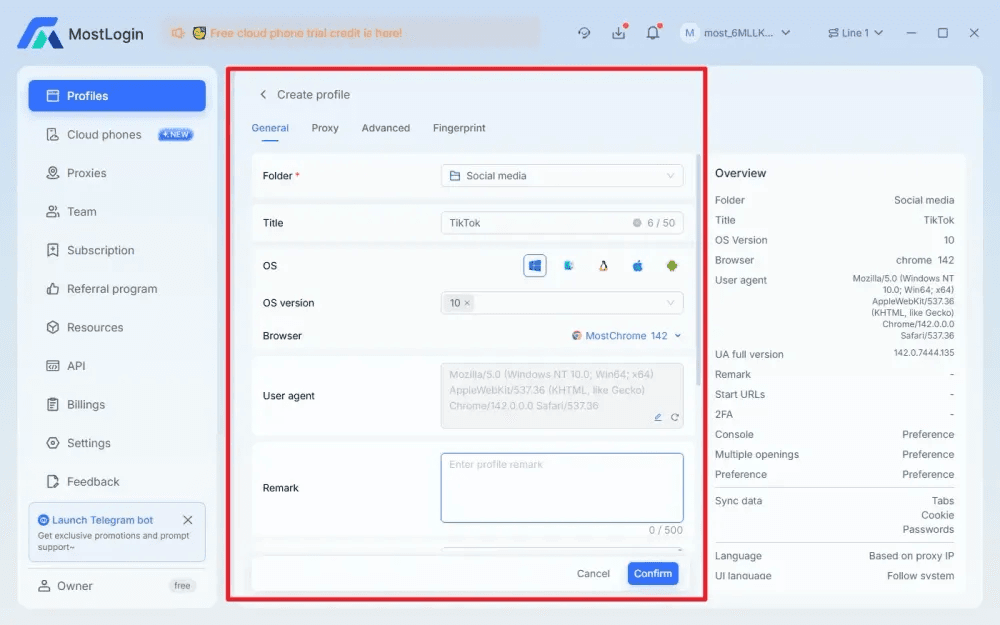
Step 2: Create a Separate Browser Profile for Each Account
Once the inventory is ready, create the browser environments.
Keep one clear purpose per Profile
A Profile should represent one account or one clearly defined authorized workflow. Avoid using one Profile for several unrelated accounts simply because they belong to the same company.
This makes cookies, local storage, extensions, proxy settings, and login sessions easier to manage.
Configure the fingerprint once
Select the appropriate operating system, browser version, language, timezone, and other fingerprint parameters according to the actual operating environment.
After the Profile is working correctly, avoid making unnecessary fingerprint changes.
Frequent changes can make an environment harder to troubleshoot and may create inconsistent account activity.
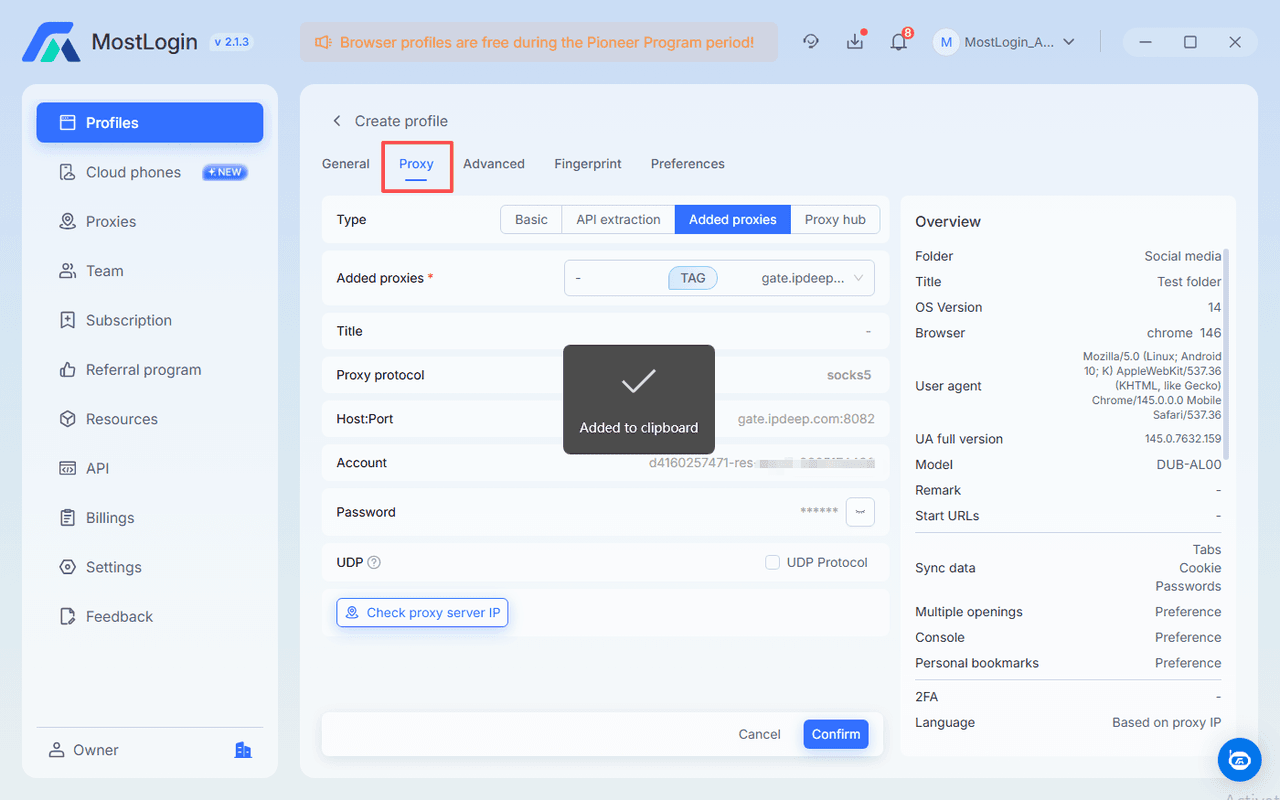
Step 3: Assign and Test the Proxy
Proxy management should be treated as part of the account environment rather than as an afterthought.
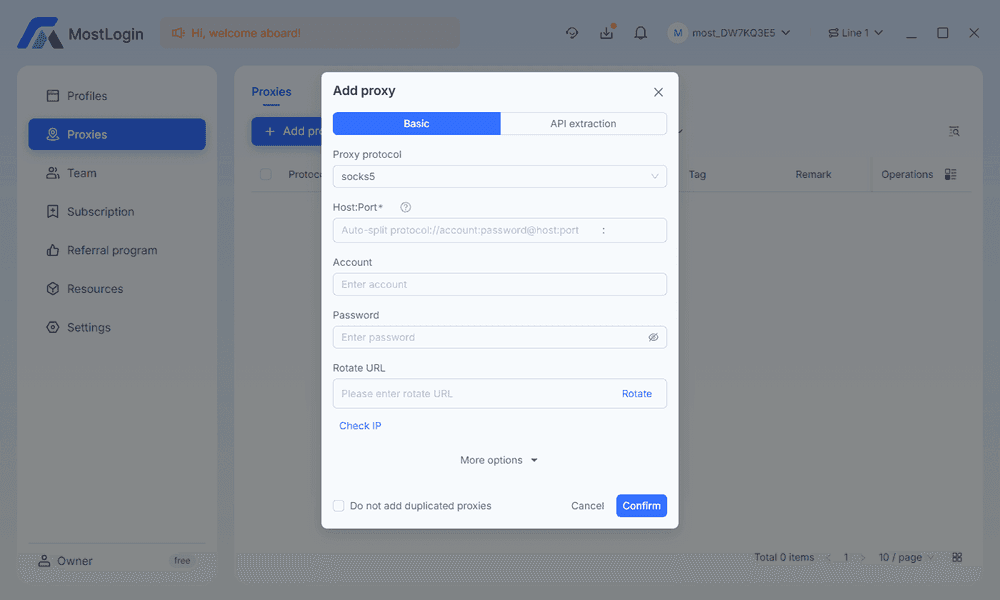
Match the proxy to the business use case
For legitimate regional operations, the network location should make sense for the account's market and business purpose.
Before connecting an account, verify:
- IP location
- Connection stability
- Proxy protocol
- Authentication
- DNS and WebRTC behavior
- Whether the IP is already assigned elsewhere in your workflow
The key is consistency. Constantly switching countries or IP locations without a genuine operational reason creates unnecessary complexity.
Avoid accidental proxy sharing
One of the easiest mistakes is assigning the same proxy to multiple unrelated Profiles.
Create a simple proxy-to-Profile mapping and review it before launching automated workflows.
Step 4: Import Cookies and Log In Carefully
Cookies preserve session information, so they should be treated as part of the account environment.
Keep cookies with the correct Profile
Import or establish the session inside the Profile assigned to that account. Do not move session cookies casually between unrelated Profiles.
After login, confirm that the correct account, market, and permissions are loaded before automation begins.
Avoid excessive login activity
A browser automation script should not repeatedly log in and out simply because the script starts.
A better workflow is:
- Launch the correct Profile.
- Check whether the existing session is valid.
- Continue with the authorized task.
- Re-authenticate only when required.
- Record the result.
This reduces unnecessary authentication steps and makes failures easier to diagnose.
How Should the Automation Script Be Structured?
Once the browser environments are stable, automation becomes much easier to design.
Separate environment management from task logic
Do not place Profile creation, proxy configuration, login handling, and business actions into one giant script.
A cleaner architecture is:
Profile Manager → Browser Launcher → Authentication Check → Task Workflow → Result Logger
This separation makes maintenance easier when a platform changes its interface.
Use stable selectors and explicit checks
For Playwright, Selenium, or Puppeteer workflows, avoid relying on fragile screen coordinates whenever possible.
A robust workflow should check whether:
- The browser started successfully
- The expected account is logged in
- The target page loaded
- The required element exists
- The action completed
- An error or verification step appeared
If one Profile fails, the script should record the failure and move to the next authorized task instead of silently continuing.
Multi-Account Automation Should Run in Controlled Batches
Running every account simultaneously is not automatically better.
Group accounts by business purpose
Useful groups can include:
- E-commerce
- Affiliate campaigns
- Social media
- Client accounts
- Regional operations
- Testing environments
Within each group, keep Profiles, proxies, permissions, and automation tasks organized consistently.
Introduce operational limits
A stable automation workflow should have clear limits for:
- Concurrent Profiles
- Requests per task
- Login attempts
- Retry count
- Task duration
- Failed sessions
These limits are useful for both reliability and compliance.
If an automation task suddenly produces repeated authentication failures, CAPTCHA challenges, or unexpected platform responses, stop the workflow and review the account rather than increasing automation speed.
Common Multi-Account Browser Automation Mistakes
Several problems appear repeatedly when teams scale from a few accounts to dozens.
Using one Profile for multiple unrelated accounts
This can mix cookies, local storage, extensions, and login sessions.
Use a dedicated Profile for each independent account or clearly separated workflow.
Sharing proxies without a clear plan
If proxy assignments are not documented, teams can easily lose track of which network environment belongs to which account.
Maintain a simple proxy-to-Profile record and review it whenever an assignment changes.
Changing fingerprints too frequently
A stable browser environment is easier to operate and troubleshoot.
Configure the required fingerprint settings during Profile creation and avoid unnecessary changes afterward.
Running unlimited login retries
Repeated authentication attempts can create unnecessary account and operational issues.
Set a reasonable retry limit and send failed sessions to a review queue instead.
Launching every account at the same time
Large bursts can create resource bottlenecks on the local machine and make failures harder to identify.
Controlled batches are easier to monitor and troubleshoot.
Where Does MostLogin Fit Into a Browser Automation Workflow?
MostLogin can serve as the browser-environment layer while the automation script handles the business workflow.
Profiles, proxies, and automation
MostLogin provides isolated browser environments, Profile management, proxy configuration, batch operations, team collaboration, and API automation.
This structure is useful when a team does not want its automation logic to manage every browser environment from scratch.
A practical team workflow
A simple setup can look like:
MostLogin Profile → Assigned Proxy → Authorized Account → Playwright/Puppeteer/Selenium Workflow → Logs
For smaller teams, this can reduce the amount of browser-environment code that needs to be maintained. For larger teams, Profile sharing and role-based permissions can also help keep account environments under controlled access.
MostLogin offers different Profile capacities and automation-related features across its plans, so teams can compare the current MostLogin pricing against their actual Profile volume and workflow requirements.
Can AI Agents Extend Multi-Account Browser Automation?
AI agents can simplify some browser-management tasks, but they do not eliminate the need for a sound account structure.
MCP as an automation layer
MostLogin supports MCP, which allows compatible AI clients to connect with supported MostLogin tools. With the required MostLogin client version and local service enabled, an AI agent can perform supported operations such as creating or launching Profiles, updating fingerprints, configuring proxies, and managing sessions through natural-language instructions.
In practical terms, MCP can sit between the operator and the browser-management layer:
User Request → AI Agent → MCP → MostLogin → Browser Profile
This is useful for repetitive environment-management tasks, but human review should remain in place for sensitive actions and account decisions. AI automation does not remove platform rules or the need to operate accounts with proper authorization.
How Should You Maintain a Multi-Account Browser Environment?
A good setup needs ongoing maintenance rather than a one-time configuration.
Review Profiles regularly
Check whether each Profile still has:
- The correct account
- The correct proxy
- The expected browser configuration
- Valid session data
- The right team permissions
Remove unused access and archive inactive environments rather than allowing the Profile list to grow without control.
Monitor automation results
Keep logs for:
- Successful runs
- Failed launches
- Authentication failures
- Unexpected page changes
- Proxy connection errors
- Manual interventions
Logs turn a vague “the script stopped working” problem into a specific troubleshooting task.
Keep business logic independent
When a platform changes its interface, the task logic may need updating.
If Profile management, authentication, proxy configuration, and task execution are already separated, the required change is easier to isolate and maintain.
FAQ: Multi-Accounting Browser Automation
Is a multi-accounting browser necessary for automation?
For workflows involving several independent authorized accounts, isolated browser Profiles can make session, cookie, fingerprint, and proxy management much easier.
A standard browser may be sufficient for simple personal workflows, but it becomes harder to maintain clean separation as account volume increases.
Can one proxy be used for multiple accounts?
Technically, one proxy can serve multiple accounts, but that does not automatically make it a good operational design.
For unrelated accounts or different business environments, separate and consistently assigned network environments are generally easier to manage.
Does changing the fingerprint frequently make accounts safer?
No. Frequent fingerprint changes can create an inconsistent environment.
A better approach is to configure an appropriate Profile and keep its browser environment stable unless there is a legitimate reason to change it.
Can Playwright or Selenium work with an antidetect browser?
Yes, some antidetect browsers expose APIs or automation interfaces that allow compatible workflows to connect with tools such as Playwright, Puppeteer, or Selenium.
The exact implementation depends on the browser platform and its current API capabilities. MostLogin provides API-based automation support for supported workflows.
Can AI agents automate multi-account browser tasks?
Yes, AI agents can coordinate supported browser-management tasks when connected through an integration such as MCP.
However, they should be used for authorized workflows with appropriate human oversight, especially when an action affects account security, permissions, payments, or recovery settings.
Final Checklist for a Reliable Multi-Account Automation Setup
Before running a multi-accounting browser automation script, verify:
- Each authorized account has the correct Profile.
- Cookies and login sessions are isolated.
- Fingerprint settings are stable.
- Proxy assignments are documented.
- Automation logic is separated from Profile management.
- Retry and concurrency limits are configured.
- Successful and failed runs are logged.
- Team permissions are reviewed regularly.
- Automation follows the relevant platform rules.
- Sensitive actions still receive human review.
The strongest multi-account automation setup is not the one that runs the most actions at the highest speed. It is the one that keeps account environments organized, browser sessions stable, automation predictable, and operational decisions under control.
For teams managing authorized e-commerce, affiliate, social media, or other multi-account workflows, combining isolated browser Profiles with carefully designed automation can provide a much more maintainable foundation than relying on a standalone script.