Overview: When a business check reveals a WebRTC leak, you should first stop logging into or operating important accounts, close the current profile, then check your proxy connection, WebRTC mode, IPv6, and proxy bypass rules. For MostLogin users, the common fix is: confirm the proxy is detected successfully, set the profile's WebRTC to Private; if your business does not need web audio/video or peer-to-peer communication at all, you can also choose Disabled; at the same time, enable the protection rule that prevents opening the profile when the proxy fails.
Note that seeing multiple addresses on a test page does not necessarily mean a leak. Only when the page exposes your real public IPv4, your real public IPv6, or a network exit that should not be associated with that profile, is it a high-risk issue that requires immediate action.
What Is WebRTC? Why Can It Bypass Regular Proxy Settings?
WebRTC stands for Web Real-Time Communication. It allows browsers to make voice calls, video conferences, screen sharing, and peer-to-peer data transfers directly. Many online meeting, customer-service, and collaboration tools use it.
To find a usable connection path between two devices, WebRTC uses ICE to gather multiple "candidate addresses." These candidates may include device network interface addresses, public mapping addresses discovered via STUN servers, and addresses relayed through TURN servers. MDN's explanation of ICE candidate types shows that a host candidate represents the device's direct address, a srflx candidate is generated by STUN/TURN interaction, and a relay candidate goes through a TURN relay. MDN's WebRTC connectivity explanation
This is also the root cause of WebRTC leaks: a webpage creates a WebRTC connection via JavaScript and reads ICE candidates. If the browser does not properly restrict these addresses, the network information the page sees may be inconsistent with the proxy exit. MDN also explicitly states that ICE candidate addresses may leak device location and network topology information beyond what the user expects, and can be used for browser fingerprinting. MDN's RTCIceCandidate security notes
Simply put: regular webpage requests may go through a proxy, but WebRTC also independently searches for real-time communication paths. When the two paths are not uniformly constrained, a website may see both the "proxy IP" and "another set of network addresses" at the same time.
What Actually Counts as a WebRTC Leak?
Determining a leak is not just about whether a test page shows an IP; you need to compare "what the page displays" with "what the profile is supposed to show."
| Test result | Is it a leak? | Risk assessment |
|---|---|---|
| WebRTC public IP matches the proxy IP detected by MostLogin | Usually not | Normal; continue checking DNS, timezone, and geolocation consistency |
| Shows the real public IP of a home broadband, office network, or mobile hotspot | Yes | High risk; stop account operations in the current profile immediately |
| Proxy is IPv4, but the test page shows a real public IPv6 | Yes | High risk; IPv6 may not be covered by the proxy |
Shows private addresses such as 192.168.x.x or 10.x.x.x | Not necessarily | This is LAN information exposure, usually not a public exit leak, but it adds to the network fingerprint |
Shows a random .local name | Usually not | In most cases, this is the browser using mDNS to hide local addresses |
| Shows multiple addresses, but all belong to the same proxy or relay exit | Usually not | Could be IPv4, IPv6, or different ICE candidate types |
Modern browsers may use mDNS hostnames instead of LAN IPs, so seeing a random string ending in .local on a test page does not mean your real public IP is exposed. What really matters is: whether your real ISP public address, which you can look up outside the browser profile, appears.
What Are the Consequences of a WebRTC Leak?
1. Proxy Identity Conflicts with Real Network Identity
Suppose a MostLogin profile is configured with a New York proxy, and webpage requests show a New York IP, but WebRTC reveals the user's local network public IP. What the platform sees is not a natural, stable browsing environment, but two connection signals from conflicting geographic locations or network operators.
This does not automatically prove who the user is, but it weakens proxy isolation and may become one of the signals for abnormal risk control, additional verification, or session review.
2. Different Browser Profiles Can Be Linked by the Same Real IP
A team creates multiple independent profiles for different test projects, each using a different proxy. If all these profiles expose the same office public IP through WebRTC, the website can obtain a cross-profile correlation signal. Even if Cookie, Canvas, and WebGL are each isolated, the repeated appearance of a real network exit still reduces independence between profiles.
3. Exposes Approximate Location, Network Operator, and Network Structure
A public IP can generally be used to determine country, city-level region, and network operator; LAN addresses, IPv6, or different network interfaces may reveal more network topology characteristics. An IP alone usually cannot determine a precise home address or real name, but it can be combined with login accounts, cookies, device fingerprints, and behavioral data.
4. Video Conferencing and Web Calls May Face a "Privacy vs. Usability" Trade-off
Directly disabling WebRTC can reduce the exposure surface, but video conferencing, voice customer service, screen sharing, or direct file transfers that depend on WebRTC may stop working. Therefore, the correct approach is not to disable it in all scenarios, but to choose between Private and Disabled based on business needs.
After an Anti-Detect Browser Shows a WebRTC Leak, Do These 6 Steps First
Step 1: Pause Sensitive Operations in the Current Profile
If a detection page has already shown your real public IP, do not continue logging in, making payments, posting content, or switching important accounts. First record the test results, including:
- The address shown by the regular IP check;
- The IPv4 and IPv6 shown by the WebRTC check;
- The proxy address and country/region configured in MostLogin;
- Test time, profile name, and whether a VPN was used.
Recording information is for troubleshooting; do not keep proxy passwords, account cookies, or other credentials in screenshots.
Step 2: Build a "Real IP - Proxy IP - WebRTC IP" Comparison
Without opening any business accounts, perform three sets of checks:
- In a regular browser without a proxy, look up the current public IPv4 and IPv6 as the real network baseline.
- In MostLogin's
Proxytab, click the proxy IP check and record the expected exit. - Open the corresponding profile and read the candidate addresses on the WebRTC test page.
If the WebRTC result matches the first baseline rather than the second proxy exit, a leak can basically be confirmed. If the result matches the proxy IP, it is more likely a normal WebRTC candidate display.
Step 3: Fix the Proxy First, Then Adjust WebRTC
WebRTC settings cannot fix a proxy that is already offline, failing authentication, or misconfigured. Go to the target profile's edit page, open the Proxy tab, verify the protocol, host, port, username, and password, then run the proxy IP check. MostLogin's official guide to creating profiles states that you can currently configure direct, http, https, and socks5, and verify the connection result via "Check proxy IP." MostLogin: Create a new profile
Only proceed to the next step after the proxy check succeeds and the displayed country and city match expectations.
Step 4: Choose the Right WebRTC Mode in MostLogin
The typical path is:
Profiles → Select the target profile → Edit → Fingerprint → WebRTC
MostLogin's current official documentation shows the WebRTC dropdown settings, where Private hides the real IP while keeping WebRTC functional, and Public and Disabled may also be available. MostLogin: WebRTC fingerprint settings
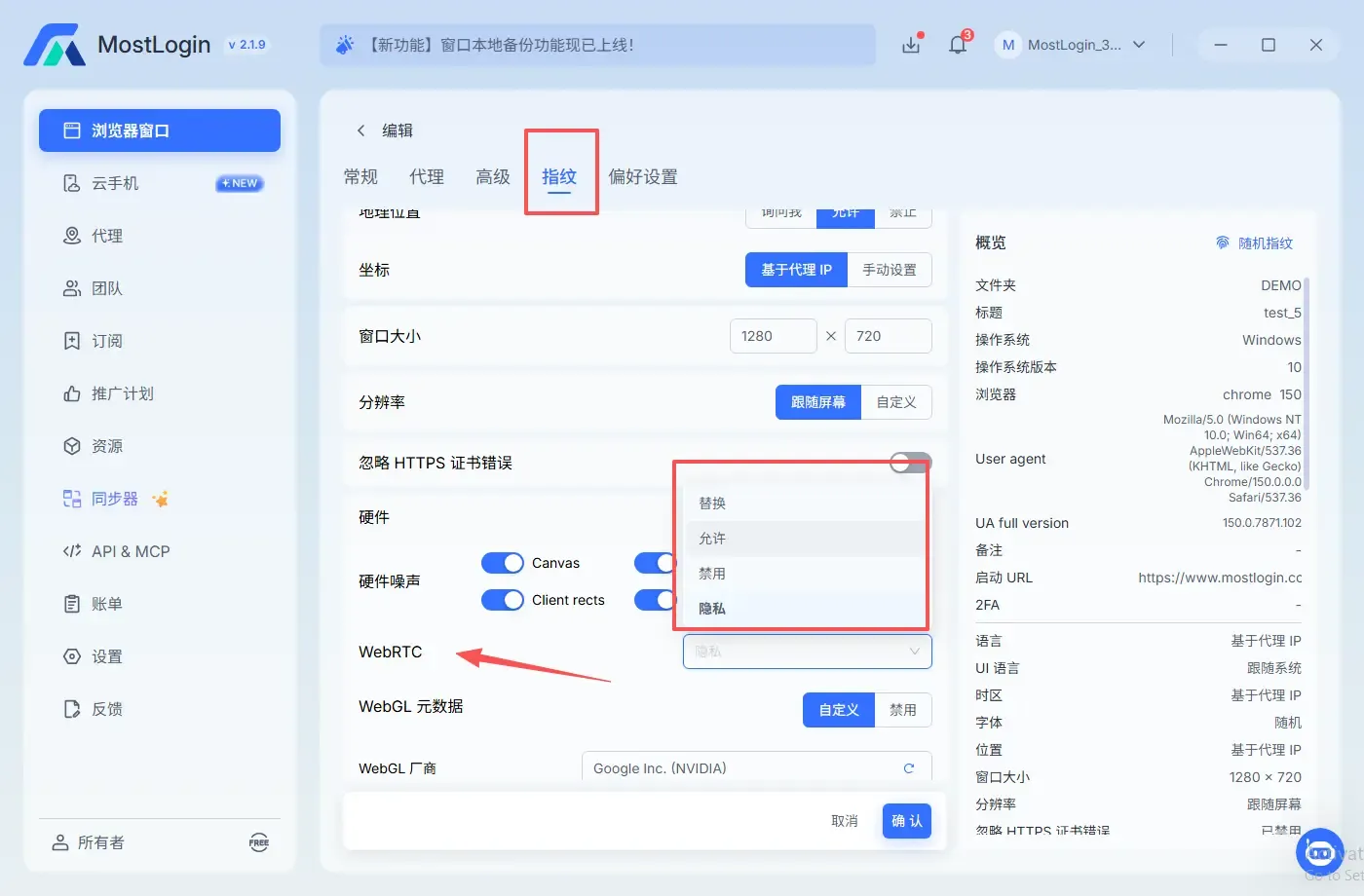
| Mode | Recommended scenario | Notes |
|---|---|---|
| Private | Everyday browsing, browser audio/video, customer service, or collaboration tools | Preferred choice; must retest after saving to confirm results match the proxy |
| Disabled | Profiles that do not need video conferencing, voice, or P2P at all | Clearer privacy boundary, but related website features may fail |
| Public | Only for development or compatibility testing that explicitly requires exposing real network candidates | Not suitable for proxy profiles that need to hide the real network exit |
For a regular proxy profile, start with Private. Only test Disabled when the business does not rely on WebRTC, or Private mode still cannot meet isolation requirements. Do not assume a leak just because a test page shows "WebRTC enabled"; the key is which address it returns.
Step 5: Enable Proxy Failure Protection and Check the Proxy Bypass List
Go to MostLogin's global settings or profile preferences and enable the following protections:
- Do not open the profile on proxy network error;
- Do not open the profile when the proxy IP changes;
- Do not open the profile when the proxy IP country or region changes;
- Do not open the profile when environment sync fails.
MostLogin officially describes these settings as pre-launch protections; the proxy network error protection prevents accidental exposure of the real ISP IP when the proxy goes down. MostLogin: Profile preferences
Also check Settings → Proxy bypass. Domains added to the bypass list will use the local network directly instead of the profile's proxy. MostLogin's official documentation also states that bypassed domains are accessed through real local connections. MostLogin: Proxy bypass If test sites, authentication domains, or their API/CDN domains are listed here, remove unnecessary exceptions and save.
Step 6: Fully Close and Reopen the Profile, Then Cross-Verify
After saving settings, close the entire browser profile and restart it; do not just refresh the detection page. Use at least two independent detection pages to check:
- The regular public IP the browser exposes;
- The IPv4 in WebRTC candidates;
- The IPv6 in WebRTC candidates;
- Whether DNS, timezone, language, and geolocation match the proxy region.
The pass criteria for retesting are: the detection page no longer shows the real ISP public IPv4/IPv6; the public address shown by WebRTC should match the proxy, relay exit, or expected product behavior; and results remain stable after restarting the profile.
MostLogin Example: A New York Proxy Profile Detected with a Real IPv6
Scenario
A cross-region website QA team created a MostLogin profile named US-NewYork-QA-01. The HTTP proxy check shows a New York, US IPv4. After opening a test page, the regular IP is still New York, but the WebRTC section shows a public IPv6 from the local ISP.
Diagnosis
This is a real leak, not just a case of "multiple IPs appearing." The reason is that the HTTP proxy covers IPv4 web requests, but the host's IPv6 network path is not equally handled, and WebRTC candidates can still expose that address.
Fix
- Close the profile to avoid further login tests.
- Check whether the proxy service explicitly supports IPv6; if not, use a proxy solution that fully covers IPv4/IPv6, or disable the unprotected IPv6 path at the system network level.
- Edit the profile and select Private under
Fingerprint → WebRTC. - Enable "Do not open the profile on proxy network error."
- Check the proxy bypass list and remove exception domains related to the test site.
- Reopen the profile and retest to confirm the real IPv6 no longer appears.
In this scenario, only changing the WebRTC mode may temporarily remove the detection result, but the proxy's IPv6 coverage is still the root issue, so both must be checked.
MostLogin Example: Test Page Shows .local, but Public IP Matches the Proxy
Scenario
A user is on a UK proxy; both the regular IP and the WebRTC public address show the UK. The test page also lists a random string ending in .local, leading the user to mistakenly think a leak has occurred.
Assessment
.local is usually the browser using mDNS names to hide local network addresses. As long as no real ISP public IPv4/IPv6 appears, and the public candidate matches the UK proxy, a real IP leak cannot be determined based on .local alone.
Fix
Keep the current Private setting, record the result, and cross-verify with another test page. At this point, frequently switching proxies, randomizing fingerprints, or rebuilding the profile may actually introduce more variation into what should be a stable test environment.
MostLogin Example: Video Conferencing Fails After Disabling WebRTC
Scenario
A remote support team set WebRTC to Disabled, and web-based customer-service calls and screen sharing can no longer establish connections.
Fix
Switch the profile to Private, keep the proxy connected normally, then retest the WebRTC address. If the real IP no longer appears and audio/video resumes, you can have both functionality and network isolation. If it still leaks under Private mode, troubleshoot the proxy protocol, IPv6, VPN split tunneling, and bypass domains instead of switching to Public just to restore calls.
Still Leaking After the Fix — Where Could the Problem Be?
If MostLogin is already set to Private but the test still shows a real public IP, continue checking in this order:
- The proxy is not actually connected. When credentials are wrong, the node has expired, or the proxy server is offline, the browser may not get the expected exit.
- IPv6 is not covered. The proxy only handles IPv4, and the host can still access the network via the real IPv6.
- Proxy bypass rules. The test site or related subdomains are set to connect directly.
- VPN split tunneling or system routing conflicts. Using a VPN, system proxy, and profile proxy at the same time may create different network paths.
- Old profile process is still running. The profile was not fully closed after saving settings, and the old process still uses the original configuration.
- Browser extensions alter network behavior. VPN, proxy, privacy, or WebRTC extensions may conflict with profile settings.
- Detection page false positive or cache. Use a second test page and restart the profile to verify; do not draw conclusions from a single result.
If two independent test pages consistently show the same real public address, save a screenshot without sensitive credentials, the MostLogin version number, operating system, proxy protocol, and reproduction steps, then contact MostLogin support or the proxy provider.
WebRTC Leak-Prevention Checklist
After creating each new profile, changing the proxy, updating the client, or switching networks, perform the following checks once:
FAQ
Does a WebRTC test showing multiple IPs always mean a leak?
Not necessarily. Multiple results may come from IPv4, IPv6, LAN interfaces, STUN mappings, TURN relays, or mDNS. Only the appearance of a real ISP public IP, an unrelated network exit, or a public address clearly conflicting with the proxy location should be treated as a high-risk leak.
After using a proxy, what IP should WebRTC show?
Ideally, webpages should not see your real ISP public IP. Depending on the browser and product policy, the test page may show the proxy address, a relay address, hidden local candidates, or no usable address. The criterion is not "only one IP may appear," but "the real public exit that needs to be isolated must not appear."
Should I choose Private or Disabled in MostLogin?
When you need web audio/video, customer-service calls, or screen sharing, prefer Private and retest; when you do not use WebRTC features at all, you can choose Disabled. Disabled may affect website functionality, so it is not the default best choice for every profile.
Can a WebRTC leak reveal a real name and precise address?
Usually, an IP alone cannot directly reveal a real name or precise street address, but a public IP can disclose the approximate region and operator, and can also be combined with accounts, cookies, browser fingerprints, and behavioral records to form stronger correlation clues.
After a leak has already occurred, is fixing the settings enough?
Fixing can only prevent further exposure; it cannot retract data the website has already received. For important business, check the time range of the leak, affected profiles, and login records; if necessary, end old sessions, update credentials, and watch for abnormal verification on the platform.
Conclusion
The core of a WebRTC leak is not "whether WebRTC is enabled," but whether it exposes a real public address inconsistent with the current proxy profile. After detecting an anomaly, first pause sensitive operations, then complete a three-way comparison using real IP, proxy IP, and WebRTC IP data. MostLogin users can usually resolve the issue by verifying the proxy connection, selecting WebRTC Private, enabling proxy failure protection, cleaning up unnecessary proxy bypass rules, and checking the IPv6 path.
Incorporating WebRTC checks into the pre-launch process for new profiles is more reliable than fixing things after an account issue occurs. Retesting after every proxy, network, or client version change ensures that the network exit and browser fingerprint remain consistent over time.