The best cloud phone system for a social media team should do more than launching several Android apps. It should preserve account environments, support everyday publishing tasks, and make team handovers manageable.
Before committing to a subscription, test a normal working day: publish a video, restart an environment, and hand an account to another operator. The workflow should remain manageable when responsibilities or connection conditions change.
Use these five checks to assess operational fit before expanding deployment.
Test Your Complete Daily Workflow
An app opening successfully is only the starting point. Your cloud phone needs to support the tasks your team performs every day.
Choose one authorized account and test a complete workflow:
- Install the app through a supported distribution method.
- Sign in and complete any required verification.
- Upload a representative image or video.
- Check captions, previews, editing tools, and playback.
- Save a draft, reopen the app, and complete an approved publishing action.
Use your normal content formats rather than a small sample file. A short-form video team should test its usual file sizes, audio workflow, and editing features. Social commerce teams may also need product links and mobile storefront functions.
Note upload times, failed actions, and unavailable features. A system that handles account browsing reliably but struggles with video uploads may suit monitoring work—not content production.
Ask which Android versions are supported and how updates are handled. Once publishing works, verify that the workflow remains usable after applications and environments restart.
Verify Account Separation and Environment Persistence
Creating separate environments is only part of managing multiple social accounts. Each workspace also needs to return in a predictable state.
Focus on the data your team needs to retain: application data, account sessions, drafts, uploaded assets, and environment assignments.
Run a Restart-and-Return Test
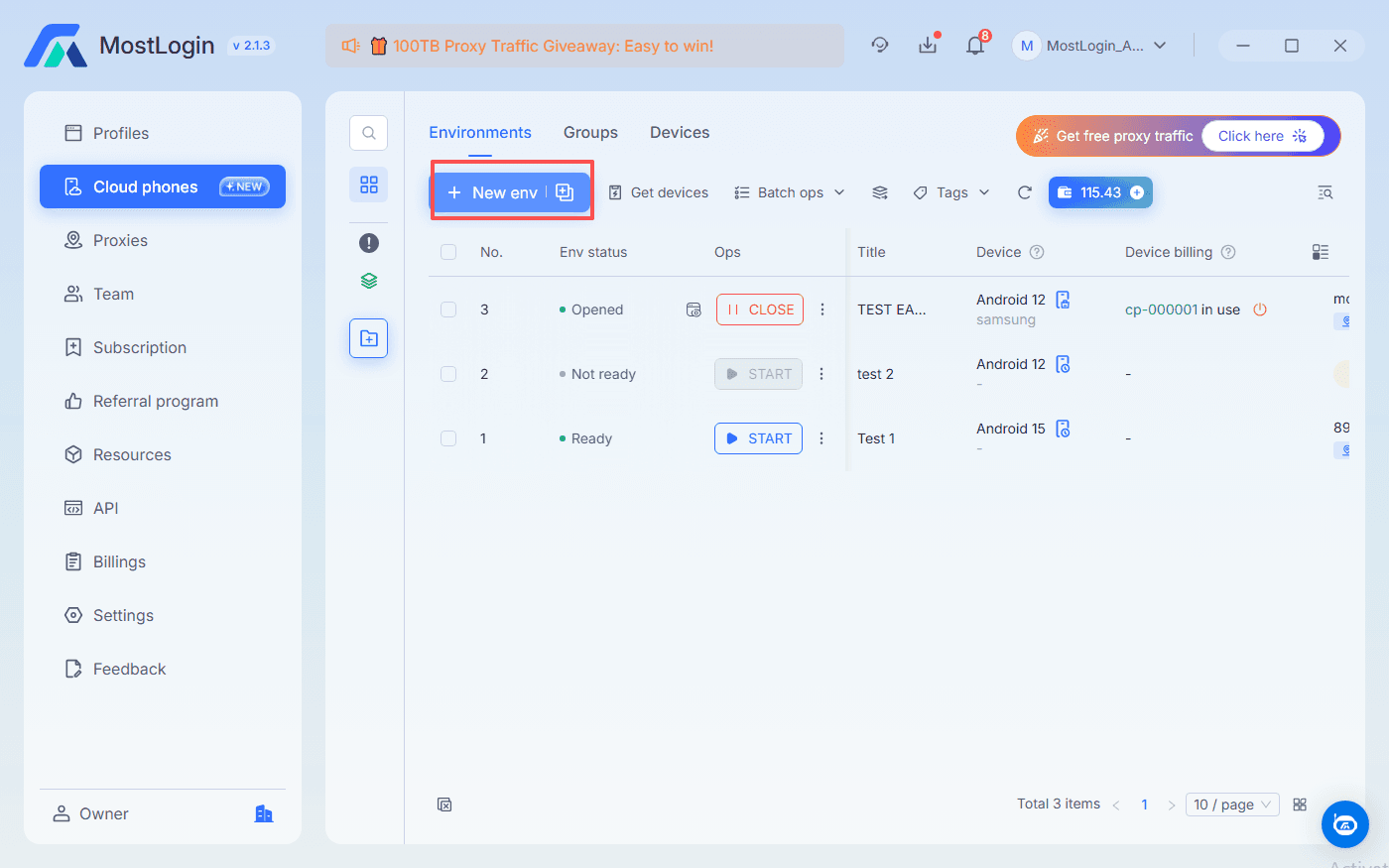
MostLogin Cloud Phone provides real Android devices hosted remotely rather than locally running emulators. Each cloud phone offers an isolated mobile workspace for managing apps, account sessions, and device settings.
To run the test, download MostLogin, create an account, and sign in to the desktop client. Open the Cloud Phone section and set up two environments for two authorized business accounts.
Give each a recognizable name, such as
Brand-A-Social and Brand-B-Social, then:- Confirm that each opens the intended account.
- Save a non-sensitive draft or test asset.
- Close and reopen each application.
- Stop and restart the cloud phone environments.
- Check account state, stored assets, and assignments.
Testing application restarts separately from environment restarts helps identify where persistence problems occur.
Next, find out what remains available when a device rental ends or an environment moves to another device. Review retention, backup, and deletion settings before storing client material.
Unexpected logouts, missing assets, and changed settings belong in the pilot log. Tracking when they occur makes recurring problems easier to identify. A suitable setup keeps account data organized and makes recovery manageable when something changes.
Test Connection Reliability and Proxy Failure Handling
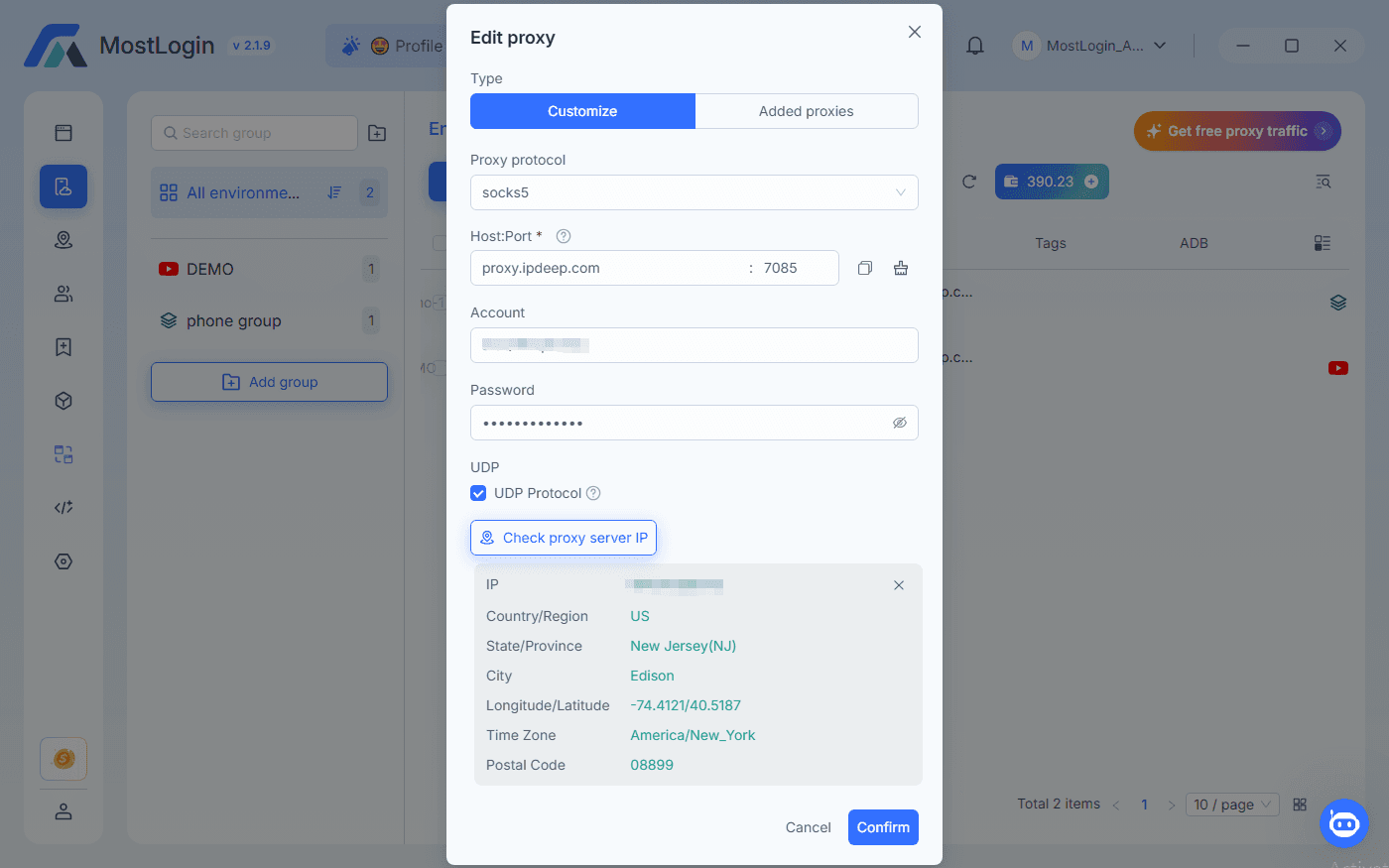
Start with the provider’s standard connection. If your workflow uses a custom proxy, repeat the same publishing tasks through that connection.
Evaluate:
- Upload reliability with your normal media files.
- Supported proxy protocols and authentication.
- The observed public IP and approximate location.
- Behavior when the connection or proxy fails.
- Credential updates and access revocation.
A proxy routes traffic through another network endpoint. For daily operations, what matters is whether the connection remains reliable and how the system responds when it becomes unavailable.
Find out whether traffic stops after a proxy failure or falls back to another connection. Test this before introducing accounts with specific network requirements.
Keep each environment’s approved endpoint in your setup records so operators can compare it with the observed connection. Treat location labels as approximate: Facebook notes that mobile traffic can route through IP addresses whose reported locations differ from the user’s actual location.
If verification appears, note the time, environment, and recent changes before adjusting the setup again. Connection records and clear recovery steps help operators investigate interruptions without repeatedly rebuilding the workspace.
Check Team Handover and Access Permissions
A setup that works for one operator may become difficult to manage when several people share responsibilities.
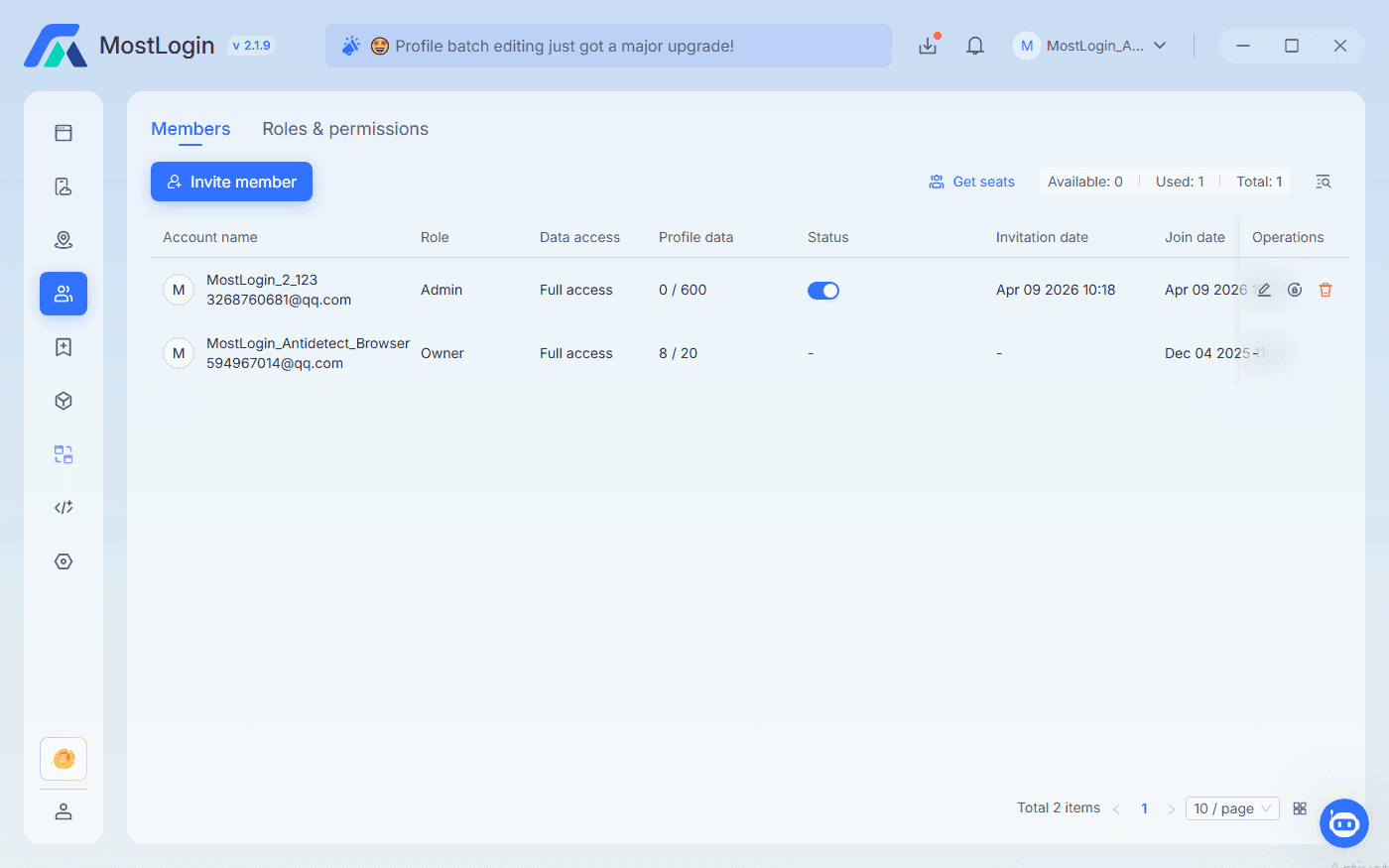
Ask a second operator to take over an approved task. Can they identify the correct environment, access assigned work, and finish without receiving administrator credentials?
Check:
- Individual team identities and authentication options.
- Permissions for assigned environments.
- Access removal when responsibilities change.
- Activity records for troubleshooting.
- Handling of simultaneous access.
Use platform-native delegated access where it meets the task. Consistent environment names, ownership records, and handover instructions also help colleagues find the right workspace without relying on verbal explanations.
MostLogin’s multi-account management tools combine browser and cloud phone workflows. Its cloud phone service supports sub-account permissions, usage quotas, sharing, and transfers—capabilities to include in your team handover test.
Include access removal in the pilot, not just access assignment. When an operator finishes a temporary assignment, confirm that their permissions can be withdrawn without disrupting the next person’s work.
A successful handover lets another operator continue through assigned access while keeping account ownership and administrative control clear.
Calculate the Total Cost at Your Expected Workload
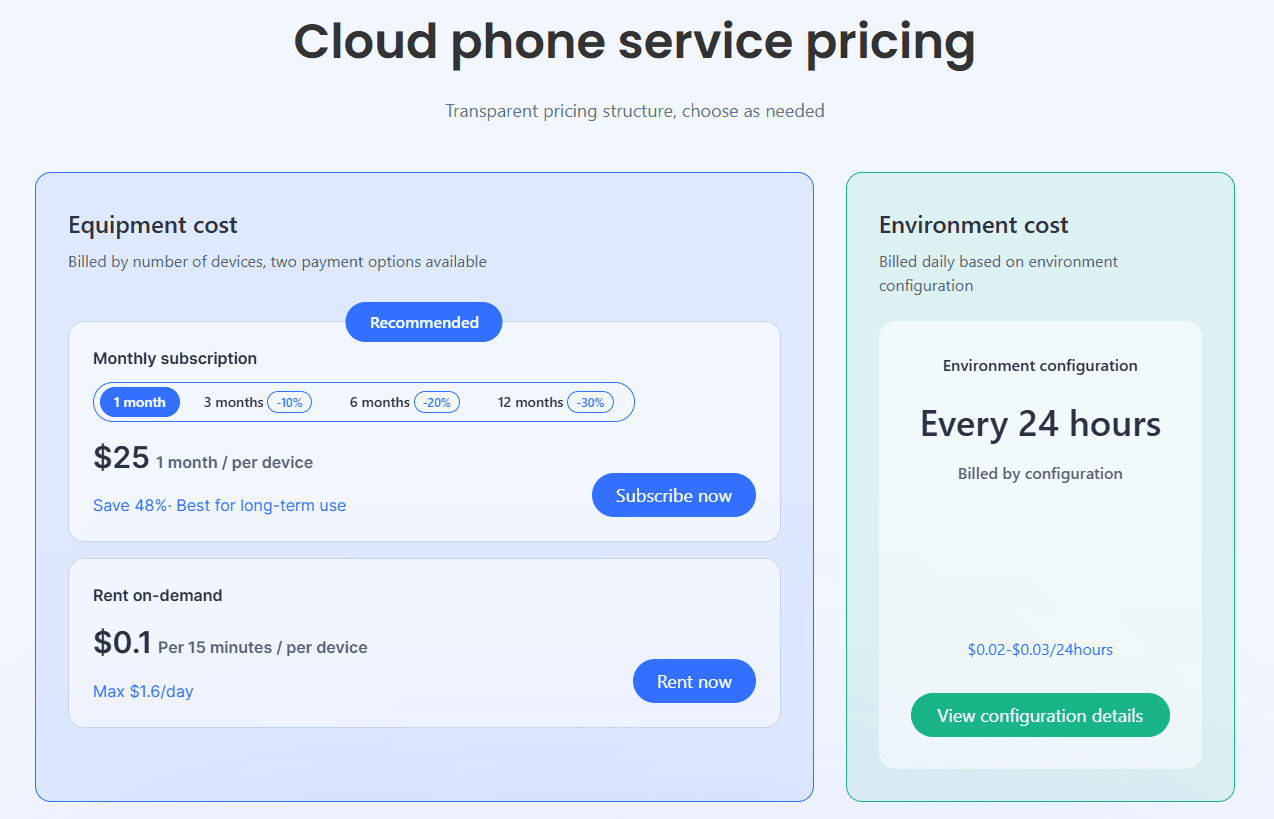
Compare the cost of maintaining your workflow—not just the entry-level subscription. Start with device access: does the provider charge by monthly rental, usage time, or the number of devices running simultaneously? Then check environment storage, proxy traffic, and team-member charges.
The number of environments your team maintains may exceed the number of devices it needs running at once. Use your publishing schedule to estimate both. A team managing accounts throughout the day has different resource requirements from one running occasional campaigns.
MostLogin cloud phone pricing includes monthly and on-demand device options, with environment configuration charged separately. Calculate these components together to estimate the cost of your intended setup.
Compare a normal week with a busy campaign week. Include the time operators spend recovering sessions, resolving access issues, and repeating failed uploads.
The more cost-effective option is the one that supports your workload with predictable charges and manageable maintenance—not simply the lowest starting price.
Frequently Asked Questions
Is a Cloud Phone Safe for Managing Multiple Social Accounts?
MostLogin uses real Android devices hosted remotely—not locally running Android emulators. Each cloud phone provides an isolated environment with its own device fingerprint, keeping account sessions and application data separate.
Pairing that environment with a dedicated IP helps reduce account association caused by shared device and network signals. Keep each authorized account assigned to its usual environment and control team access to maintain a consistent setup.
Does Every Cloud Phone Need a Separate Proxy?
For separate social accounts, the recommended setup is one cloud phone paired with one dedicated, stable IP. Assign a separate proxy endpoint to each cloud phone rather than routing all environments through the same exit IP.
This helps reduce shared-network association risk and related account restrictions. Choose an exclusive exit IP and keep its region consistent with the account’s authorized operating location. Dedicated IPs address network overlap; compliant account activity remains essential.
Why Can an Account Still Receive Security Checks?
A persistent environment does not remove authentication requirements. Review recent access and configuration changes, then follow the platform’s verification process. Facebook provides tools for checking recent logins and active sessions, which can help investigate unfamiliar activity.
Is Managing Multiple Accounts with Cloud Phones Compliant?
Check each platform’s rules on account ownership, delegated access, and permitted activity. Document client authorization and use the setup for legitimate brand, client, or regional operations—not fabricated engagement or evading restrictions. Apply the rules for each account type before deployment.
Put Your Next Cloud Phone Setup Through a Real Workflow
Before adding more environments, run a small group of authorized accounts through all five checks. Complete a publishing task, restart each environment, test connection recovery, and hand work to a second operator. Track pilot spending and estimate ongoing costs.
Ready to put these checks into practice? Explore MostLogin Cloud Phone and start a small pilot built around your actual publishing tasks. Use the results to confirm how many devices and environments your team needs, set a monthly budget, and expand once the workflow meets your requirements.