An anti detect browser for multiple accounts keeps account environments separate. MostLogin MCP connects supported browser-management tools to compatible AI tools, letting you create profiles, configure proxies, and manage sessions through natural-language instructions.
This guide explains what MostLogin MCP supports, how to connect it to Cursor, and how to write a request with the details needed for your task.
What MCP Adds to an Anti Detect Browser for Multiple Accounts
MCP, short for Model Context Protocol, provides a way for compatible AI tools to connect to application tools. MostLogin MCP Server is a local API service that connects the MostLogin desktop client to AI tools such as Cursor, Claude Code, Codex, and OpenCode.
Once connected, you can describe a supported task in natural language rather than entering every operation through the desktop interface. A profile-creation request, for example, can specify the operating system, browser, location, and proxy type.
The browser and MCP serve different purposes. Browser profiles organize account environments; MCP provides a connection through which an AI tool can request management operations. It does not replace profile isolation or make every website action automatically available.
For broader context, our introduction to AI agents in multi-account management explains how AI-assisted operations fit into multi-account workflows. Here, the focus is on the supported capabilities and connection process.
What Can MCP Automate in Multi-Account Browser Management?
Create and Launch Browser Profiles
MostLogin MCP supports creating and launching browser profiles. You can describe the environment you need using a natural-language request.
For example:
Create a new browser profile with Windows 10, latest Chrome, located in Los Angeles, using a SOCKS5 proxy.
Replace the example settings with your own requirements and provide the proxy connection details needed for the task. Specifying SOCKS5 identifies the protocol; it does not supply a working proxy connection.
This request defines a browser environment. It does not create a platform account, establish account ownership, or complete identity verification. Review the profile configuration before using it for an authorized account.
For a cross-border team, the useful part is the configuration itself: the request should reflect the environment required for the work, rather than repeat settings copied from an example.
Update Fingerprint and Proxy Settings
You can request updates to browser fingerprint settings and configure proxies through MCP. Supported operations also include managing User Agent strings.
Tie each request to a specific requirement. Identify the profile and the settings you intend to update rather than asking the agent to change an entire workspace.
When an operation involves a proxy, confirm that it works and specify the correct protocol, such as HTTP or SOCKS5.
Manage Sessions and Cookies
MostLogin MCP supports session and cookie management. One example is:
Save cookies from the current browser session and restore them on next launch.
This is a session-management operation, not a guarantee that a platform will accept a restored login without further checks. Account recovery and identity verification remain separate from saving browser session data.
Handle Batch Profile Operations
You can also request batch profile creation. For example:
Create 10 different fingerprint profiles and assign unique proxies to each.
Provide the proxy information needed for the operation. For larger tasks, process profiles in smaller groups to avoid high resource usage.
This approach can help organize environment preparation for an authorized client-account portfolio. Review a smaller group before extending the same configuration across additional profiles.
Which AI Tools Can You Connect?
MostLogin MCP supports:
- Claude Code.
- Cursor.
- Codex.
- OpenCode.
Claude Code requires Node.js. When switching between AI tools, reapply the MCP configuration in the destination tool. If request-header values change, update the connection configuration accordingly.
The steps below use the JSON configuration shown in Cursor.
How to Connect MostLogin MCP to Cursor
Step 1: Enable and Authorize Local API
Use MostLogin version 2.1.9 or later. Open the desktop client and locate the Local API settings. Select “Authorize to view API key” to authorize access and view the MCP configuration options.
Keep MostLogin running in the background while your AI tool uses the local service.
Step 2: Get the MCP Connection Details
In the MCP section, open the General configuration tab. The interface provides “Configure MCP via prompt” and “Configure MCP via Json” options.
Copy the configuration from your MostLogin client. Use the complete URL shown there, including its port and /mcp path, and the accompanying Authorization value. The screenshot below shows the connection configuration after authorization.
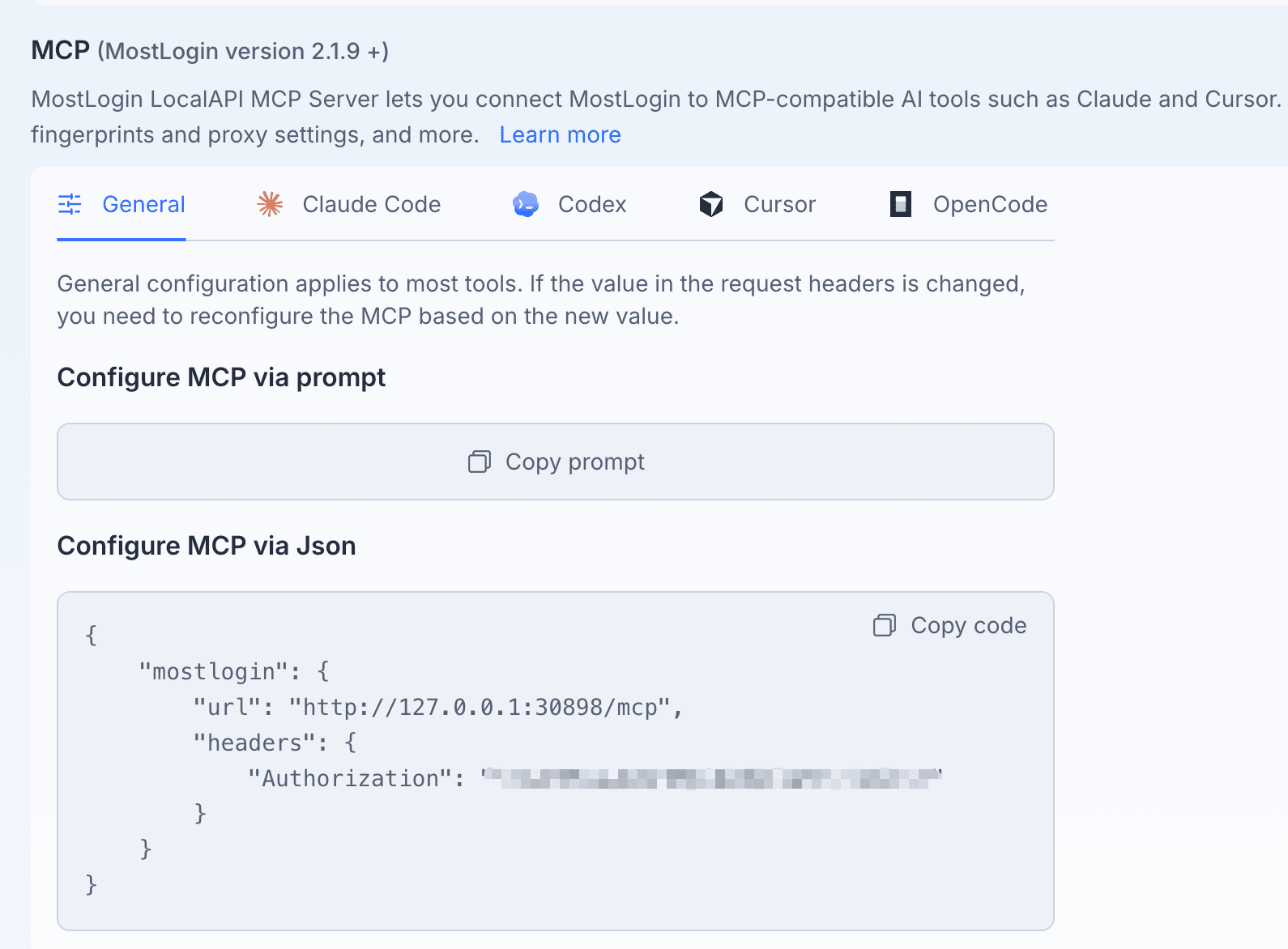
MCP configuration options in MostLogin. Authorization credentials are concealed.
Step 3: Add the MCP Configuration in Cursor
Open Cursor’s MCP configuration file,
mcp.json. Add the MostLogin server configuration under mcpServers, using the URL and Authorization value copied from your client.If the file already contains other MCP servers, add the MostLogin entry to the existing
mcpServers object rather than replacing the complete configuration. The screenshot shows the surrounding structure used in Cursor.{
"mcpServers": {
"mostlogin-mcp": {
"url": "YOUR_MOSTLOGIN_MCP_URL",
"headers": {
"Authorization": "YOUR_AUTHORIZATION_VALUE"
}
}
}
}Replace both placeholder values with the connection details displayed in MostLogin. Save the file, then check whether Cursor can connect to the service.
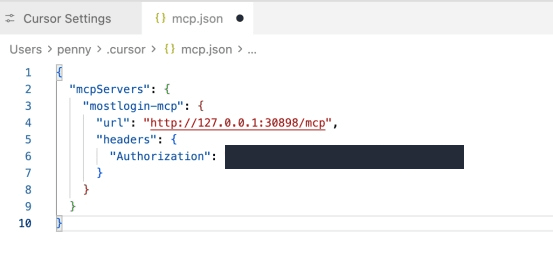
MostLogin configuration under mcpServers in Cursor. Authorization credentials are concealed.
Keep the authorization token confidential. Hide it completely in screenshots or configuration details shared outside your workspace.
Step 4: Verify the Connection and Try a Profile Operation
In Cursor, send “Connect MostLogin” to check the connection. In the example below, Cursor reports that MostLogin is connected, the status is ready, and the API is verified.
The follow-up request, “Open all profiles for me,” returns two opened profiles with their ports and process IDs. Use a request that matches the profiles you actually intend to open; this example does not require opening every profile in your workspace.
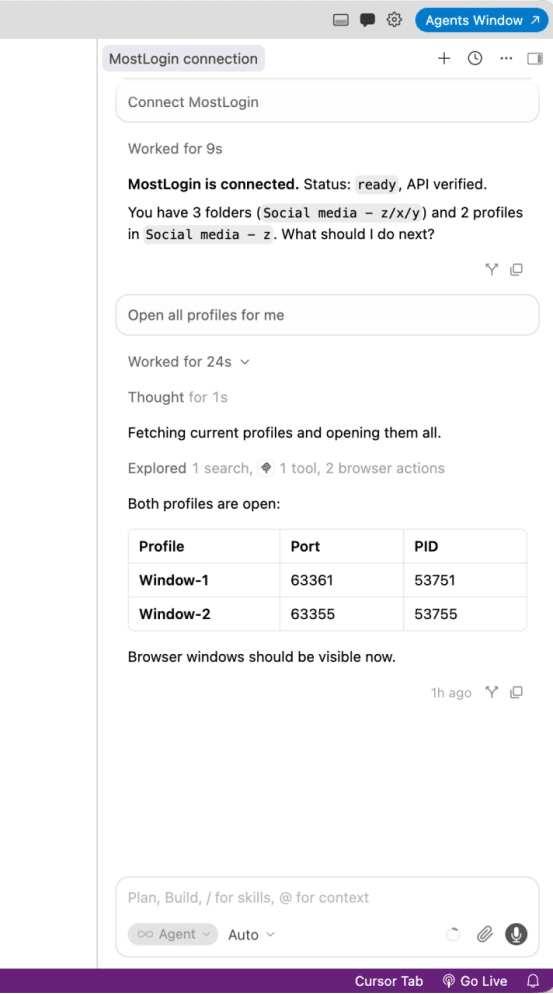
Example response in Cursor: connection reported ready, followed by results for two opened profiles.
This screenshot records Cursor’s reported connection and operation results. It does not show account logins or confirm that the profiles have passed platform checks.
Alternative: Configure MCP Through a Prompt
In MostLogin, find “Configure MCP via prompt” and select “Copy prompt,” as shown in the configuration screenshot above. Paste the content into a compatible AI chat tool that supports guided configuration. The tool can then guide you through or complete the integration using the supplied configuration information.
How to Write a Clear MCP Request
After connecting an anti detect browser for multiple accounts to an AI tool, specify the service, operation, target environment, and configuration required for the task.
Mention MostLogin or MCP explicitly and describe the action you want to perform. This follows our guidance for commands that need a clearer target.
For a new profile, include the relevant environment requirements. For a proxy operation, provide the connection information and correct protocol. For an update, identify the profile and the settings that should change.
Review the resulting configuration in MostLogin before continuing. When repeating an operation across multiple environments, work in smaller groups so you can inspect the results and control resource usage.
Frequently Asked Questions
Can I Automate Browser Profile Management Without Writing Code?
You can use natural-language commands for supported MostLogin operations instead of writing an API request for each task. The initial connection still requires a server address and authorization configuration. This does not mean every browser or website task is available without additional tools.
Does MostLogin Need to Stay Open?
Yes. Keep the MostLogin desktop client running in the background with Local API enabled while the AI tool uses the local MCP service.
Can MCP Manage Multiple Browser Profiles?
Yes. The supported examples include creating multiple fingerprint profiles and assigning proxies. For larger batches, divide the operation into smaller groups to avoid high resource usage.
Does MCP Replace Browser Profile Isolation?
No. MCP connects the AI tool to browser-management operations. Separate profiles and their associated settings still provide the working environments. MCP is not an additional guarantee against account association, verification, or restrictions.
Bring AI into Your Multi-Account Workflow
Connect your browser environments to the AI tools you already use. With MostLogin MCP, you can create profiles, configure proxies, and manage sessions through natural-language instructions.
Download MostLogin for Windows or macOS, connect your preferred AI tool, and put your first MCP workflow into practice.