This article is a tutorial that teaches you how to create and delete a YouTube channel. Maybe in your daily life, you want to create your own YouTube channel to record your life or publish other content, or you need to delete your YouTube channel for some other reasons but don't know the specific operation steps.
Don't worry! We wrote this article today to help you. We will explain each step in detail and also cover some other issues you may encounter during registration or cancellation. We hope this article can effectively solve your problems!
Let's start with how to create a YouTube channel:
I. What Do We Need to Prepare Before Creating a YouTube Channel?
Before creating a channel, we need to prepare the following items:
▪ A functional Google Account (Gmail)
▪ A device and network environment that can access YouTube (web version or App)
▪ Be at least 13 years old (higher age requirements may apply in some countries/regions)
Oh, and one more thing: a single Google Account can create multiple YouTube channels, including personal channels and Brand Accounts.
II. How to Create a YouTube Channel (Complete Steps)
Create a Personal YouTube Channel
This is the most common type of channel that most people create and use.
1. Log in to youtube.com with your Google Account (Gmail).
2. Leave a comment on a video, like a video, or upload a video.
3. The system will automatically create a personal channel for you.
There is no need to manually click any "Create" button. Simply perform the above operations with your new account, and the channel will be created automatically. The default channel name is your Google Account name, which you can change immediately or at a later time.
Create a Brand YouTube Channel
Brand channels are more suitable for long-term operation, companies/teams, and managing multiple channels under one account.
1. Log in to youtube.com with your Google Account.
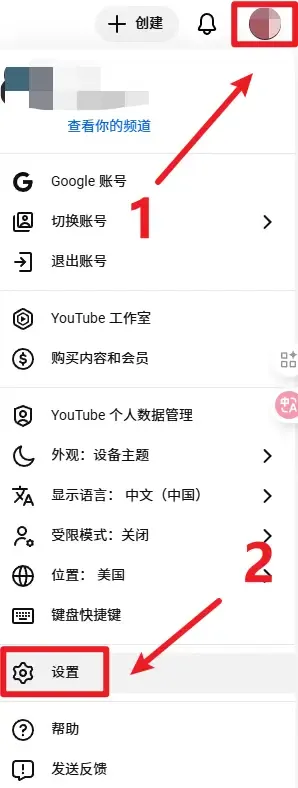
2. After logging in, click your profile picture in the upper right corner and select "Settings".
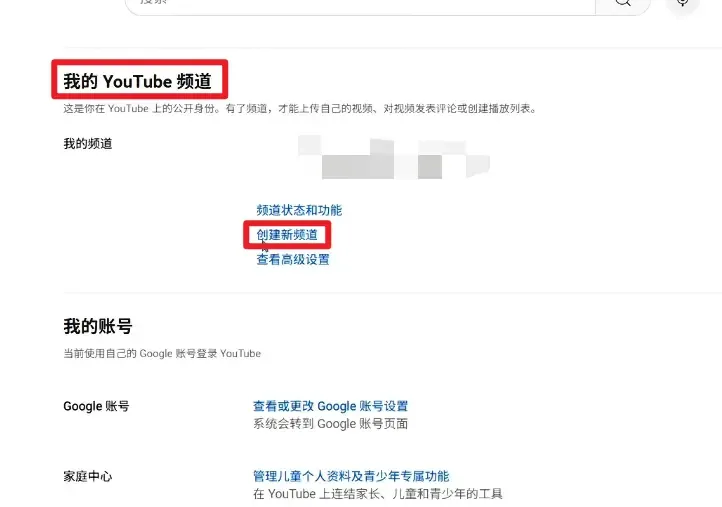
3. Click the "Create a new channel" button.
4. Upload a profile picture, fill in the username and display name, then click to create the channel.
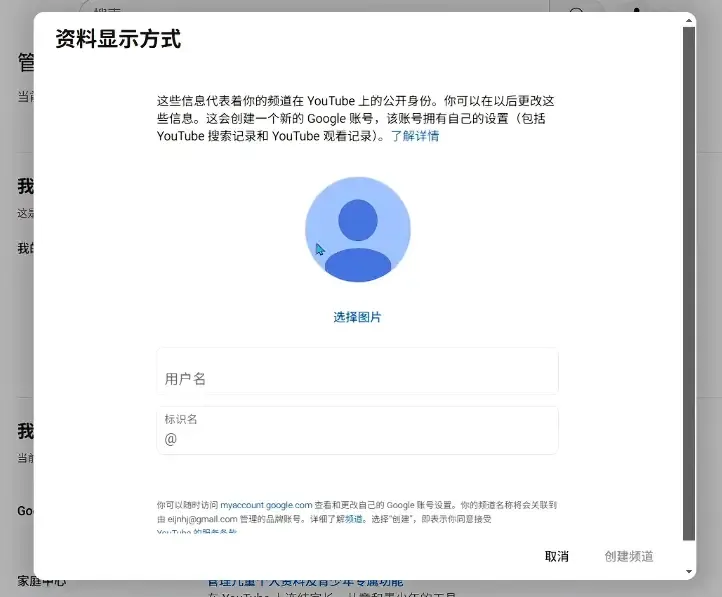
The channel name can also be modified later; it is not permanently fixed. Brand channels support multi-user management without affecting the security of the main Google Account.
III. What Settings Are Needed After Creating a YouTube Channel?
1. Basic Information: Set the channel name and profile picture, fill in the channel description, upload a channel banner, and then complete the required settings to get a custom URL.
2. Permission Management (Brand Channels): Add team members and assign roles (Owner/Manager/Editor), and regularly review permissions to ensure security.
3. Content Settings: Select the channel audience (whether it is aimed at children), set default upload options (category, tags, copyright information, thumbnail template), and then plan playlists.
4. Monetization with Ads: Link your Google Ads account, enable ads and membership features, and turn on auto-generated captions and content enhancement to improve video and audio quality.
5. Security & Privacy: Manage comments and the community, set the default privacy of videos (public or private), and decide whether to allow third parties to use your videos for AI training.
IV. How to Delete a YouTube Channel (Permanent Deletion)
Important Note: Deleting a channel is an irreversible operation. After deletion, you will permanently lose all videos, comments, playlists, and subscribers associated with the account.
Delete a Personal YouTube Channel
1. Log in to the Google Account backend of the personal YouTube channel you want to delete (myaccount.google.com).
2. Select "Data & privacy".
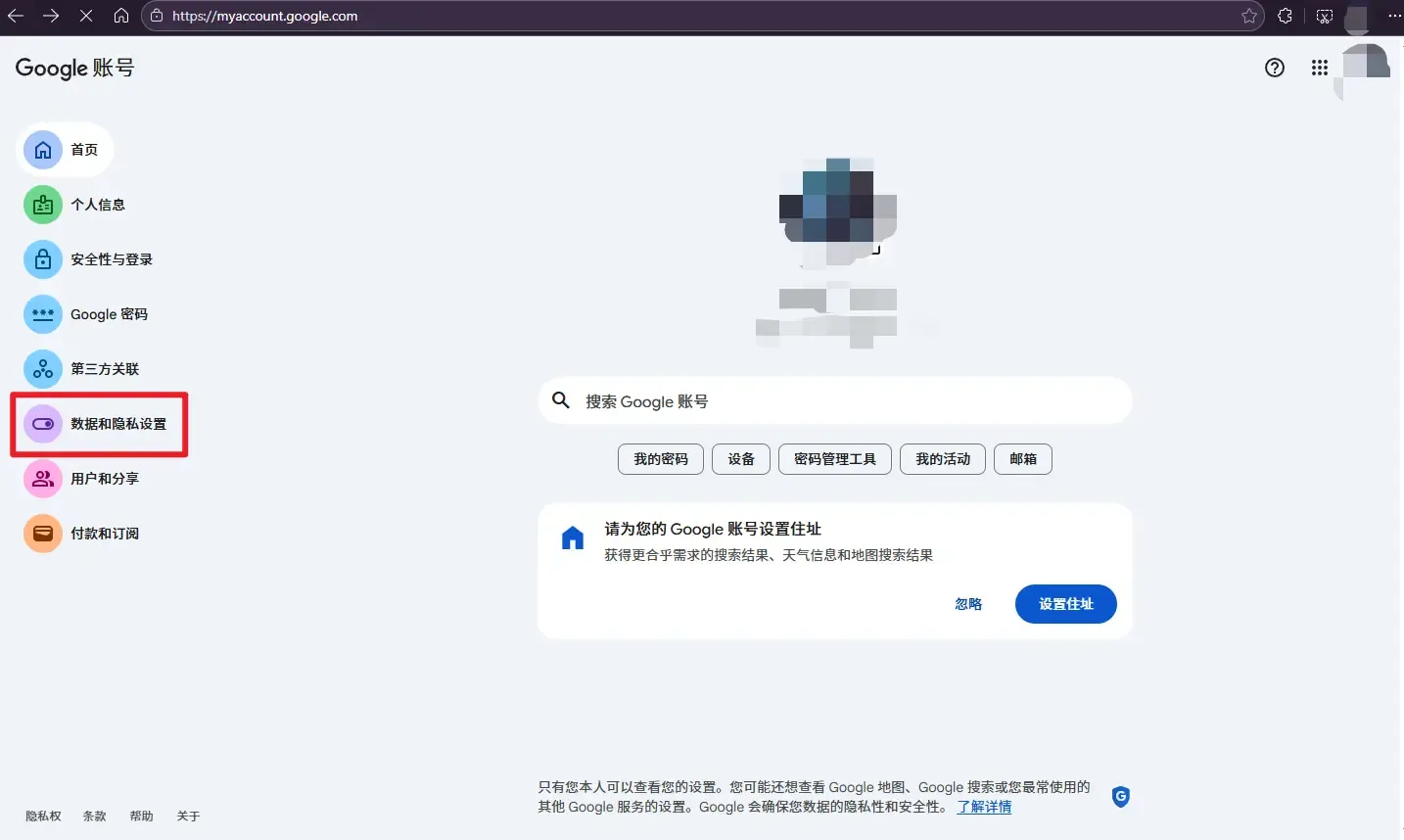
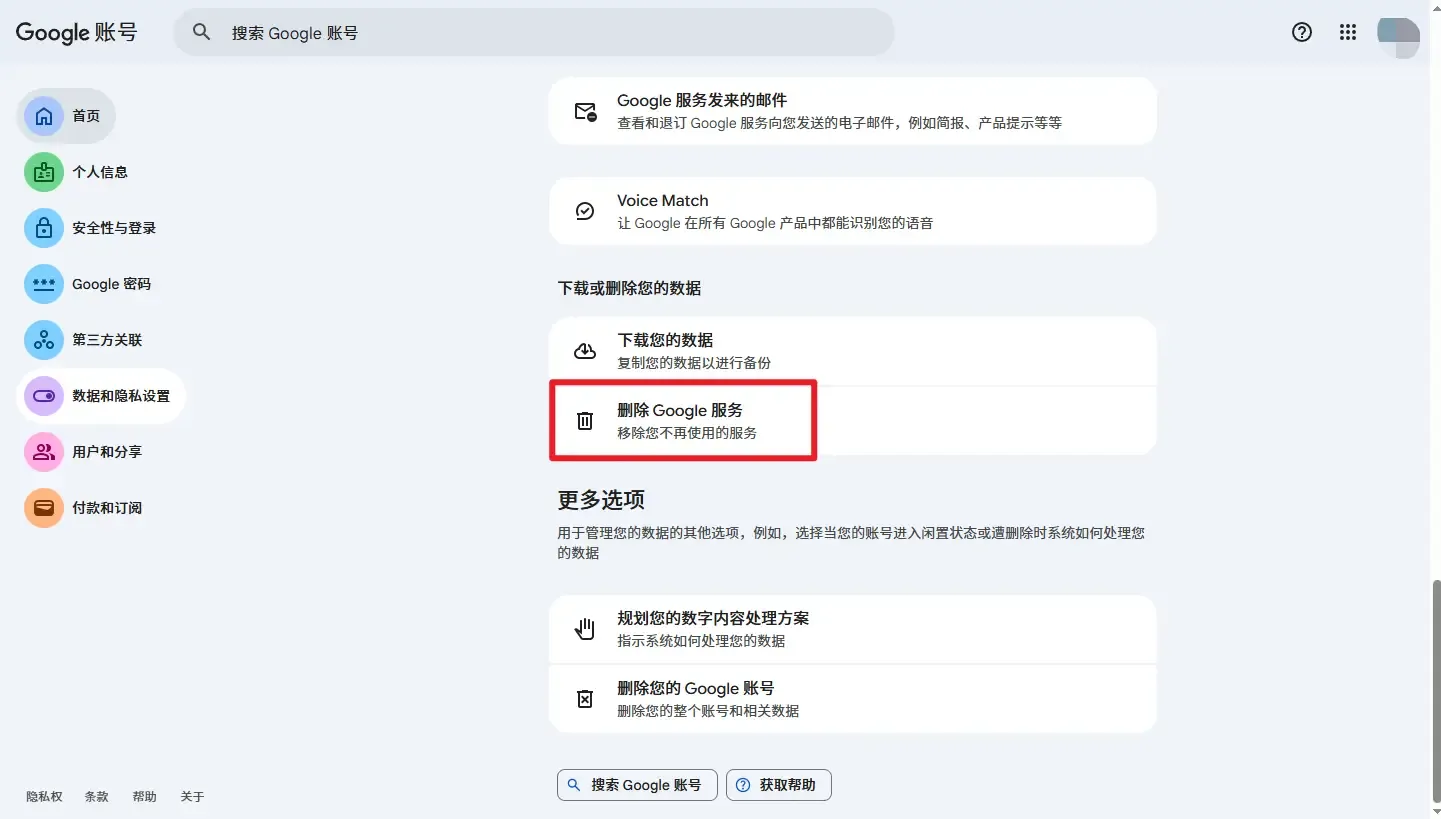
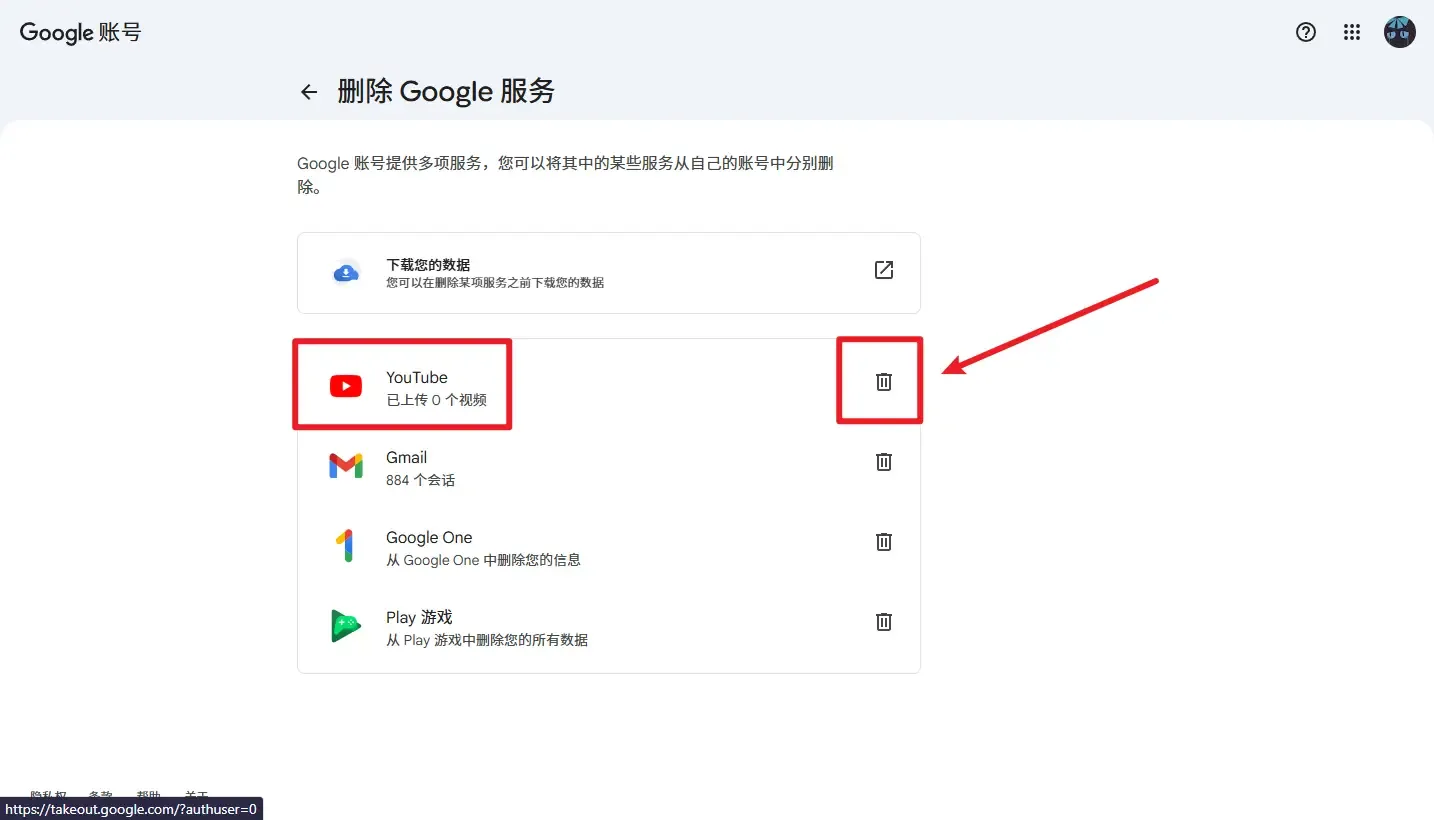
3. Scroll down until you find "Download or delete your data" -> "Delete a Google service - Remove services you no longer use".
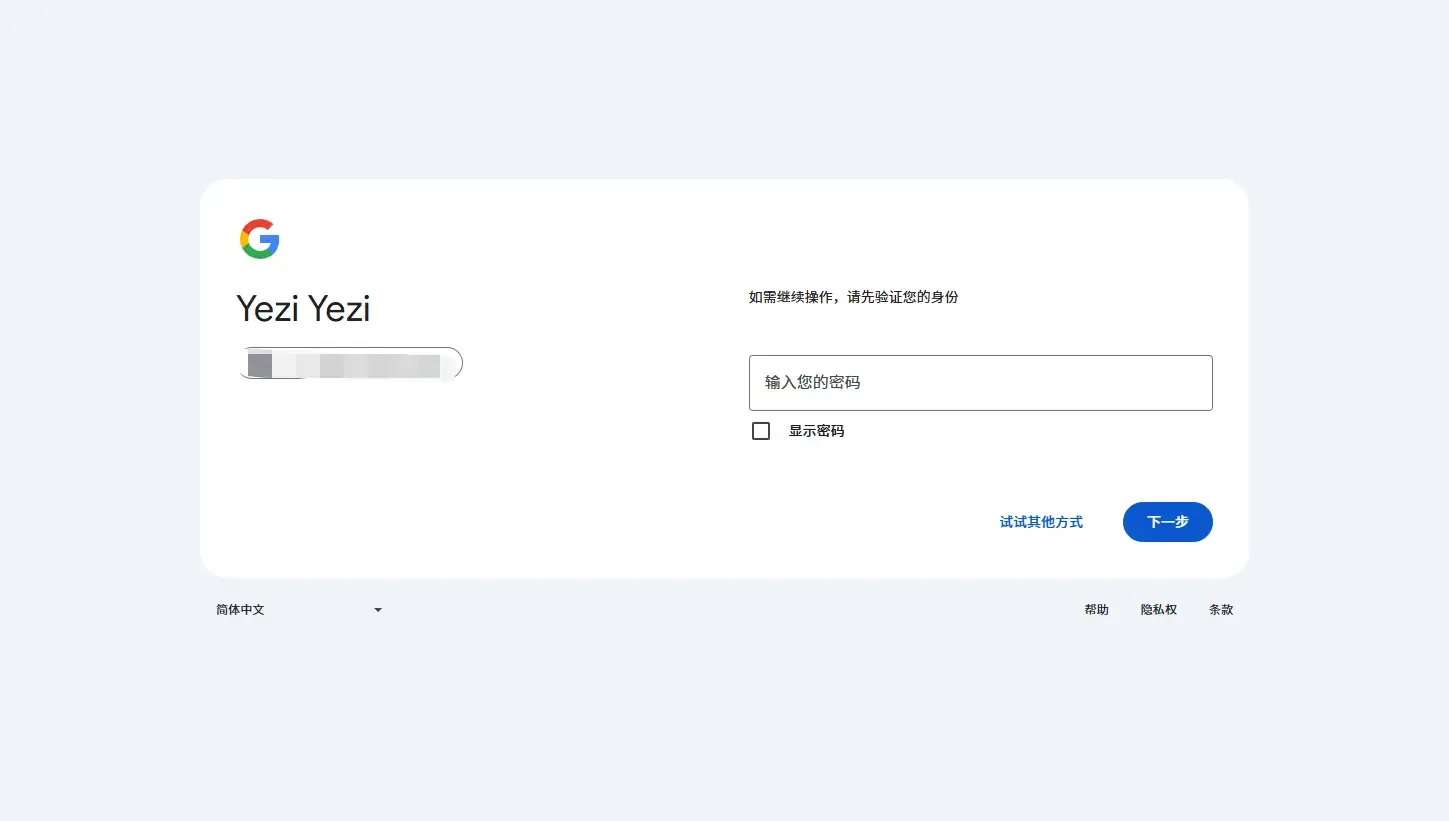
4. Account verification is generally required at this step.
5. After verification, click the trash can icon next to YouTube and complete the verification to delete the channel.
Delete a Brand YouTube Channel
This allows you to delete a specific channel without affecting the Google Account.
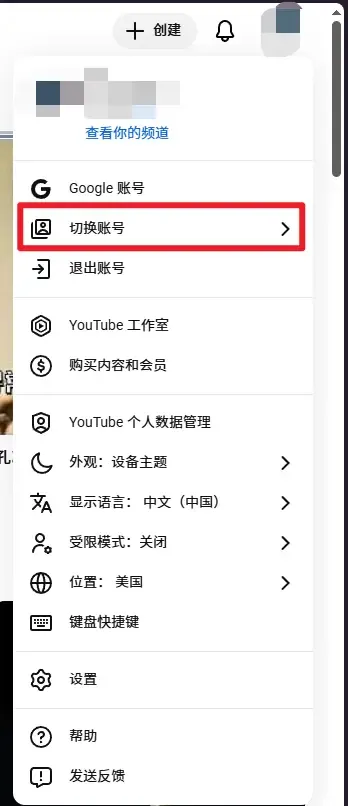
1. On the YouTube interface, click your profile picture and select "Switch account" to switch to the brand account you want to delete.
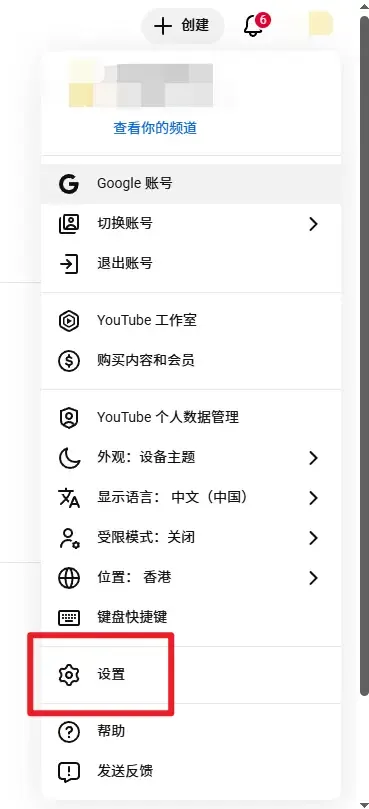
2. Click the "Settings" button.
3. Click "Channel status and features".
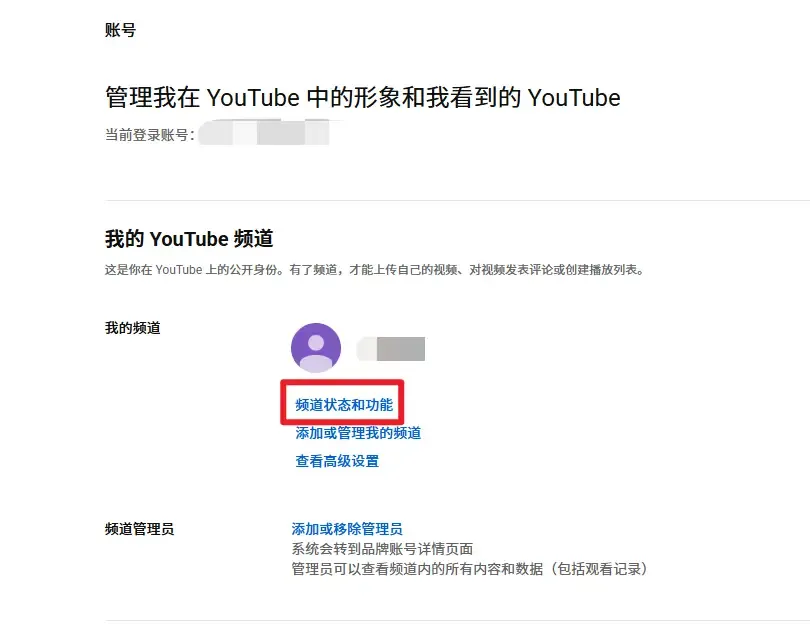
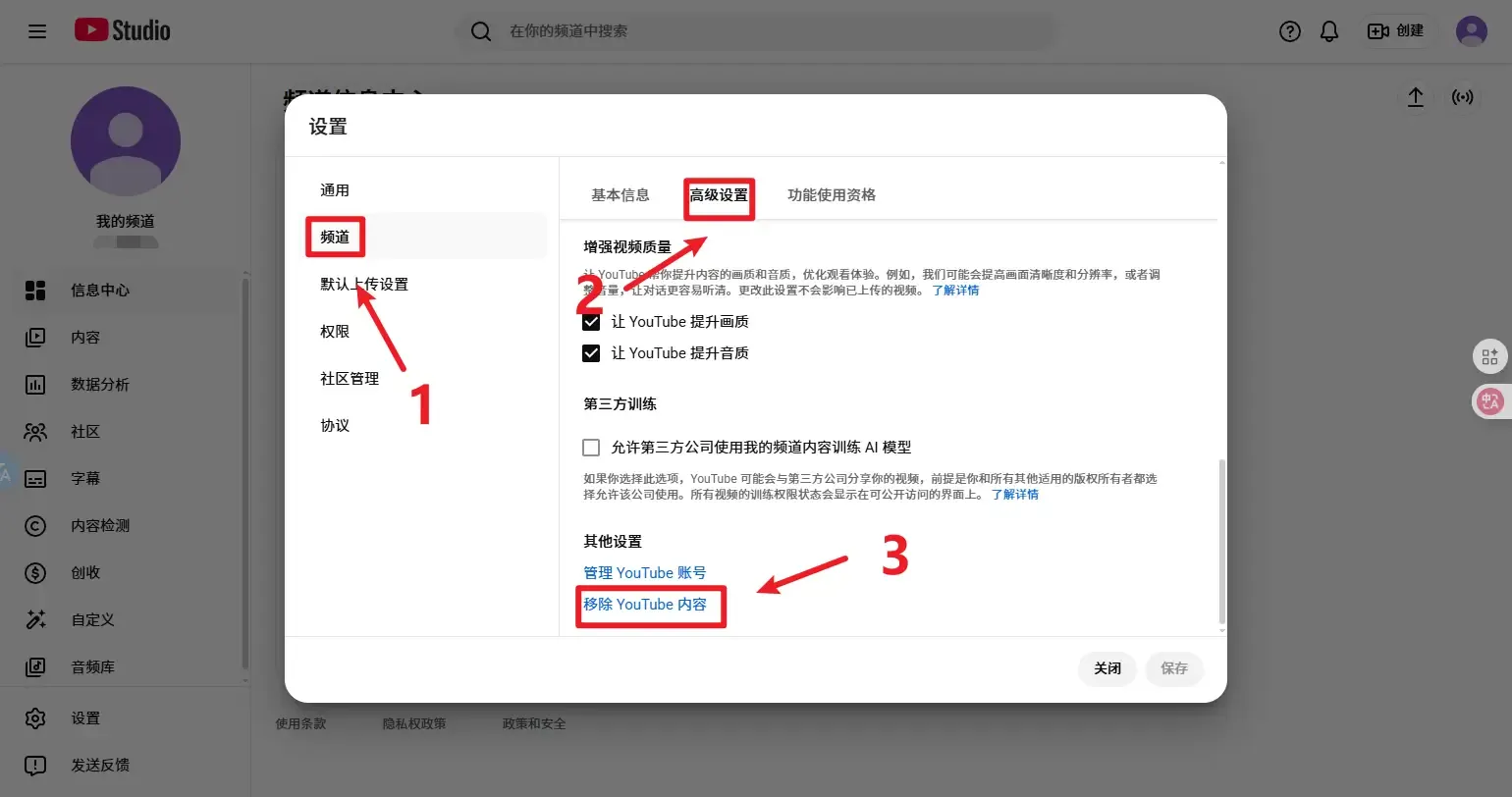
4. Once you enter, the settings interface will open automatically. Click "Channel" -> "Advanced settings" -> "Remove YouTube content".
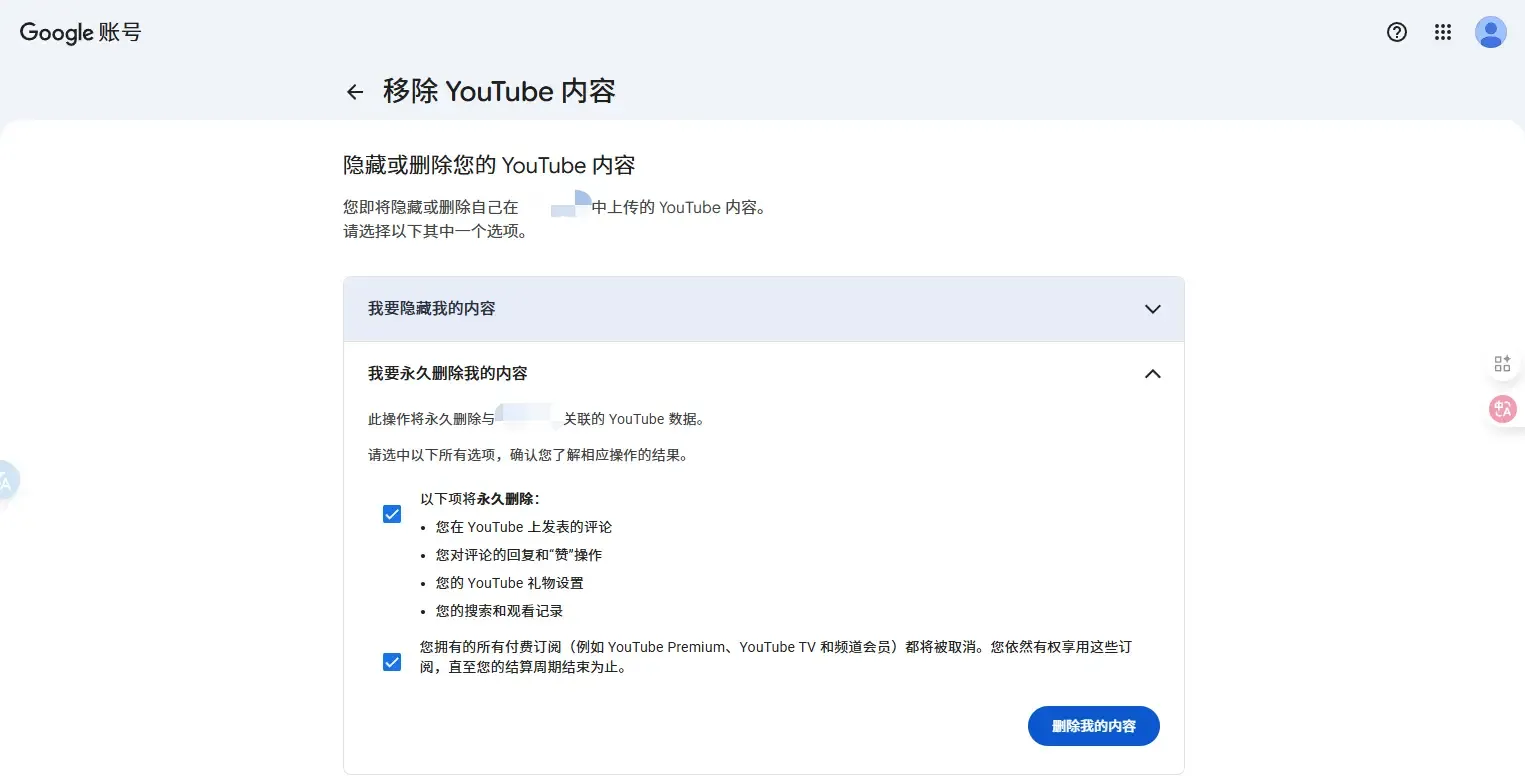
5. After verifying your Google Account, click "I want to permanently delete my content" to delete the channel content.
How to Quickly Manage the Operation of Multiple YouTube Channels?
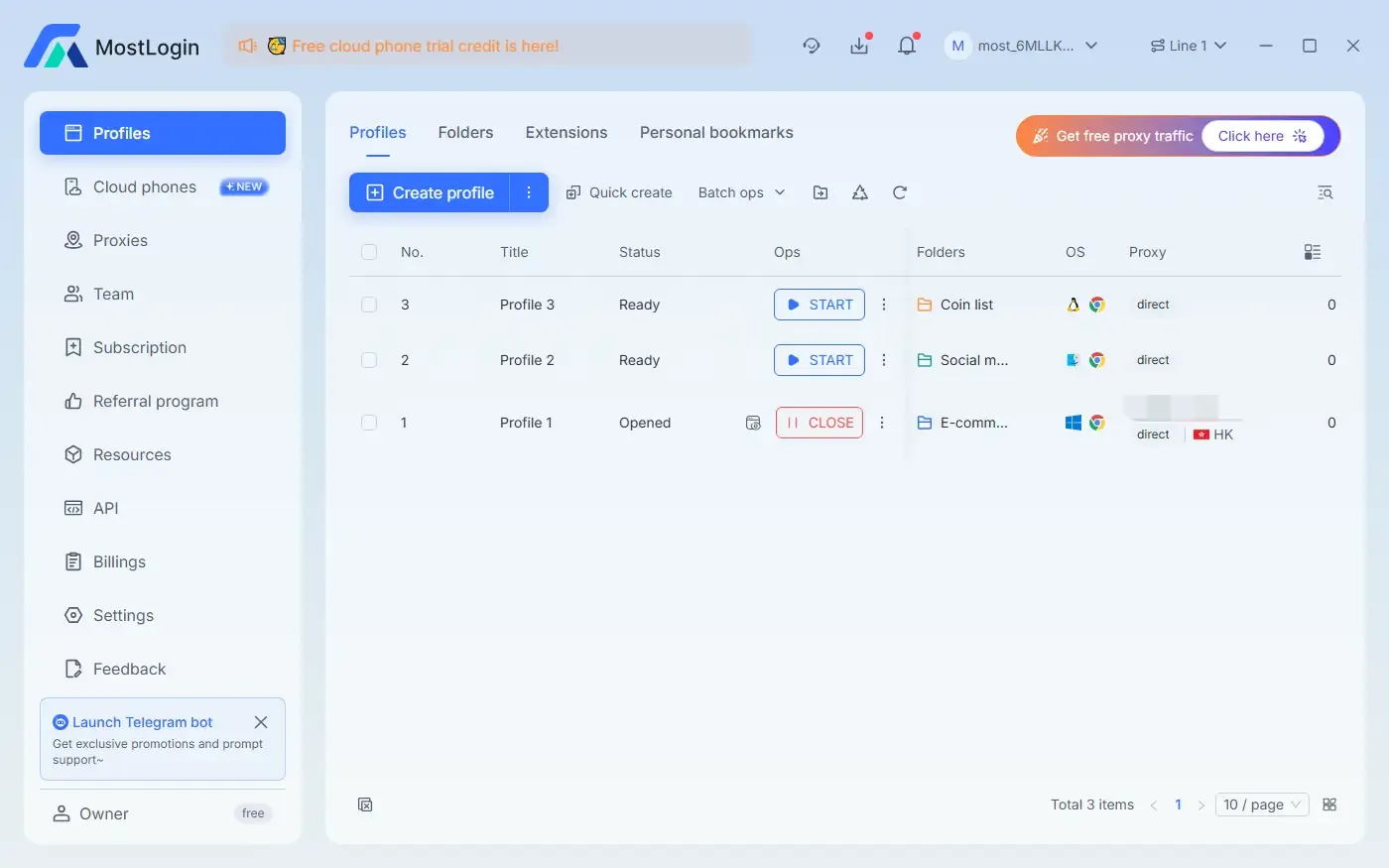
If you log in to multiple YouTube channels on a single computer, it is easy to be detected and linked by YouTube officials, resulting in account suspension and having to start over. To solve this problem, you can use MostLogin Anti-Detection Browser to help you create multiple isolated browser environments.
It can help you quickly create multiple browser environments to prevent detection by official platforms. Moreover, you can import IP proxies here, facilitating marketing and promotion operations in multiple regions later. It not only improves your efficiency but also ensures the security of your accounts.
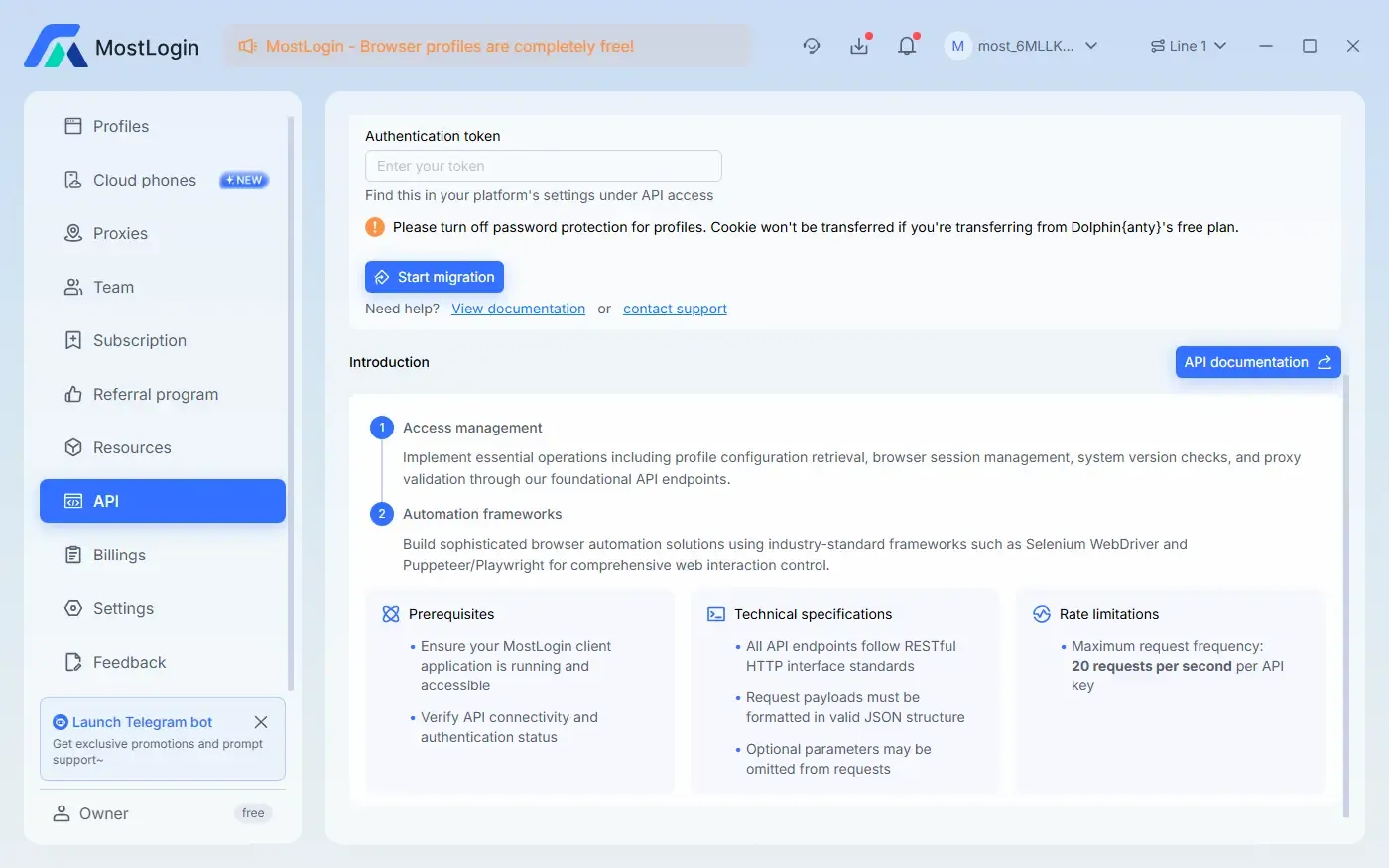
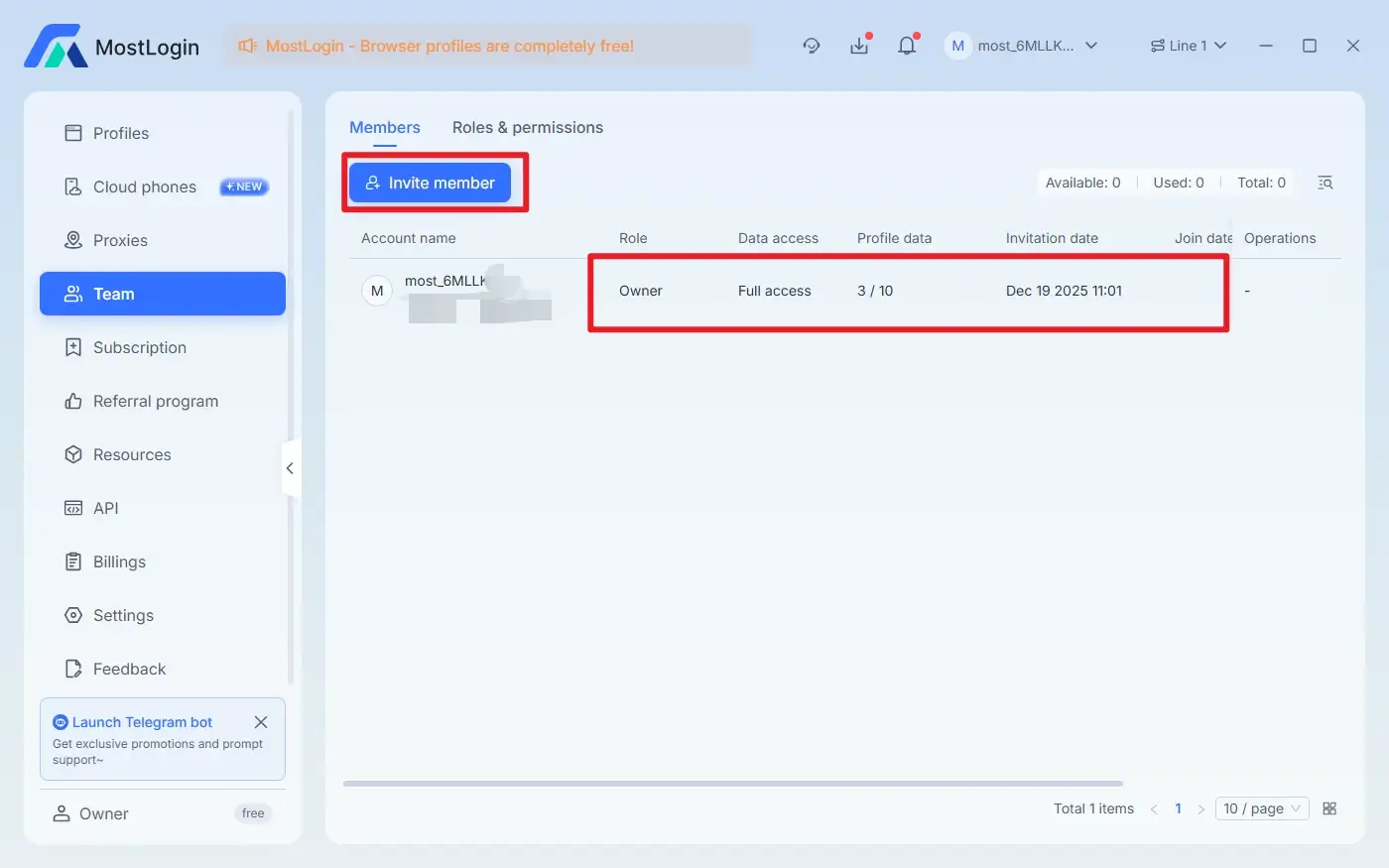
MostLogin Anti-Detection Browser also has more features to help you operate better, such as multi-account management, team collaboration, automation, and quick environment creation. Currently, except for the cloud phone feature, all other functions of MostLogin Fingerprint Browser are available under current plans. Welcome to try it out.
Conclusion:
Creating and deleting a YouTube channel is indeed not that simple, especially since there are two types of channels: personal and brand. If you want to operate multiple accounts simultaneously, you can use MostLogin Browser to help you open and isolate multiple YouTube channel accounts, which not only improves efficiency but also prevents account suspension to the greatest extent.
FAQs:
How many channels can one Google Account create?
There is no overall limit, but you need to meet certain requirements to create more than two channels.
Can a personal channel be converted to a brand channel?
No, it cannot be converted directly, but you can create a brand channel and migrate your content to it.
Can I change the channel name?
Yes, you can change it at any time. Currently, there is no official limit on the number of changes, but changing it too frequently is not conducive to audience memory and search engine optimization (SEO).
Is real-name verification required to register a channel?
Only a valid Google Account is required. Identity verification may be required when uploading content or monetizing the channel.
Will deleting a personal channel affect the Google Account?
No, it only deletes YouTube content. Gmail, Google Drive, and other services will not be affected.
Will deleting a brand channel affect the main account?
No, brand channels can be deleted independently without affecting the main account.
Can a deleted channel be recovered?
No, the deletion is irreversible. Videos, comments, playlists, and subscribers cannot be recovered. If you are worried about regretting the decision, it is recommended to back up your content in advance or just hide the account instead.
The Best Anti-Detection Browser - MostLogin
MostLogin Anti-Detection Browser helps users solve high-frequency problems such as multi-account operation, environment isolation, and account risk control.
For operational questions, please refer to the Official Help Documentation