A growing account portfolio often produces a browser workspace full of unclear names, duplicate environments, and profiles that nobody wants to remove. Operators spend time finding the right session, while administrators struggle to distinguish active accounts from abandoned setups.
At MostLogin, we recommend managing profiles through four stages: creation, account assignment, maintenance, and retirement. Each environment should have a business purpose and remain identifiable throughout its working life.
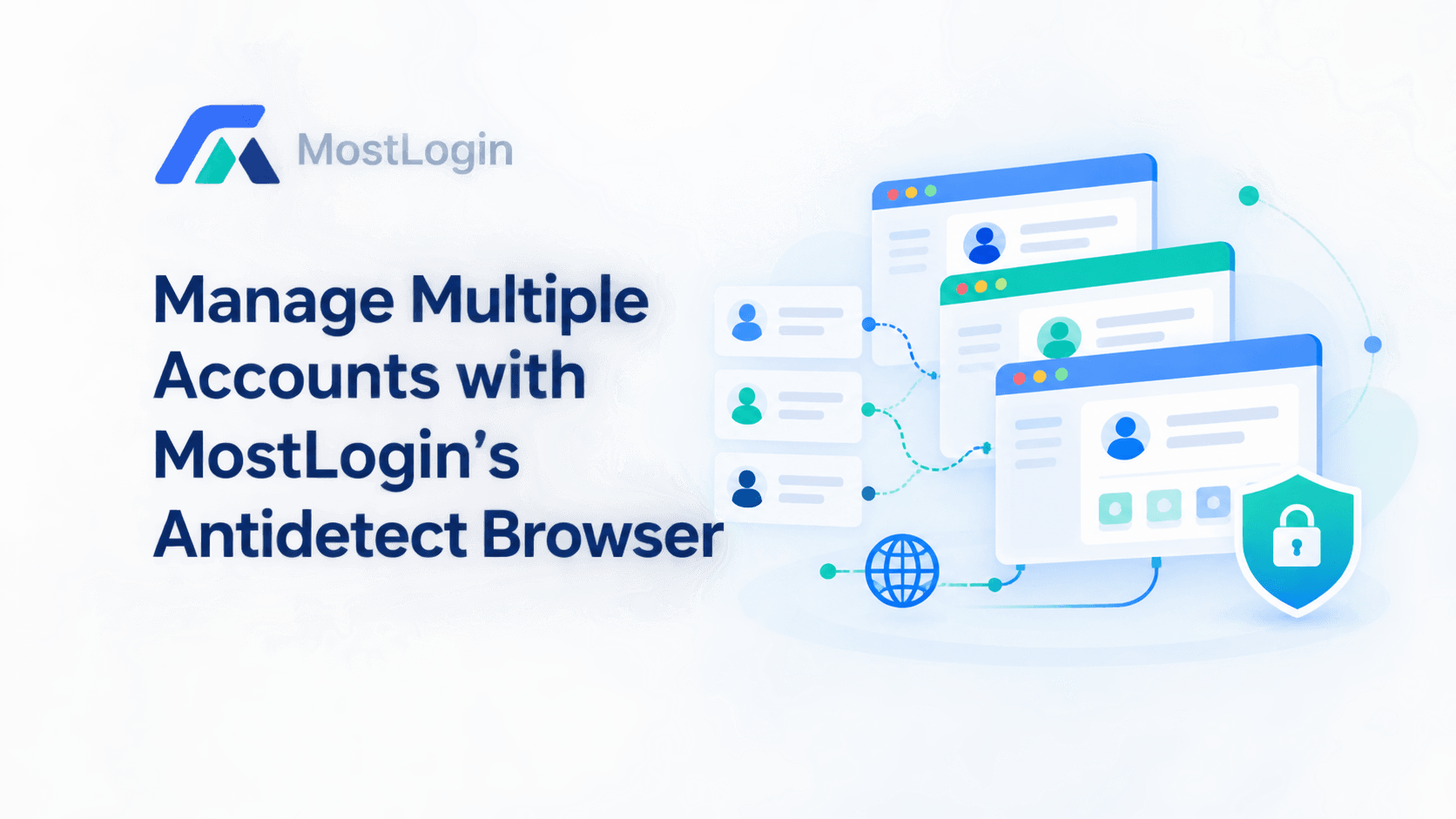
Our multi-account browser provides separate browser environments, proxy configuration, and centralized profile management. Organizing these capabilities around the account lifecycle helps teams maintain a usable workspace as their operations expand.
Establish the Account Mapping Before Creating Profiles
Create an account register before adding environments in bulk.
For every authorized account, record its business owner, platform, account reference, primary operator, and recovery contact. Add the profile ID after the environment has been created.
Use the same account reference in the browser workspace and the team’s operational tools. A storefront should not have one name in the browser, another in the order-management process, and a third in the support queue.
We recommend a consistent naming order:
Business — Platform — Account PurposeAdd a market identifier when it distinguishes regional accounts. Leave out labels that do not help an operator select the correct environment.
Store credentials in an approved password manager. Profile names and operational notes should identify accounts without exposing passwords or recovery codes.
Review Duplicate Environments
When the same account appears in several profiles, establish which environment the team should continue using.
Check the current session, recent work, and operator assignment before marking the others for review. Avoid deleting environments while a colleague still depends on them.
This cleanup creates a reliable starting point for further profile creation.
Validate a Representative Profile Before Batch Setup
Batch operations reduce repetitive configuration, but they can also distribute an incorrect setting across several environments.
We start with one account representing the intended workflow.
Create the profile, assign its required connection, and complete a routine task. For a cross-border storefront, this could include opening the order dashboard and accessing customer enquiries. For an affiliate account, it could involve retrieving a campaign report.
Check that:
- The profile opens under the intended account.
- Its assigned connection works.
- The required platform functions load.
- The operator can complete the routine task.
- The environment remains usable after closing and reopening.
MostLogin supports batch profile operations and proxy updates. Apply the validated setup approach to additional environments, then check each account assignment separately.
Reuse configuration standards rather than another account’s authenticated session data.
Maintain the Profile Without Unnecessary Changes
Once a profile supports regular work, keep its purpose and configuration stable.
Changes should correspond to a specific operational requirement, such as a proxy subscription ending, an account moving to another operator, or a platform workflow changing.
Record the date, reason, and responsible person for significant updates. This gives the team a useful history when troubleshooting later problems.
We recommend checking maintained profiles during an account review rather than waiting for every issue to interrupt scheduled work.
Review the assigned operator, connection availability, account status, and whether the profile still supports an active business task.
Diagnose Connection and Session Problems Separately
When an account becomes unavailable, identify the failing layer before changing the environment.
For connection failures, check proxy availability, credentials, renewal status, and whether the destination loads. Repair the connection before attempting repeated account logins.
For expired authentication, ask the authorized operator to restore the session.
For verification requests, preserve the environment and send the visible message, time, and recent changes to the recovery contact. Replacing the profile does not resolve an ownership challenge.
Keeping these outcomes separate reduces unnecessary rebuilding and gives each issue a responsible owner.
Assign Access Without Reassigning Account Identity
A change of operator should not require creating a new profile for the same account.
Keep the profile attached to the business account and update the operator’s access. This preserves a recognizable working environment when employees change responsibilities.
MostLogin supports profile sharing and role-based permissions. Assign access to the people responsible for the account and review it when client assignments or staffing change.
Use native platform business roles for the work they support. Managed browser access should complement those controls rather than replace them.
For accounts shared between shifts, keep pending tasks in the team’s task system. The browser profile identifies the environment; the task record identifies the work still required.
Automate Profile Discovery After the Register Is Reliable
A long profile list creates repetitive navigation work. Clear account mapping makes that work suitable for assistance.
Our AI-assisted profile workflows support interaction with MostLogin through compatible MCP tools, including supported profile discovery and launching actions.
Use precise account references and confirm the selected profile before expanding to group operations. Ambiguous names should be corrected in the register rather than interpreted differently each time.
Keep account-sensitive actions under the appropriate review. Automating navigation should preserve the relationship between the assigned account, operator, and task.
Retire Profiles Through a Controlled Review
Completed campaigns and former clients can leave environments behind long after regular work stops.
Classify profiles as active, paused, awaiting recovery, or ready for retirement. Give paused environments a review date and a responsible person.
Before retirement:
- Confirm that business work has ended.
- Complete the required account or client handover.
- Preserve information covered by retention obligations.
- Remove unnecessary operator access.
- Review associated proxy subscriptions.
- Remove the environment after approval.
Compare MostLogin pricing plans against the profiles your team actively needs. Include paused resources and related connection costs in the review.
A smaller maintained workspace can be more useful than a large list containing unidentified or abandoned environments.
Frequently Asked Questions
How should multiple browser profiles be organized?
Assign each profile to an authorized account, use a consistent naming order, and maintain its account reference, operator, and recovery contact. Review environments through creation, maintenance, and retirement rather than treating every profile as permanent.
Does each browser profile need a different proxy?
There is no universal allocation rule. For profiles using proxies, maintain a clear connection assignment and renewal record. Investigate network failures separately from account authentication and ownership issues.
Can a new employee continue using an existing profile?
Yes, access can be reassigned through the available team controls. Review permissions and account responsibilities before the new operator begins, and remove access that the previous operator no longer requires.
Will separate profiles prevent account suspensions?
No. Browser separation does not override platform rules, verification requirements, or content policies. Use authorized accounts and follow the platform’s recovery or appeal process when restrictions occur.
Keep the Workspace Usable as Accounts Expand
Reliable profile management begins with clear account mapping and continues through validation, maintenance, and retirement. These controls help operators find the right environment and help administrators understand which resources remain necessary.
Download MostLogin and organize a representative group of active accounts through this lifecycle. Establish the naming, validation, and review process before applying it across the wider workspace.