If you manage dozens — or hundreds — of browser profiles on MostLogin antidetect browser, you already know the pain of proxy assignment. Opening each profile, entering proxy credentials, saving, moving to the next one... it eats up time that could be spent on what actually matters: running ads campaigns, managing accounts, and scaling your operation.
That's exactly why we built the Randomly Assign Proxies feature. It's part of our ongoing investment in automation and workflow optimization — removing the repetitive friction so you and your team can move faster.
Before You Start: Make Sure Your Proxies Are Ready
The Randomly Assign Proxies feature works with the proxies already added in your MostLogin client. Before using it, ensure you've added your proxies to MostLogin. If you need help with that step, check out our previous tutorial, "How to add & apply proxies in MostLogin".
Once your proxies are loaded and ready, you're set to go.
How to Randomly Assign Proxies: Step-by-Step
1 | Go to the Profile Workspace Open MostLogin and navigate to your profile list. This is your central workspace for managing all browser profiles under your account. |
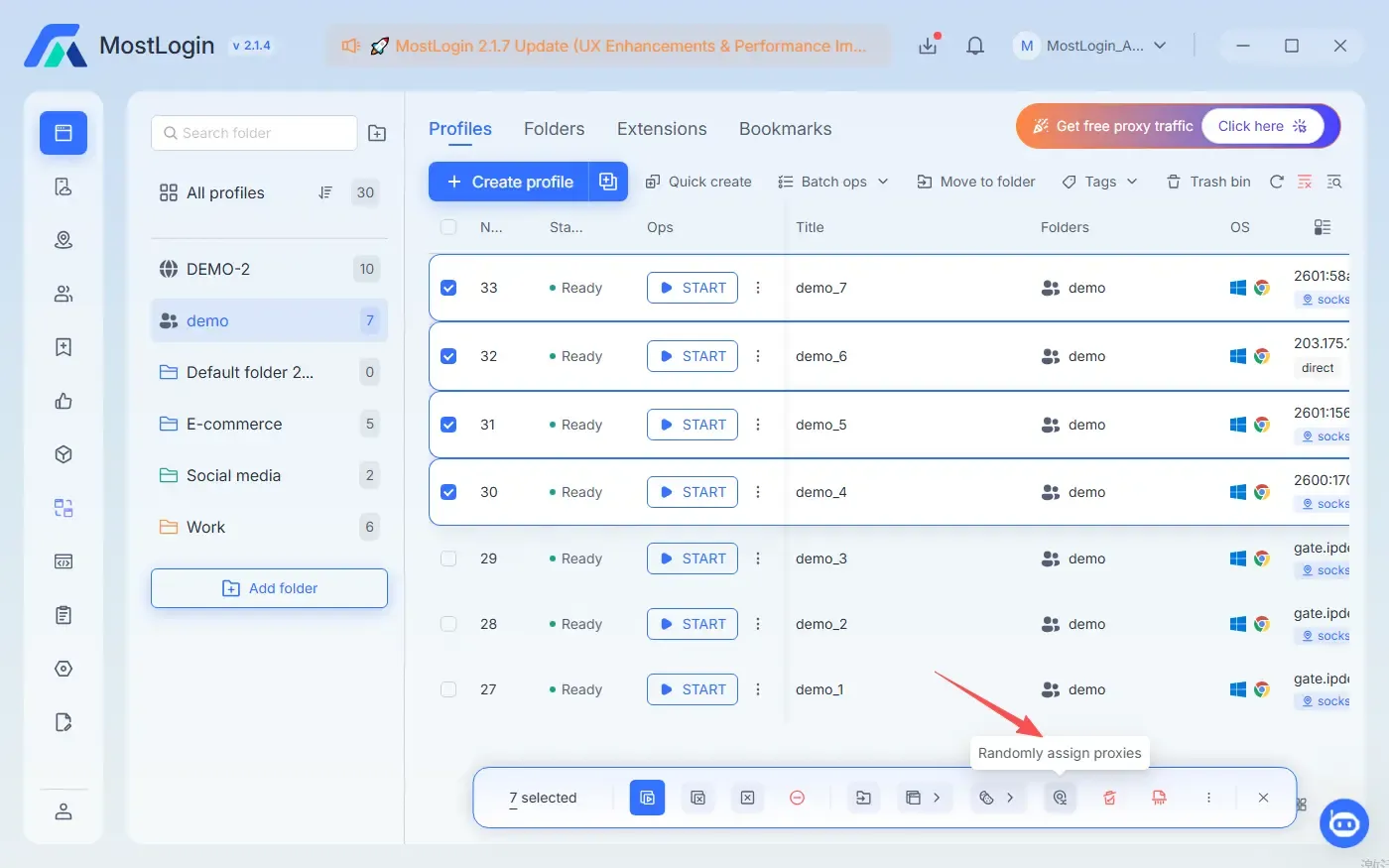
2 | Select the Profiles You Want to Assign Proxies To Check the box before each profile — or select all profiles in bulk. You can hold down Shift to make a multi-line selection. The moment you select at least one profile, the Magic Bar appears at the bottom of your workspace automatically. |
3 | Click "Randomly Assign Proxies" in the Magic Bar The Magic Bar is MostLogin's batch-action toolbar. It surfaces all available bulk operations based on your selection — so you'll see the Randomly Assign Proxies button right there. Click it to open the allocation panel.
|
4 | Choose Your Allocation Mode and Reuse Setting Select one of three distribution modes (see below) and decide whether proxies can be reused across profiles by toggling the reuse option on or off.
|
5 | Click Confirm That's it. MostLogin instantly distributes the proxies to all selected profiles — no waiting, no manual entry, no errors. |
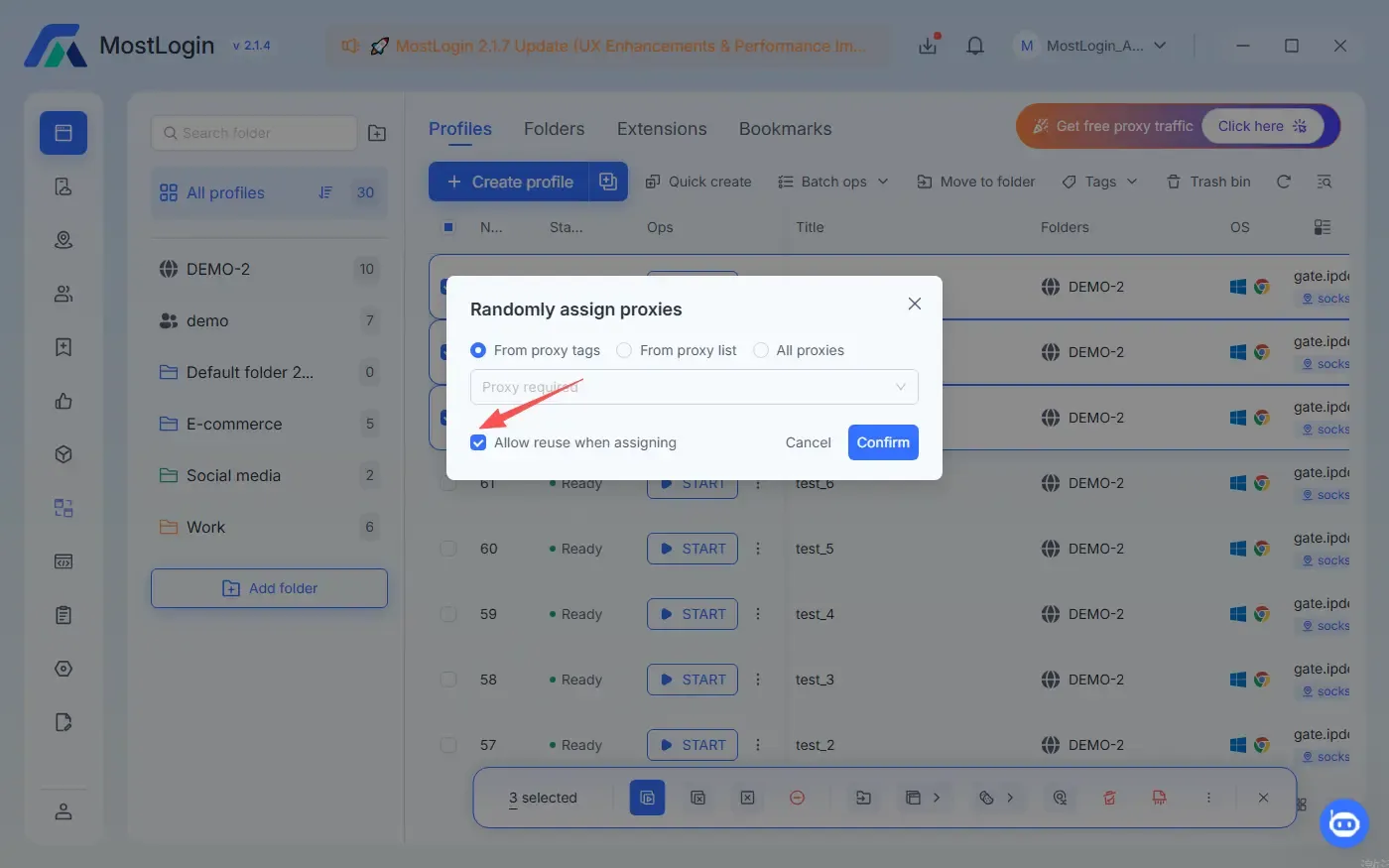
The Three Allocation Modes — Which One Is Right for You?
Different workflows call for different proxy strategies. MostLogin gives you three modes so you can match the distribution logic to your exact use case:
| Mode | How it works | Best for |
|---|---|---|
| 🎲 From Proxy Tags | Proxies are assigned at random from your proxy pool with the same tag | When you bulk upload the proxies, mark them with the dedicated tag |
| ⚖️ From Proxy List | Selected proxies are spread as evenly as possible across profiles, balancing the load | You got the target proxy in mind and can select them directly from the proxy list |
| 📌 All Proxies | Proxies are assigned following a randomly order | Randomly distribution for all your added proxies |
💡 Pro Tip
If you have fewer proxies than profiles and want each profile to get one, disable the reuse option. If you're okay with multiple profiles sharing a proxy (for example, within the same campaign group), enable reuse for maximum flexibility.
Why This Feature Matters for Multi-Account Workflows
Proxy management is one of those tasks that seems minor — until you're doing it at scale. When you're running social media management across 50 accounts, or managing dozens of storefronts for e-commerce, even 30 seconds per profile adds up fast.
The Randomly Assign Proxies feature pairs naturally with MostLogin's existing batch operations — mass profile creation, group editing, and bulk fingerprint configuration. Together, these tools let you go from zero to a fully configured, proxy-assigned profile fleet in minutes rather than hours.
For teams using digital advertising workflows or running automated scripts via the API, this also reduces the setup overhead before each campaign cycle.
Frequently Asked Questions
Can I use this feature with any proxy type?
Yes. Randomly Assign Proxies works with any proxy type you've added to MostLogin — residential, datacenter, mobile, or rotating proxies are all supported.
What happens if I have more profiles than proxies and reuse is disabled?
MostLogin will assign proxies to as many profiles as possible. Profiles that can't be assigned a unique proxy will remain unassigned, so you know exactly which ones need attention. The remaining profiles will be set to 'Direct' connection.
Can I undo a proxy assignment?
Yes. You can select the relevant profiles and update or remove their proxies at any time using the Batch Ops -- Edit proxy on the top of the profile workspace.
Does this feature work for team accounts?
Absolutely. Team members with appropriate permissions can use Randomly Assign Proxies on profiles they have access to. Check your plan for team collaboration details.