Cloud Phone Android is a remote Android environment hosted on cloud servers. Rather than relying on physical handsets, teams can access Android devices online, install apps, retain app data, and assign mobile workspaces by project, market, or team member.
For cross-border ecommerce, social media operations, affiliate marketing, and remote support teams, the main benefit is structured management. Devices, apps, network resources, regional settings, and access permissions can be organized in one workflow. An Android cloud phone is especially useful when a team needs mobile workspaces that can be assigned, monitored, and handed over.
Android cloud phones should only be used for authorized accounts and activities that comply with applicable platform rules.
How Cloud Phone Android Creates an Independent Mobile Workspace
Each cloud phone works as a separate Android workspace. It can retain installed apps, local app data, files, notifications, device settings, and network configuration, so a project does not need to depend on an employee’s personal phone.
Use a clear naming rule from the beginning, such as
BrandA-US-Content-01 or BrandA-UK-Support-01. Including the brand, market, role, and number helps team members identify the device purpose, expected applications, and responsible owner quickly.Language, time zone, proxy, and other regional settings should also match the documented workflow. This makes handovers and troubleshooting easier when several people use the same mobile operating process.
Cloud Phones vs Android Emulators: The Practical Difference
Android emulators run on a local computer and are usually sufficient for individual or short-term app testing. They depend on the computer’s hardware, storage, and internet connection.
Cloud phones run remotely and are better suited to teams that need shared access, project-based device assignment, and structured handovers. If an employee changes roles, the cloud environment can remain in the team workspace rather than being tied to one computer or personal handset.
Who Can Benefit from Android Cloud Phones?
Cloud phones can support cross-border ecommerce teams using seller or service apps, social media teams handling mobile publishing and messages, affiliate teams conducting authorized app testing, and remote support teams working across shifts.
The key need is not simply more devices. It is the ability to organize Android workspaces by client, market, project, or role, then allow authorized team members to take over the same environment when necessary.
MostLogin Cloud Phone: Building an Android Workspace for Multi-Account and Team Collaboration
MostLogin cloud phone provides cloud-based Android environments for teams that need to manage mobile apps, device settings, proxies, and multiple account workspaces in one place. Each cloud phone environment can be configured around a specific project, market, or operational role.
Teams can combine cloud phones with a multi-account management browser to manage browser-based dashboards and Android app workflows within the same workspace. This is useful when daily work includes both web tasks and mobile tasks.
MostLogin supports device, language, time zone, SIM, carrier, Google Play, and APK configuration, together with team permissions, environment sharing, and transfers. ADB, root access, and RESTful APIs are also available for teams that need more flexible environment management.
How to Set Up MostLogin Cloud Phone in Three Steps
Step 1: Create and Group a Cloud Phone Environment
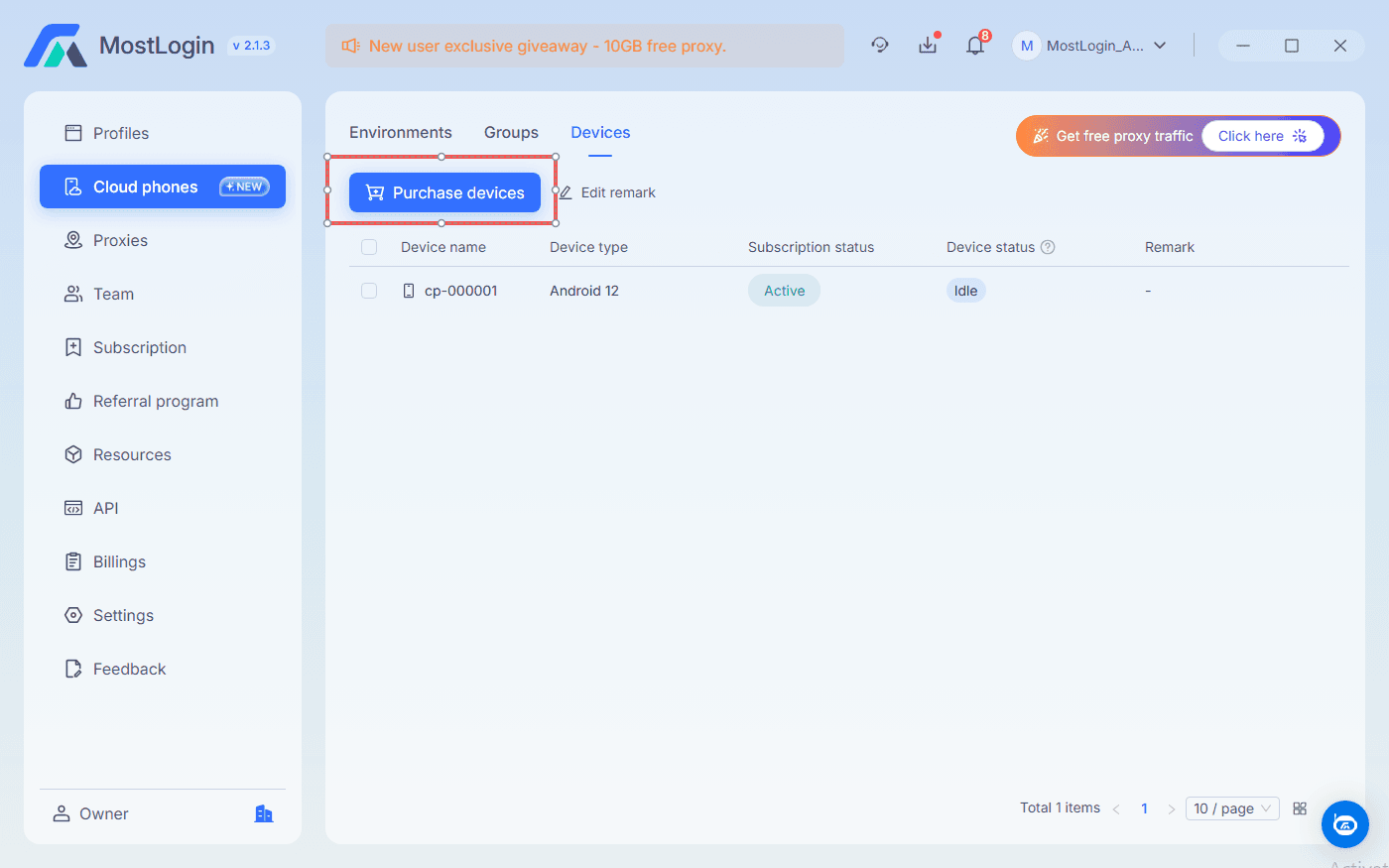
Open Cloud Phones, choose Environments, and click New env. Create one environment or batch-create devices only after defining their business roles.
Use a clear device name, such as
BrandA-US-Content-01, select the relevant group, add a short remark, and assign an owner or authorized users. Then create the environment and confirm that Android opens normally.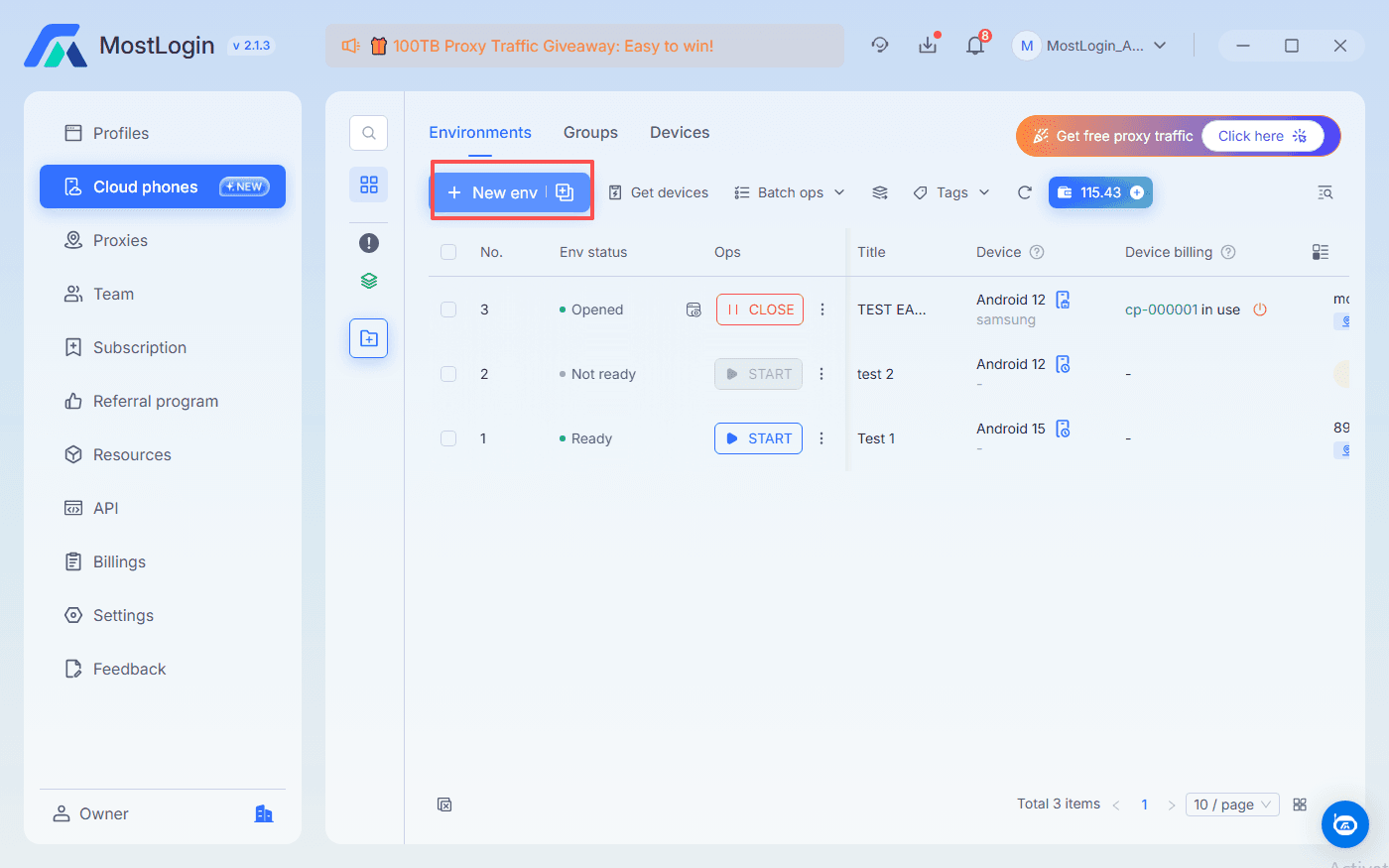
Step 2: Configure Android, Device, and Regional Settings
Choose an Android configuration that is compatible with the target app. Then set the system language and time zone based on the market and workflow the device supports.
Configure SIM, carrier, or other device options only when needed. Install required apps through Google Play or trusted APK sources, then test basic installation, launch, update, and notification behavior before wider rollout. MostLogin supports these Android and regional environment options.
Step 3: Bind a Proxy and Verify Network Consistency
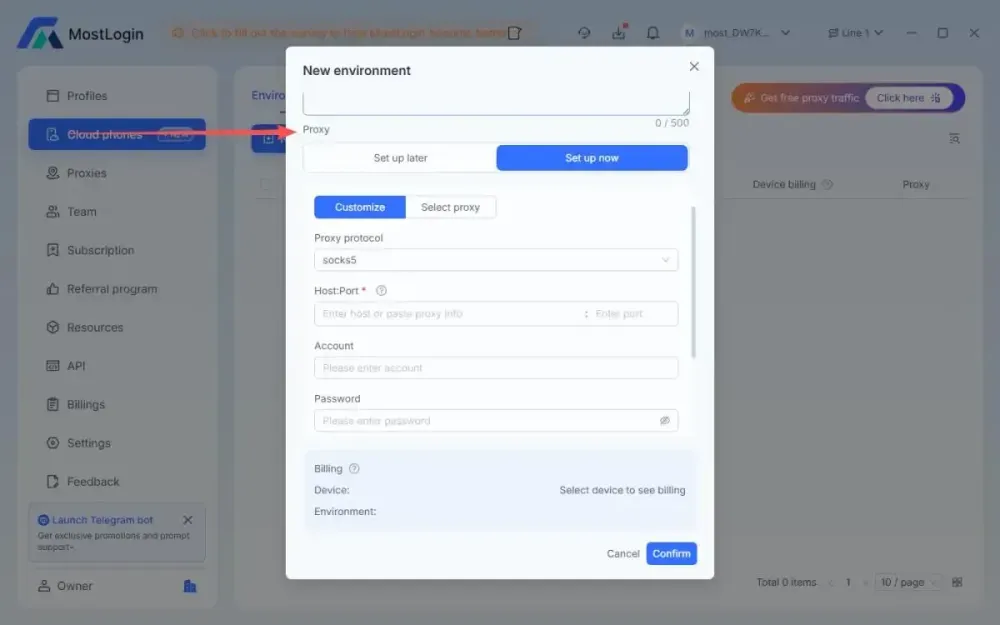
Add a stable, traceable proxy during environment creation or afterward. MostLogin cloud phones support SOCKS5 proxies, and the proxy must be reachable before the environment opens.
After launching the device, check internet access and IP location. Record the device name, business group, proxy supplier, proxy region, expiry date, and responsible team member. Keep the IP region, language, time zone, and device purpose aligned with the documented workflow.
Use the cloud phone multi-account management solution to keep cloud devices, proxy settings, and team access in one organized process.
MostLogin Cloud Phone Pricing: Where the Value Comes From
Cloud phone value is not only about a device’s monthly price. It also depends on app compatibility, environment management, proxy tracking, team access, and the time saved on physical-device maintenance and handovers.
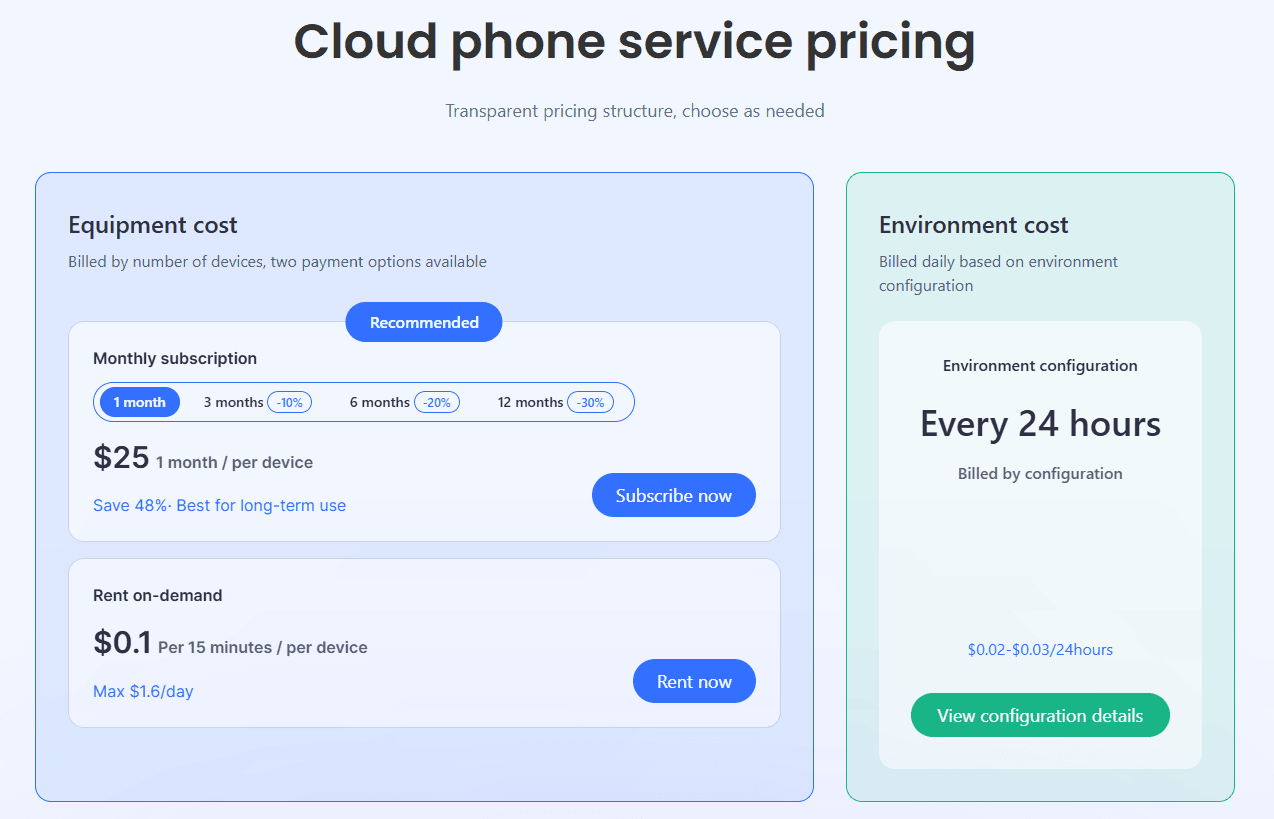
MostLogin offers monthly subscriptions and on-demand rentals. Current listed pricing starts from $25 per device per month, while on-demand rental is $0.10 per device per 15 minutes, capped at $1.60 per day. Longer subscriptions receive discounts, and environment configuration is billed separately at $0.02–$0.03 per 24 hours depending on Android resources.
This structure can suit cost-conscious users and smaller teams: start with a limited number of environments, validate the apps and workflow, then scale when device demand becomes predictable. Review MostLogin cloud phone pricing for current plans and configuration details.
Frequently Asked Questions
How many cloud phone environments should a team start with?
Start with only the environments needed for one clearly defined workflow. For example, a small team can begin with one cloud phone for each key market or business role, validate app compatibility and team access, then expand after the process is stable.
Does a cloud phone keep apps and settings after it is closed?
Yes. A cloud phone environment is designed to retain its installed apps, configured settings, and local app data so that the same workspace can be used again later. Teams should still check their subscription, storage, and environment settings before relying on a device for ongoing work.
Can multiple team members access the same cloud phone?
Yes, but access should be managed by roles and permissions rather than shared informally. MostLogin supports team permissions, sub-account quotas, environment sharing, and transfers, allowing an Android workspace to be reassigned when team responsibilities change.
Conclusion
Cloud Phone Android is most valuable when it turns mobile apps, devices, network resources, and team access into a workflow that is easy to group, track, and hand over. Start with a small number of environments, validate the apps, settings, proxy connection, and team process, then expand only when the workflow is stable.
Explore MostLogin multi-account management tools to coordinate browser and mobile workflows, or download MostLogin for Windows to begin setting up your workspace.