As one of the most popular instant messaging apps worldwide, Telegram has long been renowned for its security, speed, and cross-platform compatibility. However, it lacks an official Chinese interface, which makes it somewhat cumbersome for many new users to navigate after installation, as they struggle to find the features they need promptly. In fact, switching Telegram to Chinese is extremely simple – you just need to import a Chinese language pack. This article provides the latest localization tutorial, enabling you to switch to the Chinese interface in just a few minutes whether you're using an iPhone, Android device, or desktop version.

Telegram Chinese Language Pack Sharing
Simplified Chinese (Congcong): https://t.me/setlanguage/zhcncc
Simplified Chinese (@zh_CN Version): https://t.me/setlanguage/classic-zh-cn
Traditional Chinese (Hong Kong): https://t.me/setlanguage/zh-hant-raw
Traditional Chinese (Taiwan): https://t.me/setlanguage/zh-hant-beta
These Chinese language packs are compatible with all clients. They are all translated by unofficial users, and some language packs may not have been updated for a long time. Please check carefully after application.
Telegram Chinese Setup Tutorial
Mobile Chinese Setup Tutorial (Applicable to iPhone/Android)
Step 1: Open the Language Pack Link
Open the Chinese language pack link in a browser or within Telegram:
In the browser, a window will pop up, similar to the one shown below:
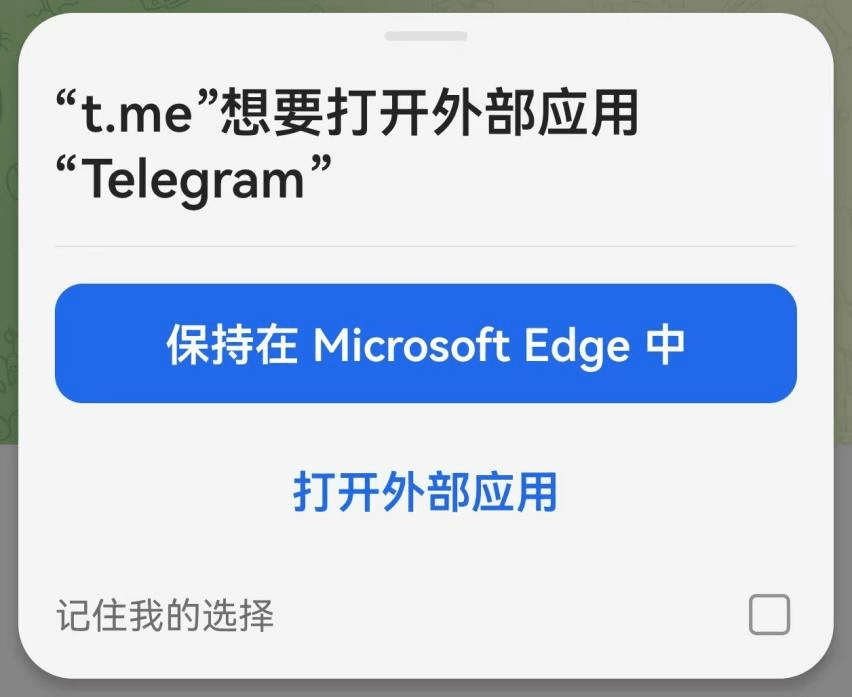
Step 2: Automatically Redirect to Language Settings
Telegram will pop up a page:
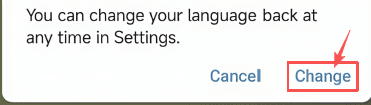
Click "Change", and the Telegram localization to Chinese is complete.
Desktop Chinese Setup Tutorial (Windows / Mac / Linux)
Setting up Chinese on the desktop version is equally simple:
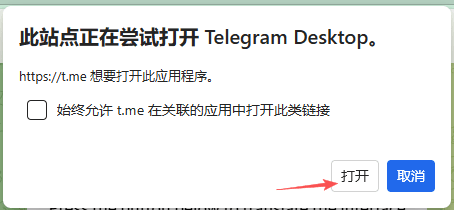
Step 1: Open the Language Pack Link
A prompt will appear in the browser, click to open it
Step 2: Apply the Language Pack
Telegram will pop up the language switch page, as shown in the figure below:
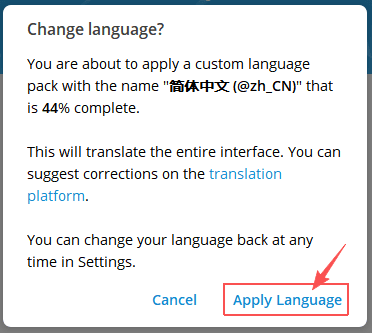
Click "Apply Language".
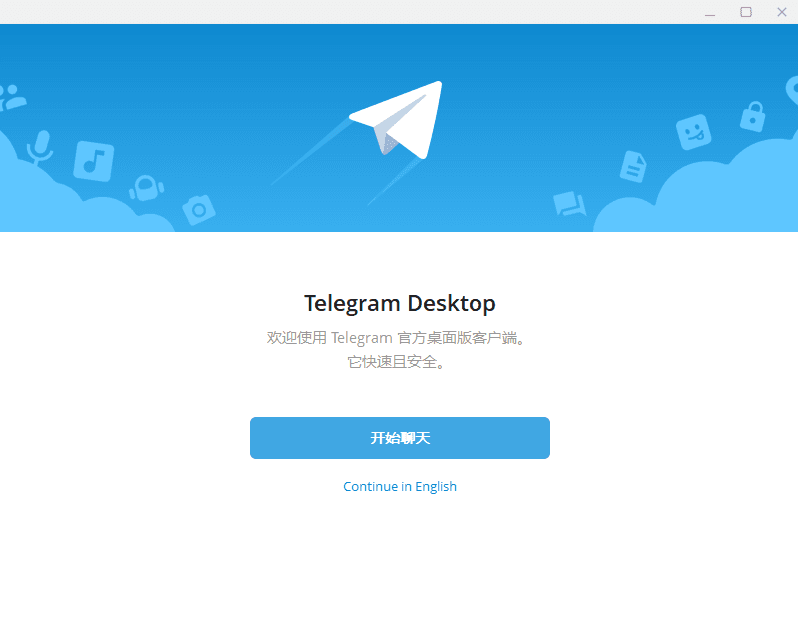
The Chinese version of Telegram on your desktop is now set up.
Unable to Set Chinese? Common Reasons and Solutions
If Telegram doesn't respond after you click the language pack link, you can check for the following issues.
1. Not Using the Official Telegram Version
Unofficial clients may not support importing language packs.
Solution: Reinstall the official version.
2. Telegram Domains Blocked by Your Network
Language pack links may be intercepted by the network.
Solution: Switch Wi-Fi, 4G/5G, or use a virtual private network (VPN).
3. Using Telegram X
Telegram X is no longer actively maintained, resulting in poor language pack compatibility.
Solution: Switch back to the main Telegram app.
4. False Block by Network Security Tools
Chinese-made mobile phones may block the redirection.
Solution: Copy the link in the browser → paste it into Telegram to open.
5. iOS Restrictions on External Redirection
System privacy settings may affect the redirection.
Solution: Authorize Telegram to open external links.
Useful Telegram Tips
1. Should New Users Create Telegram Groups or Channels?
It is recommended to start with channel management, as it is the easiest to operate overall. You have full control over the content published on the channel – messages won't be spammed or disorganized, and the overall rhythm is easier to manage, making it ideal for new Telegram operators. Once the channel has accumulated a certain level of attention, creating a group for interaction will be easier to drive engagement and facilitate subsequent conversion.
2. How to Create a Telegram Channel?
It's simple: open the menu bar, select "New Channel", enter the channel name and description, and choose public or private to complete the creation.
It is recommended to set a clear channel name and explain the channel's purpose in the description.
3. How to Run Multiple Telegram Accounts
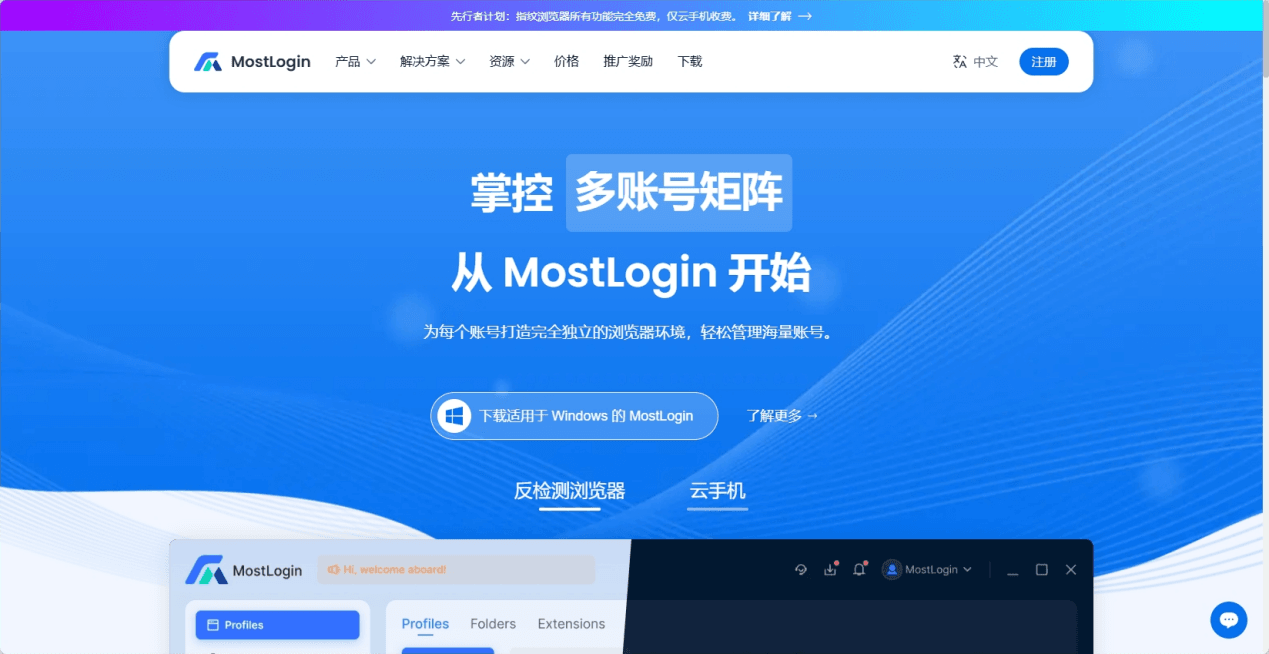
If you want to manage your business more efficiently, you can try operating multiple Telegram accounts simultaneously. The Telegram client supports adding up to three accounts, which need to be switched when changing accounts. If you need more than three accounts, it is recommended to use the Telegram web version: https://web.telegram.org/ with MostLogin anti-detect browser.
MostLogin allows users to configure multiple browser windows within the client, and each window can have independent environment settings such as IP, language, and time zone. This enables easier multi-account switching and management while helping reduce account association risks. The available number of windows is subject to the current plan.
Summary
The above is the latest method to set up Telegram in Chinese and useful usage tips. If you are new to Telegram, these steps are sufficient to help you complete the localization smoothly and solve most issues that new users may encounter. Whether you are doing cross-border business, community operation, or daily use in the future, it is recommended to maintain good account security habits. Using multi-environment tools when necessary can make your Telegram usage more stable and efficient.
Frequently Asked Questions (FAQs)
1. Do I Need to Reinstall the Telegram Chinese Language Pack?
Generally not. You only need to re-import it if you reinstall Telegram, change devices, or the language pack is reset by the official team.
2. Is It Safe to Use Telegram Language Packs?
Language packs are essentially interface translation files and do not involve account data. Using community-developed language packs is a common practice, and there is generally no security risk as long as the source is trustworthy.
Best Anti-Detect Browser - MostLogin
MostLogin anti-detect browser tool helps users solve high-frequency issues such as multi-account operation, environment isolation, and account risk control.
For operational questions, please refer to the Official Help Documentation