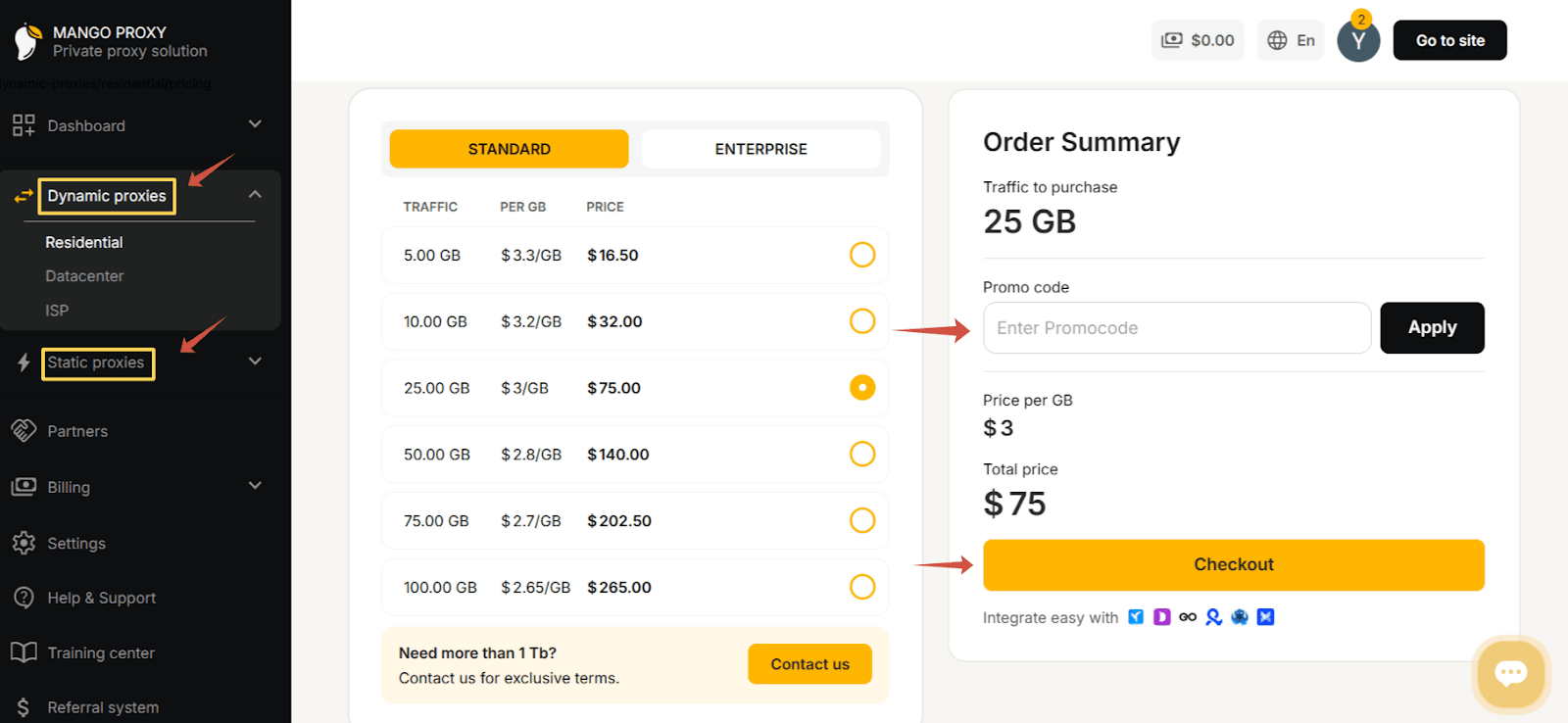
Before connecting proxies to MostLogin, sign in to your MangoProxy account and choose the proxy type that fits your workflow - dynamic (rotating) or static.
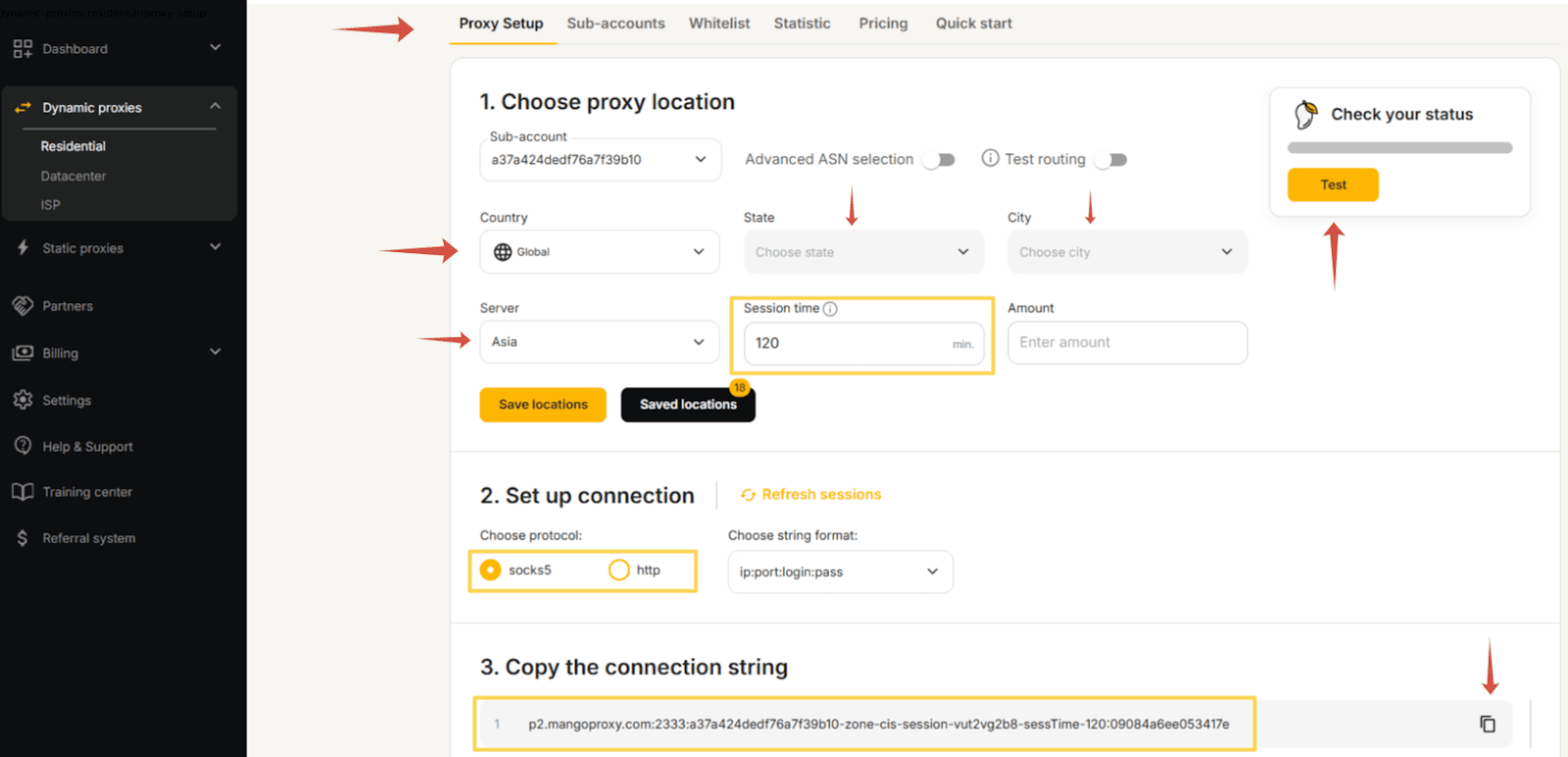
After that, the main parameters are set in the proxy configuration interface: region or country, city if required, connection server, and session format. For dynamic proxies, you can define the IP rotation interval as well as the number of simultaneous connections. Once availability is checked, the system generates the connection details.
Setting Up MangoProxy in MostLogin
The setup process is straightforward and takes only a few minutes.
Create a New Profile in MostLogin
Launch the MostLogin application, log into your account, and click Create Profile. Configure the fingerprint parameters: operating system, browser core, screen resolution, and other characteristics to ensure full profile isolation.
Open the “Proxies” Section
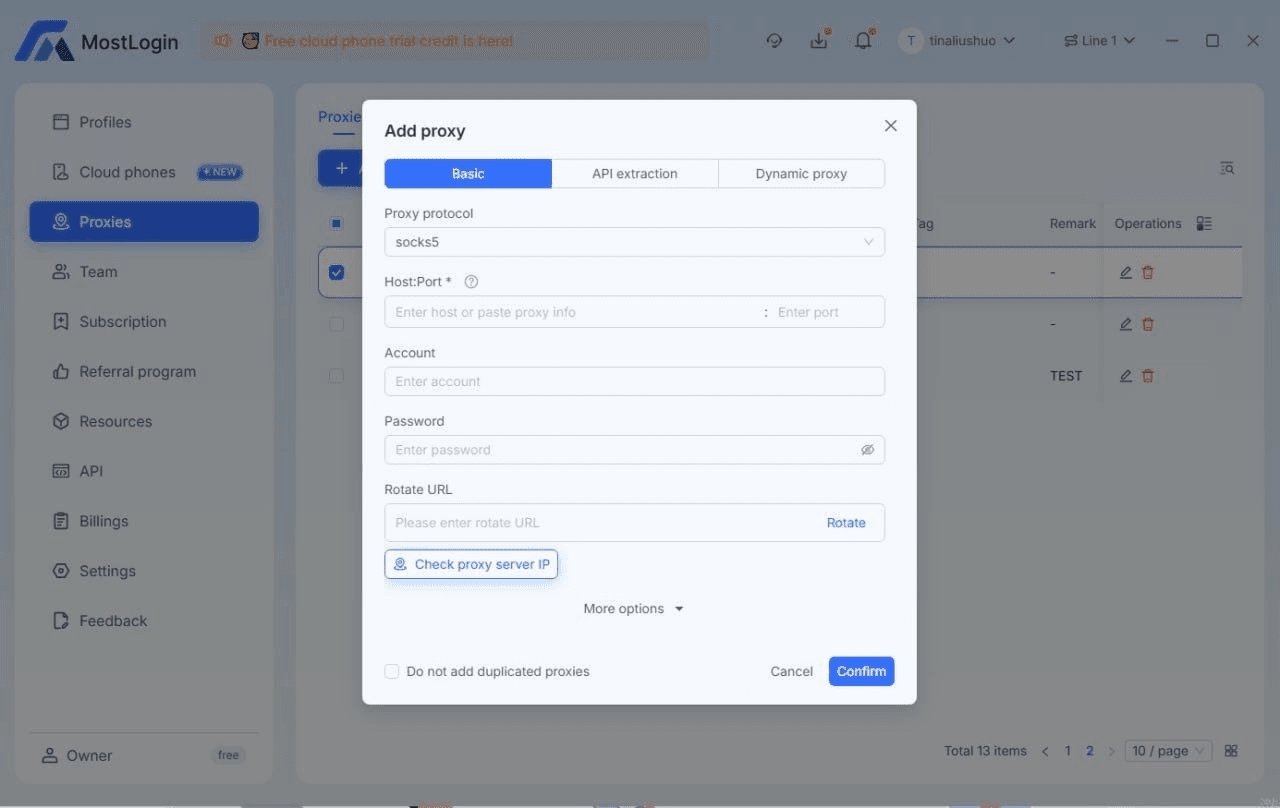
In the profile editor, navigate to the Proxies tab. Select the protocol - we recommend SOCKS5 for maximum compatibility and stability.
Click “Add Proxy”
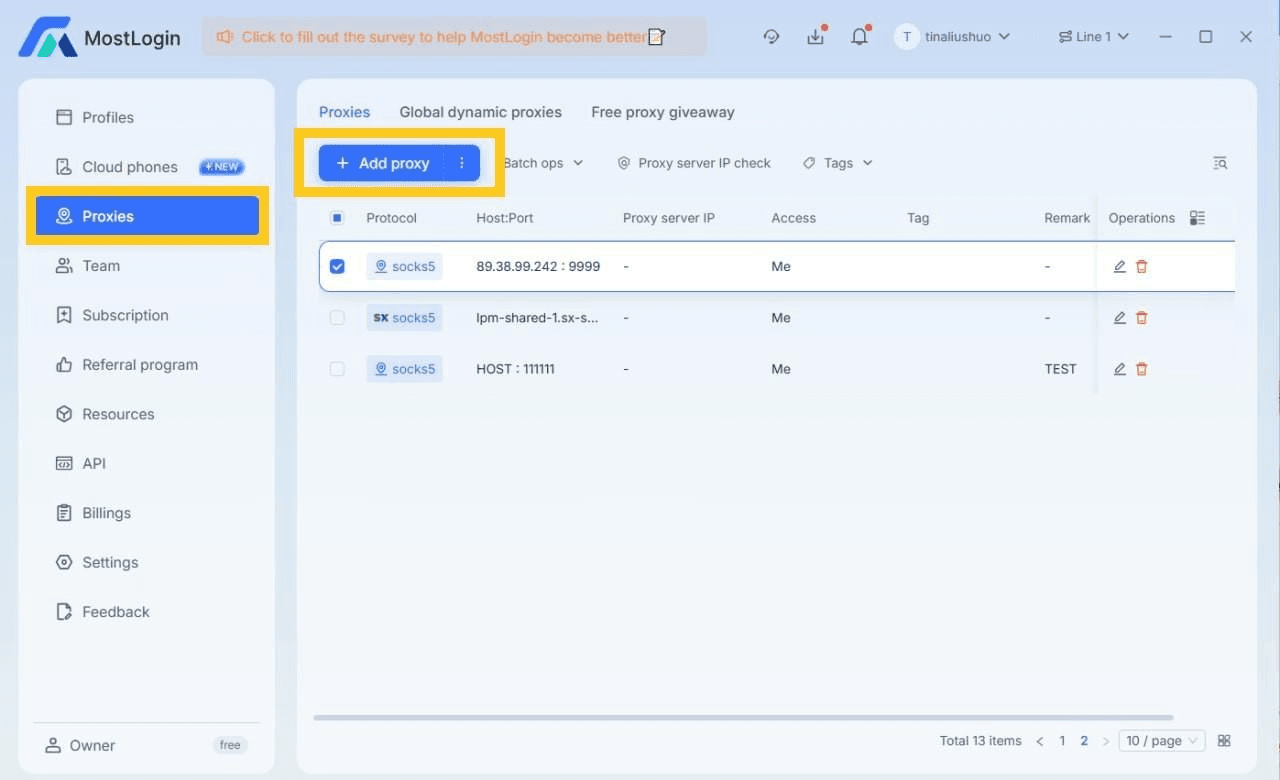
- Enter MangoProxy Credentials
Fill in the fields using the details from your MangoProxy dashboard: Host, Port, Username (including geo-parameters if required), and Password.
- Check the Connection
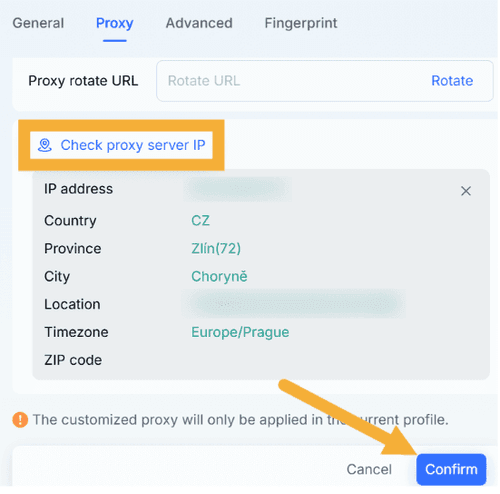
Click “Check Proxy.” A successful connection will display a green status along with the detected IP address and its location.
- Save and Launch the Profile
Save the changes and start the profile - the browser will open with a unique IP address and isolated fingerprint
After that, you can easily duplicate profiles and scale your workflow. Proxy credentials can be updated at any time in your MangoProxy dashboard.