Social interaction is a common activity in Roblox, and many players enjoy chatting here. We may block other users due to spamming, harassment, arguments, or simply teasing friends, but then find ourselves unsure how to unblock them. We often see people asking for help on forums, so today we're bringing you a tutorial on how to unblock someone on Roblox to solve this problem!
1. What Happens When You Block a User on Roblox?
When you block a user on Roblox:
You won't receive their private messages
You can't see their updates and certain activities
They can't access your profile
They can't interact with you or invite you to games
Roblox designed this feature to protect user experience and privacy, not to punish others, which is why there's an option to unblock.
2. How to Unblock Someone on Roblox Web Version
This process applies to PC and browser-based versions.
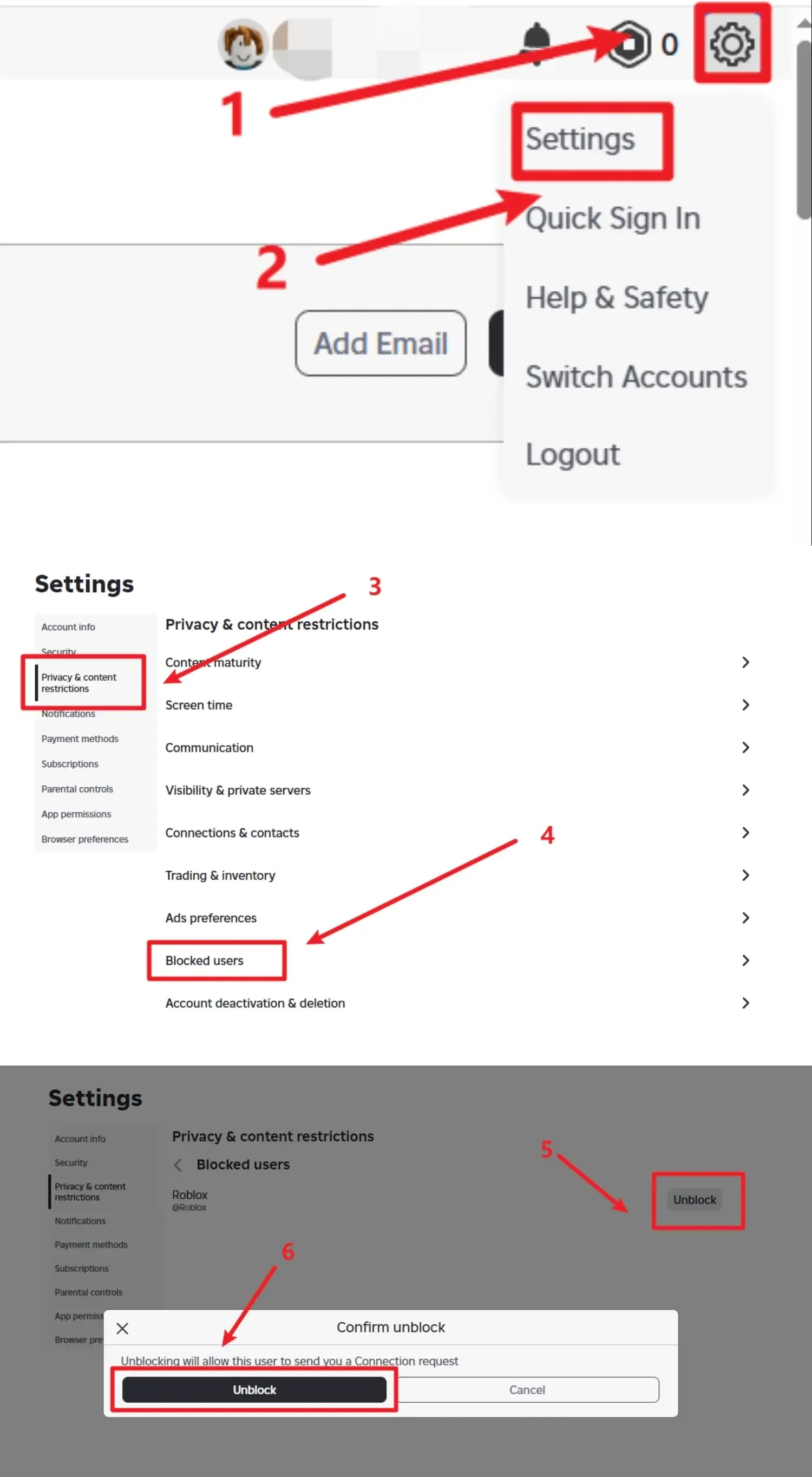
Step 1: Log in to Roblox and go to Account Settings
Log in using the official Roblox client or browser, then click your avatar in the top right corner and select "Settings". Find the "Privacy" option in the settings menu.
Step 2: Open "Blocked Players" and Locate the User You Want to Unblock
Navigate to the "Blocked Players" page and click to access it. You'll see a list displaying all the accounts you've blocked.
Step 3: Select the User, Click "Unblock" and Confirm
Manually browse or use the search function to find the user you want to unblock. Click the "Unblock" button next to their username. A confirmation prompt will pop up, and you need to click to confirm. That's the complete process to unblock someone. Below you'll find a step-by-step visual guide.
3. How to Unblock Someone on Roblox Mobile App (iOS/Android)
If you're using the mobile version, follow these steps.
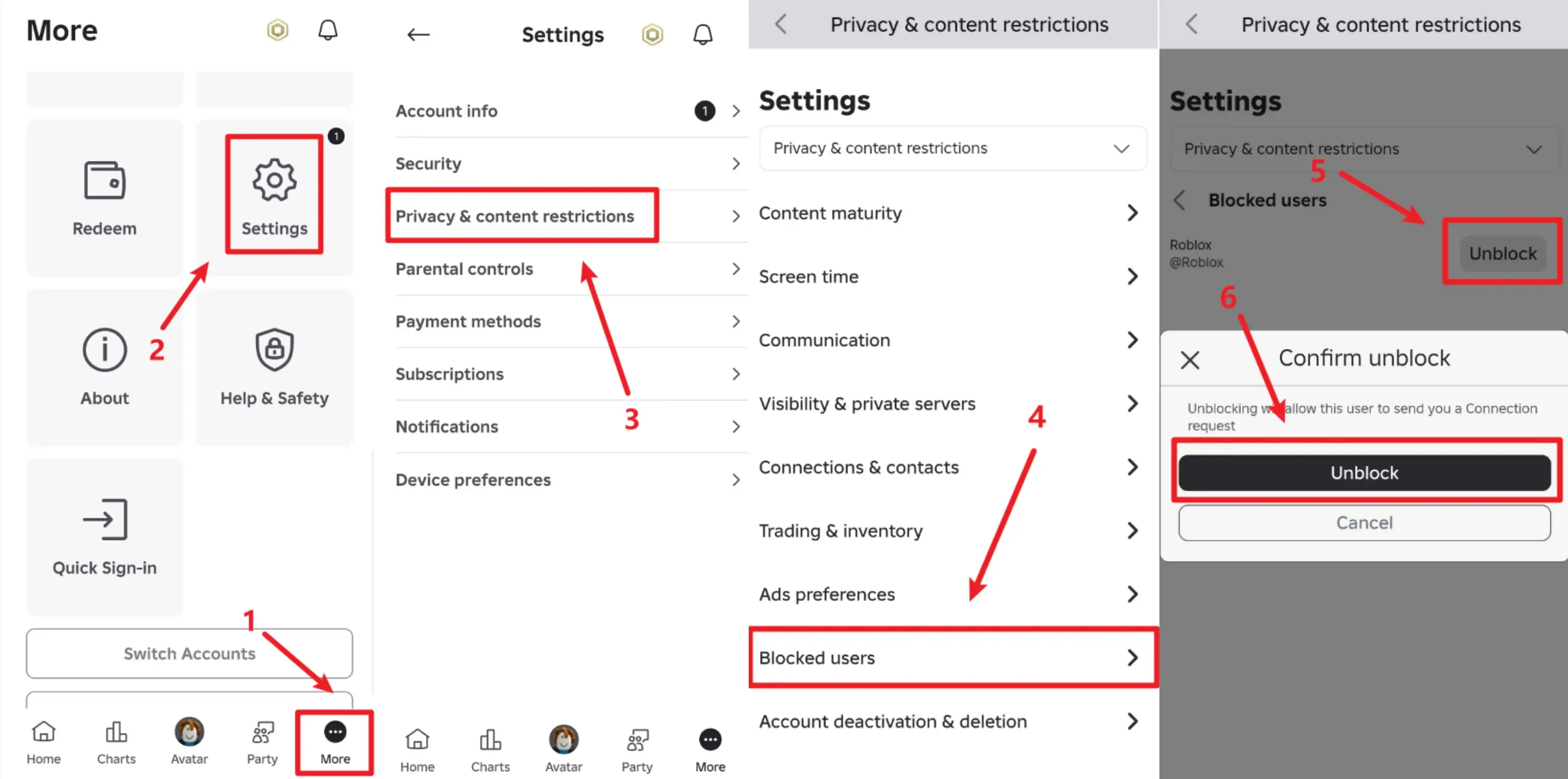
Step 1: Open the Roblox App, Tap "More" at the Bottom and Select "Settings"
Step 2: Go to "Privacy & Content Restrictions" and Tap the "Blocked Users" Option
Step 3: Find the User You Want to Unblock, Tap "Unblock" and Confirm
That's the complete process to unblock someone on the mobile app. Below you'll find a step-by-step visual guide.
4. What Happens After Unblocking Someone?
You can chat with each other again
You can follow each other
You can access each other's profiles
You won't automatically become friends (if you weren't before)
Whether to re-add them as friends or interact with them is entirely up to you.
5. Common Issues and Solutions
1. Can't Find the User in the Blocked List
Possible reasons include:
The other user has changed their username
You remembered the wrong account name
The other user's account has been banned or deleted
We recommend directly searching for their username in Roblox's global search bar.
2. The "Unblock" Button is Grayed Out and Unclickable
This is usually a temporary issue caused by:
Abnormal login status
Page cache errors
We recommend logging out of Roblox and logging back in, or trying again after clearing your browser cache.
3. The Roblox Interface Doesn't Match the Tutorial
This is completely normal. Our tutorial screenshots and instructions were created on January 9, 2026. If your version number is different or a significant amount of time has passed, the interface may look different. However, you just need to find the privacy settings—the "Blocked Players" option will definitely be there.
Summary
That's all there is to the Roblox unblocking process. It's very simple—just go to the privacy settings and find the blocked users list. If you usually need to manage or use multiple Roblox accounts, you can try using the MostLogin Anti-Detection Browser for multi-account management. After configuring the settings properly, it's not only convenient but also secure.
We also wrote an article titled "How to Play Roblox on School Chromebook (2026 Guide)". If you or your friends need to solve this problem, feel available under current plans to share and read this article. Thank you for your support!
FAQ
Will the other user be notified when I unblock them?
No, Roblox does not send any notification to the other user when you unblock them.
Can I chat with them immediately after unblocking?
Yes, you can communicate normally as long as both parties' privacy and chat settings allow it.
Will unblocking automatically restore the friend relationship?
No, if you weren't friends before, you'll still need to send a new friend request after unblocking.
If the other user blocked me, will unblocking them on my end work?
No, because unblocking only affects your own settings.
Is there a limit to how many times I can block or unblock someone?
No, Roblox does not set a limit on the number of times you can block or unblock users.
Can a blocked user see which games I'm playing?
They generally can't see your game activity until you unblock them, after which it depends on your privacy settings.
Best Anti-Detection Browser - MostLogin
The MostLogin Anti-Detection Browser helps users solve common issues such as multi-account management, environment isolation, and account risk control.
For operational questions, please refer to the Official Help Documentation