When you use a cloud phone for multiple accounts, you may occasionally select the wrong account. You might open an app to check a notification, reply to a message, or update account details, then notice that you’re using a different account than intended.
This can happen when you make a selection without checking the details closely or when account names look too similar to distinguish at a glance. Clear naming and a quick account check can help you catch a mistaken selection before it leads to an action on the wrong account.
Why Similar Account Names Lead to Wrong Selections
Accounts belonging to the same business may share a brand name, profile image, or naming pattern. A short suffix, number, or single word may be the only distinguishing detail. When you scan a list and select a familiar name, that difference can go unnoticed.
The same problem applies to cloud phone labels. Several devices labeled with the same company name followed by a number provide little information about the accounts they contain. Operators must remember the assignments or open each device to check.
Unclear naming is not the only cause. You may know which account you need and still click the adjacent entry while moving between tasks. A well-organized workspace makes accounts easier to identify, while a final check inside the app catches selection errors before they affect your work.
What to Do After Selecting the Wrong Account
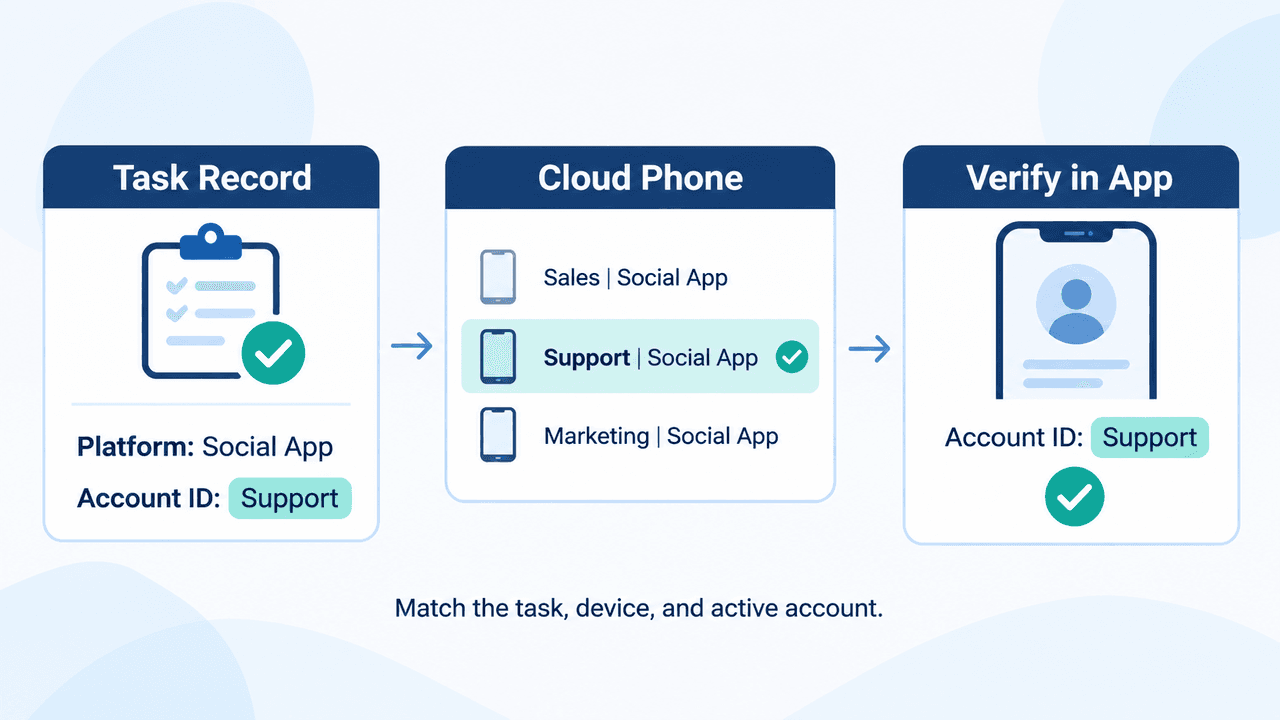
Stop before sending a reply or saving a change. Check the account identifier in your task, return to the device list or the app’s account selector, and select the intended account. Verify the active account inside the app before continuing.
If you opened the wrong cloud phone, return to the intended device rather than changing the account setup in the one you opened by mistake. This leaves the other environment as expected for its next user.
If you have already taken action, confirm which account was affected and whether the action was completed before repeating the task. Correct the specific change or involve the account owner, as appropriate, rather than making further changes in a hurry.
Make Accounts Easier to Distinguish
When setting up a cloud phone for multiple accounts, establish a naming convention before assigning devices and accounts to your team. A useful label identifies the intended account without requiring someone to open the device or remember an internal nickname.
For teams organizing mobile work through MostLogin Cloud Phone, account naming should be part of the deployment process, alongside deciding which accounts belong in each environment. Set the rules while the workspace is small, then apply them consistently as you add devices.
Establish a Consistent Naming Structure
Use a consistent naming pattern that makes each entry recognizable in a list. An underscore-separated format keeps the structure clear.
Start with the business or team name, add the person’s function or the account’s purpose, and include a stable identifier only when needed. For example,
MostLogin_Support_01 and MostLogin_Operations_01 are easier to distinguish than entries that differ only by a number.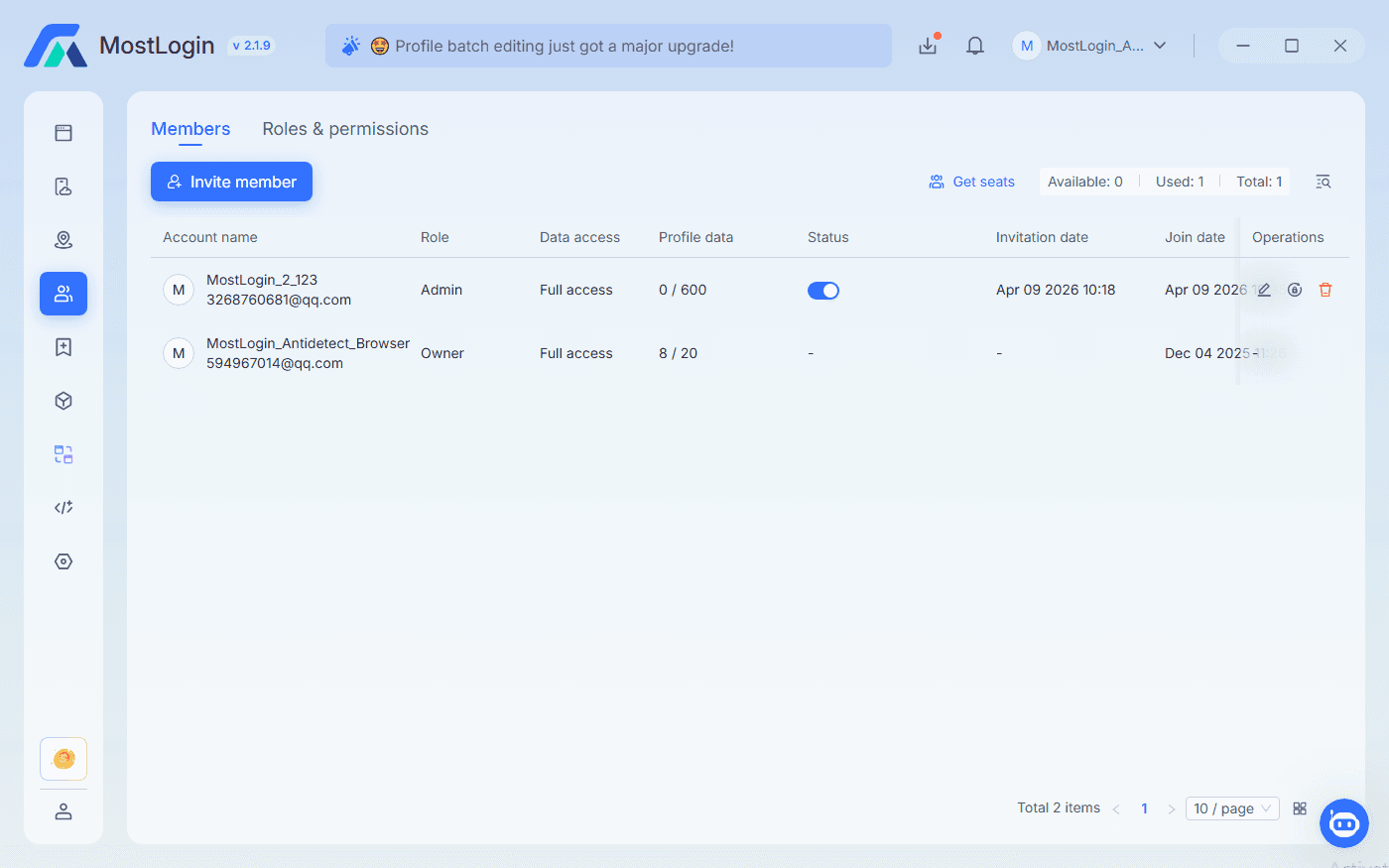
The member list shown here uses underscore-separated names. Apply the same structural principle when creating internal account references and, where naming is available, cloud phone labels. Keep the format consistent, but make the meaning specific: a member name should identify the person or team responsible, while a device label should identify the environment and its intended use.
Choose terms your team already uses in task assignments. Avoid abbreviations that only the person creating the name understands, and do not rely on an email address alone to distinguish otherwise similar entries. If several entries share the same business prefix, keep that prefix short so the function and identifier remain visible.
Record the relationship between the responsible member, cloud phone, and intended app account in your shared register. Consistent naming makes these entries easier to recognize, while the register confirms how they are connected.
Keep the Distinguishing Details Visible
Before applying a naming convention to every device, check how the labels appear in the device list. A name that reads clearly in a spreadsheet may be less useful when the interface truncates it.
Avoid starting every label with the same long company name. If the account identifier is the only meaningful difference, do not bury it at the end. Shorten repeated information or move the distinguishing field closer to the beginning.
Review similar entries side by side. Operators should be able to distinguish them from the visible text without opening each device. Icons and colors, where available, can provide additional cues, but the label should remain clear on its own.
Match Device Labels to Task Records
Maintain a shared account register that links each cloud phone to the accounts used on it. Include the device label or ID, platform, account identifier, and responsible person or team. Do not include passwords or recovery codes in device labels.
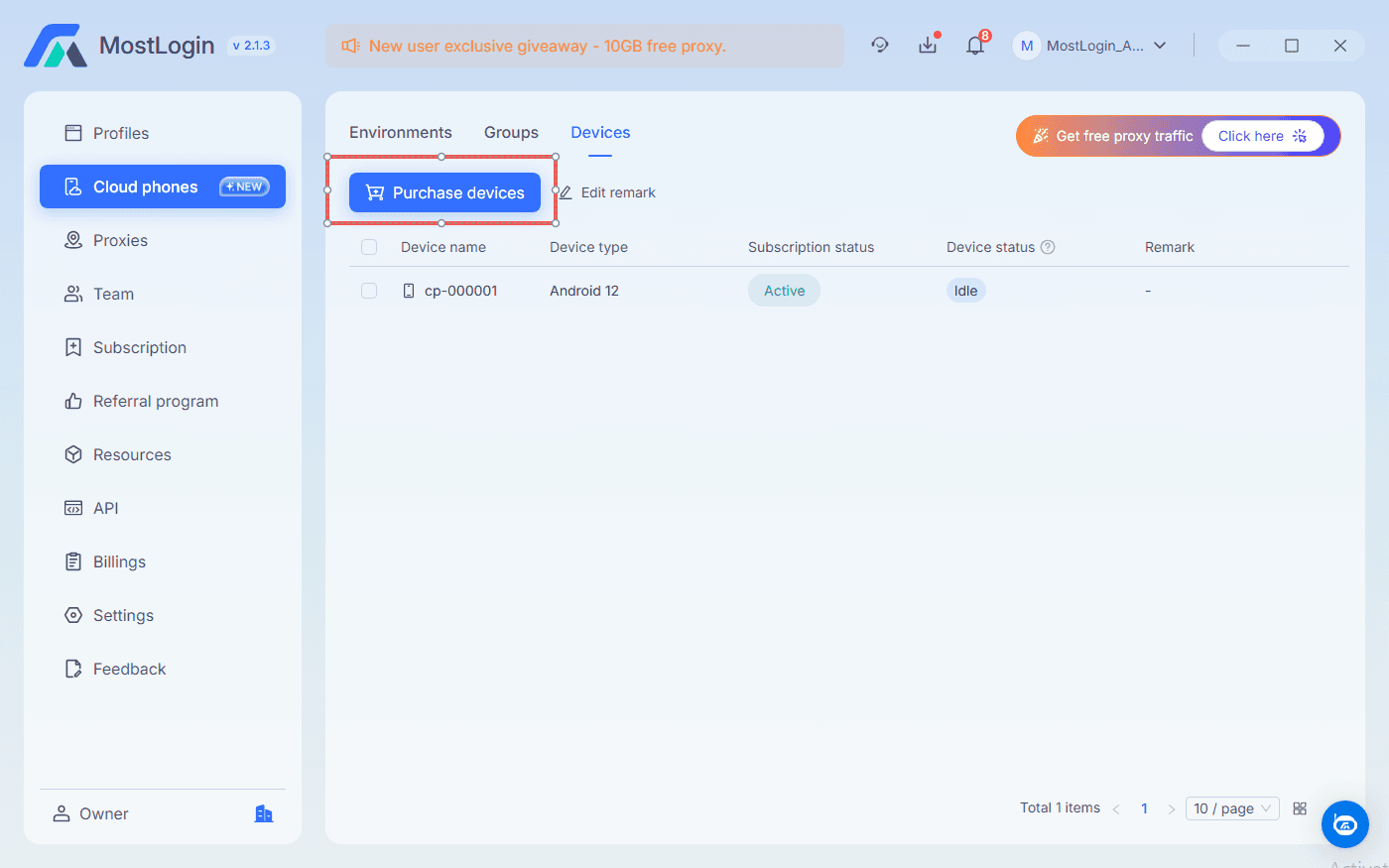
Use the same account identifier in task assignments. If a task uses one name and the device list uses an unrelated nickname, the operator must work out the connection before making a selection. Consistent references remove that extra step.
If a cloud phone is used for several authorized accounts, list them explicitly in the register. Avoid labels that imply only one account is available when operators regularly switch between several. Every task should identify the intended account—not just the device to open.
Decide these assignments before adding more environments. Planning how to organize accounts across cloud phones gives the team a defined structure to label and maintain, rather than leaving operators to work out device assignments during daily tasks.
Keep Temporary Status Updates Out of Device Names
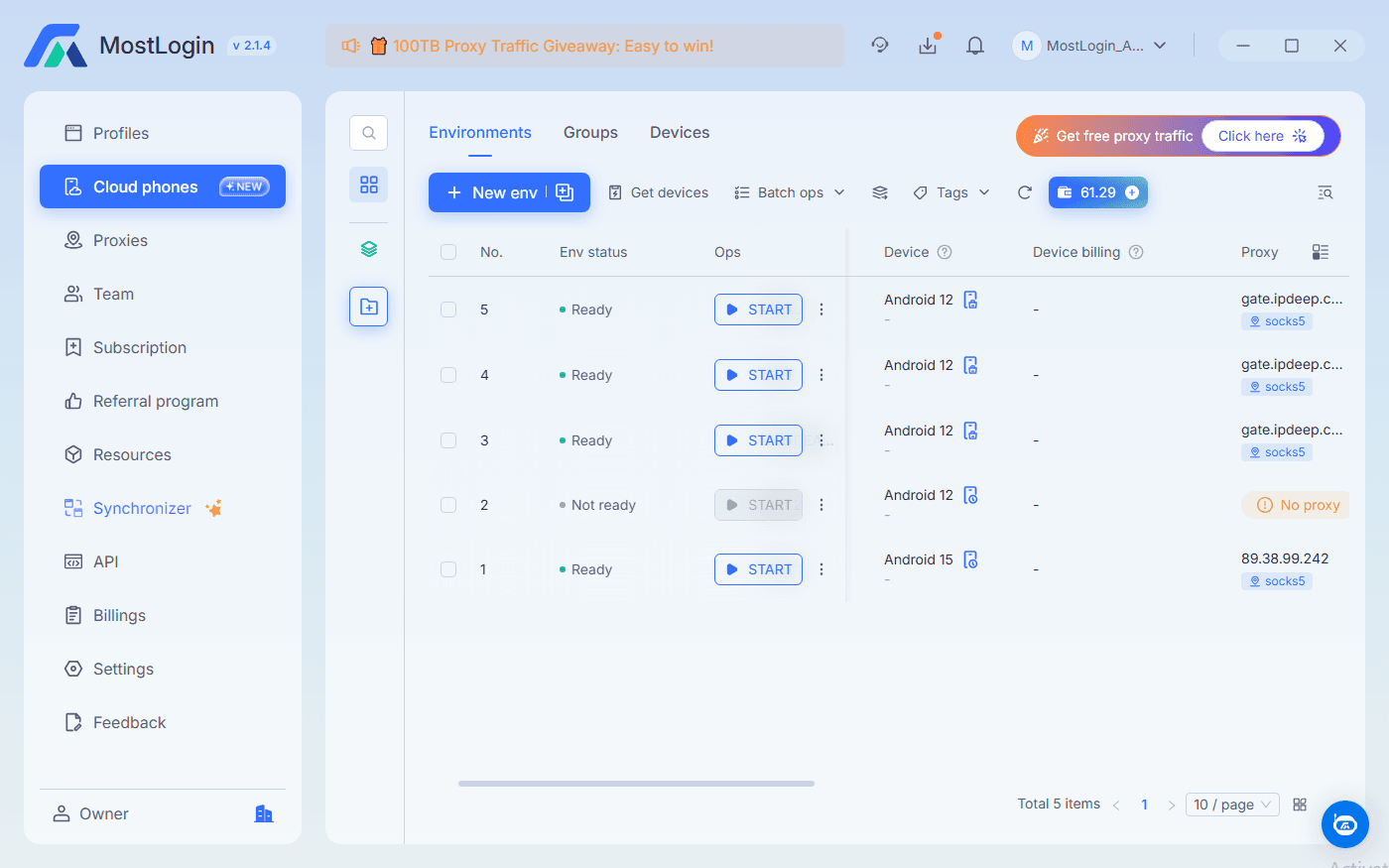
A device label should identify the environment, not describe the most recent task. Labels such as “Checked,” “Ready,” or a colleague’s name can become outdated as soon as work changes hands.
Record pending replies, completed updates, and review requests in the task management system instead. Keep device labels focused on stable account information so they remain useful as assignments and daily priorities change.
Update Labels and Records Together
When an account is renamed, reassigned, or moved to another device, update the account register and any active task references at the same time. A new device label can create confusion if colleagues are still following instructions that use the old one.
Before completing the update, open the app and confirm that the account matches the revised record. This ensures that the documentation reflects what the next operator will find.
If the same two accounts are repeatedly confused, compare their labels. Look for repeated prefixes, unclear abbreviations, or distinguishing details hidden by truncated text. Fix the source of the ambiguity rather than relying on repeated reminders to be careful.
Before expanding the workspace, test the setup with a second authorized operator. Ask them to find the intended device and account using only the task record. Include this usability check alongside your broader cloud phone service evaluation, so the decision accounts for everyday account selection as well as service requirements.
Verify the Account Before Sending or Saving
When using a cloud phone for multiple accounts, treat device selection and account verification as separate steps. Clear labels help you find the intended environment; checking inside the app confirms which account will perform the action.
Before sending a message, updating details, or submitting another change, compare the active account identifier with the one in your task. Use the full identifier when display names or profile images look similar. If the current screen does not show it, check the profile or account menu before returning to your work.
Repeat this check whenever you switch accounts or cloud phones. A previous check confirms only the account you verified—not the one you selected afterward.
Frequently Asked Questions
Should the cloud phone label match the account’s public username?
Not necessarily. A public username may change, while the device still serves the same purpose. Use a stable internal account reference in the device label and keep the current username in your account register. If your team relies on public usernames to find devices, update the labels and task records whenever a username changes.
How should I label a cloud phone that contains several accounts?
Use a device label that describes the group or purpose, then list the individual accounts in your register. Do not name the device after just one account if several are routinely used on it. Each task should specify both the device and the exact account, since the device label alone cannot identify which account the operator should select inside the app.
Can I use numbers or abbreviations to keep device names short?
Yes, provided everyone can interpret them consistently. A short account ID can work well when it appears in both the device list and task records. Avoid unexplained abbreviations or numbers that require operators to rely on memory. The test is whether an authorized colleague can find the correct account without asking the person who created the label.
Do I need to rename every device when introducing a new naming convention?
Start with devices that cause repeated confusion, then apply the new convention to new devices and update the rest in a planned sequence. Keep the old-to-new name mapping in your register during the transition, and update active tasks when a label changes. Avoid leaving colleagues to work out whether two different names refer to the same device.
How can I check whether a naming convention works before applying it across the team?
Ask an authorized colleague who did not create the labels to locate several accounts using only the task records and device list. Include accounts with similar names. If they need clarification, open multiple devices, or rely on memorized positions, revise the labels or records before applying the convention more widely.
Clear Account Setup Supports More Reliable Daily Work
A clear naming convention makes a cloud phone for multiple accounts easier to navigate and reduces uncertainty during everyday tasks. Consistent device labels and matching task records help operators find the intended account, while a final check inside the app catches mistaken selections before they affect another account.
If you are setting up a multi-account workspace, establish these naming and assignment rules before adding more devices. You can download MostLogin for Windows or macOS and use these principles to plan how your team identifies and manages its account environments.