This article will teach you how to use multiple Telegram accounts on your computer simultaneously while avoiding management chaos and account risks.
Many professionals engaged in Telegram community management, customer service, or marketing operations want to log into multiple accounts on a single computer. Each account serves a different purpose, so they expect a simple and convenient management method. In fact, this issue can be solved in several ways. Today, we'll take a detailed look at how to log into multiple Telegram accounts on PC and related tips.

Why Need to Log Into Multiple Telegram Accounts on Desktop?
In actual work, many marketers often encounter the following situations:
Community Management: Different Telegram groups require different accounts for management to avoid confusion.
Customer Service: A single customer service agent may need multiple accounts to serve customers from different groups or regions simultaneously.
Marketing Operations: Multiple separate accounts are usually required for promotion and content distribution.
Therefore, finding a way to log into multiple Telegram accounts on desktop simultaneously is crucial for improving work efficiency.
How to Log Into Multiple Telegram Accounts on Desktop Simultaneously?
1. Telegram Desktop Multi-Account Feature
Operation Steps:
Open the Telegram Desktop client.
Click the menu button in the upper left corner and select "Add Account".
Enter your new phone number and complete the verification code process.
After successful login, you can switch between accounts quickly in the same client.
Notes:
The official multi-account feature supports up to 3 accounts logged in simultaneously.
Suitable for daily operations and community management; other methods are needed for more accounts.
2. Use Telegram Web Version
Operation Steps:
Open your browser and visit https://web.telegram.org to log into your first account.
Open the same URL in another browser or incognito mode to log into other accounts.
Theoretically, there's no limit to the number of accounts you can log into.
Pros & Cons:
Pros: No client resource occupation and unlimited number of accounts.
Cons: Less convenient to switch than the desktop client, prone to login disconnections, and accounts are at risk of being banned due to browser fingerprinting.
3. Use Multi-Account Browser
If you need to manage a large number of accounts simultaneously, we recommend using a multi-account browser! For example, MostLogin Multi-Account Browser is an excellent choice!
It allows you to open multiple independent browser windows. Logging into multiple Telegram accounts in these windows is extremely convenient, and proper settings can also protect your account security.
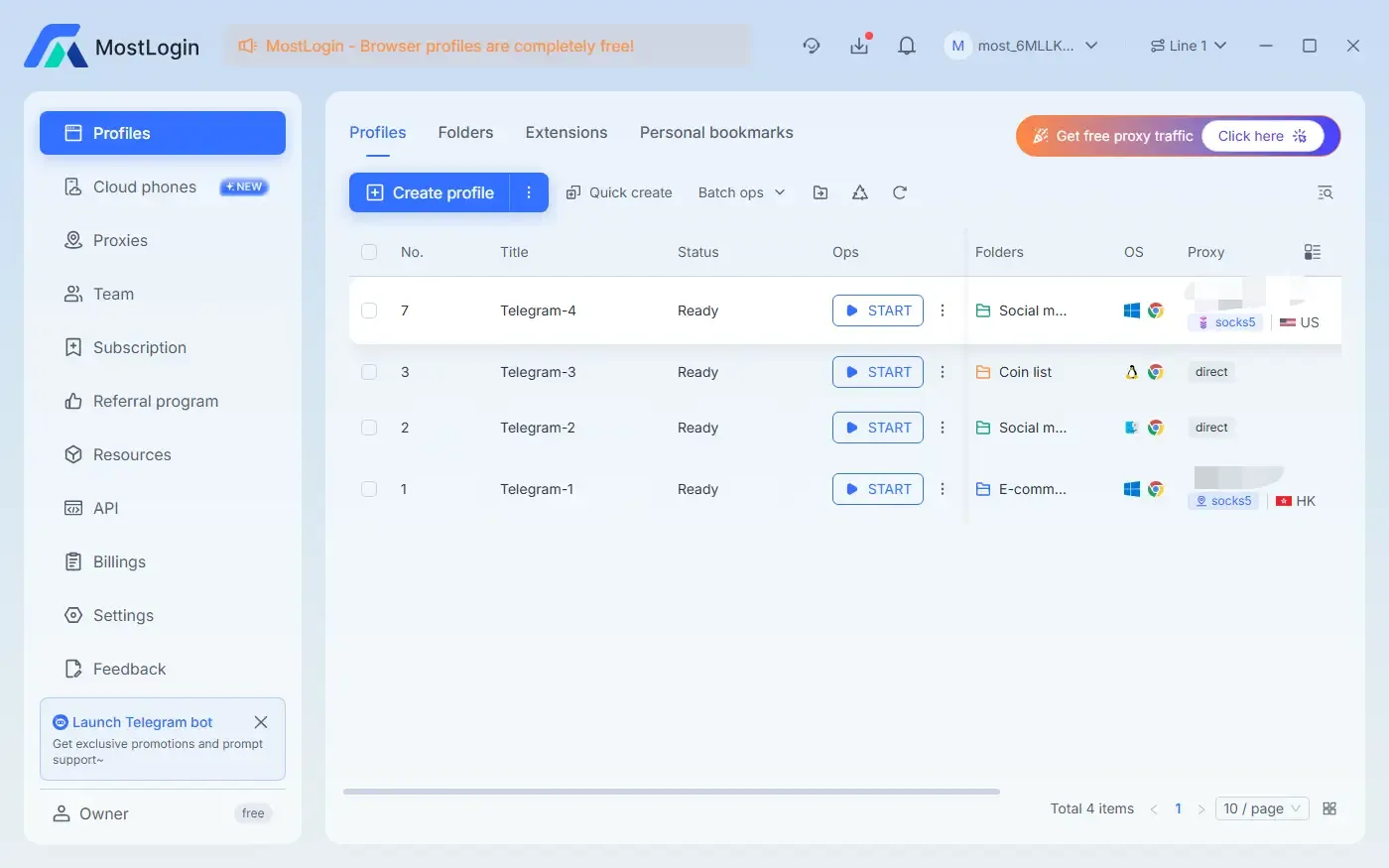
Operation Steps:
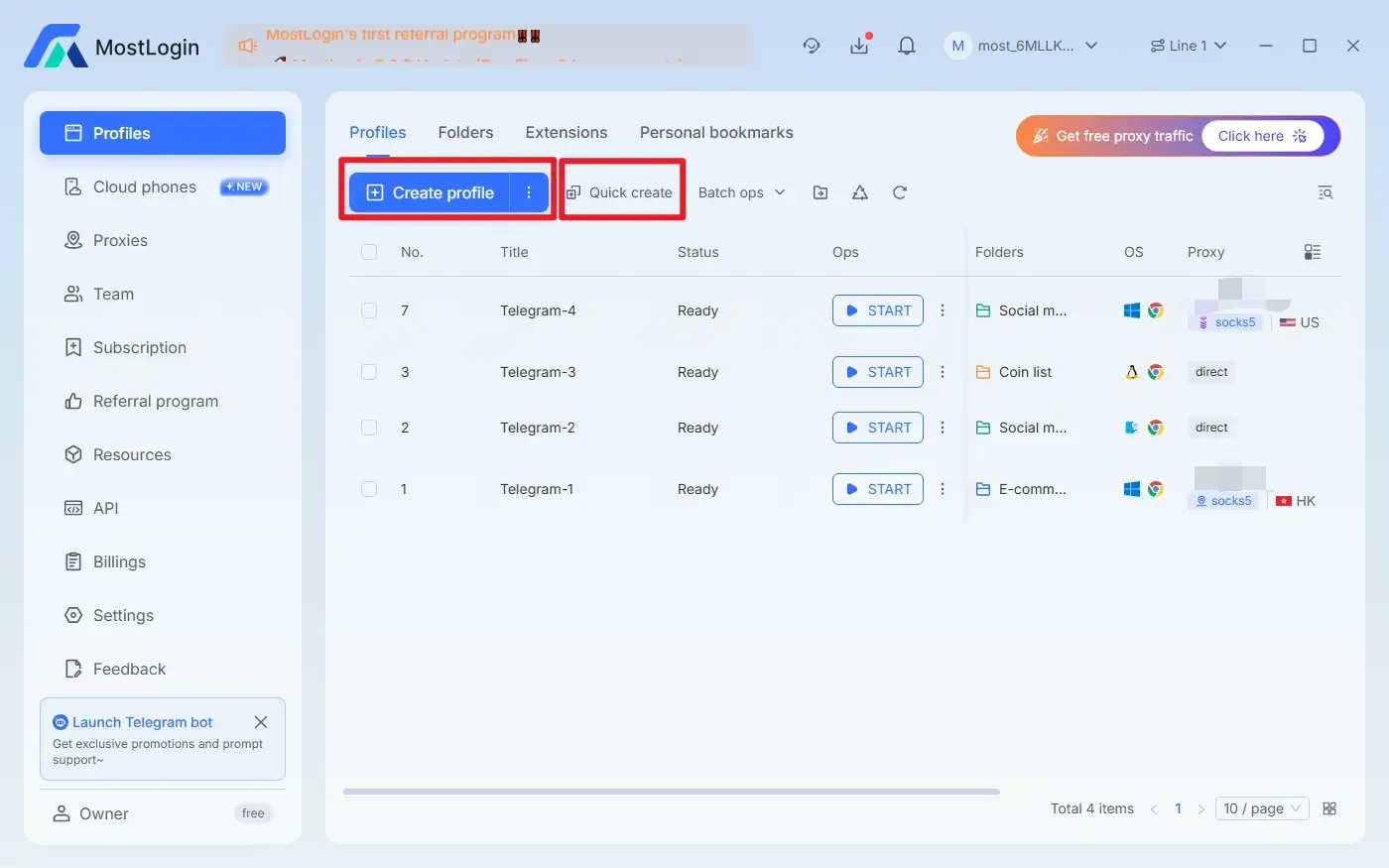
Create browser windows quickly (no settings required) or manually.
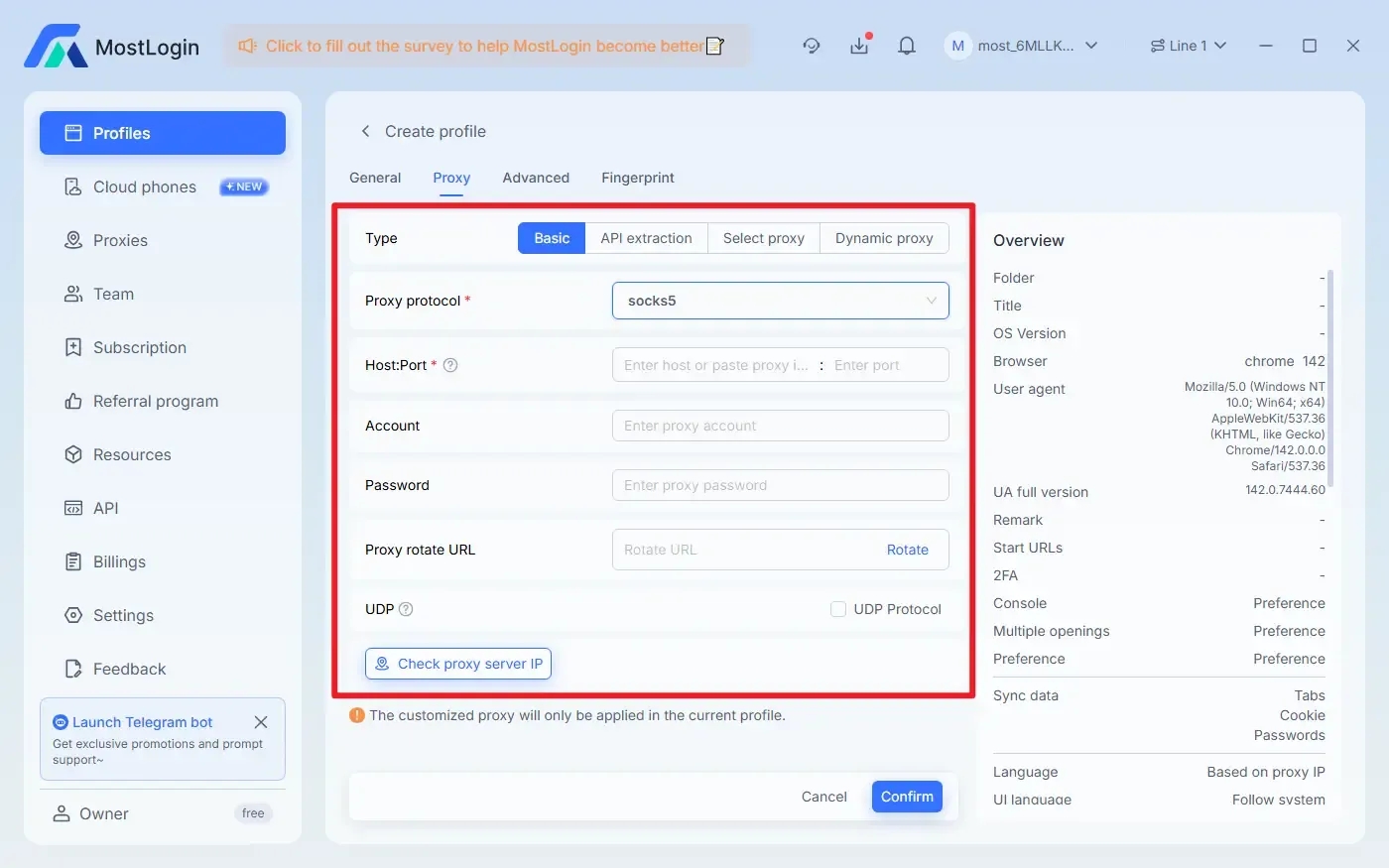
It's recommended to add a proxy (optional but advised).
Click START to open the corresponding window and log into your account.
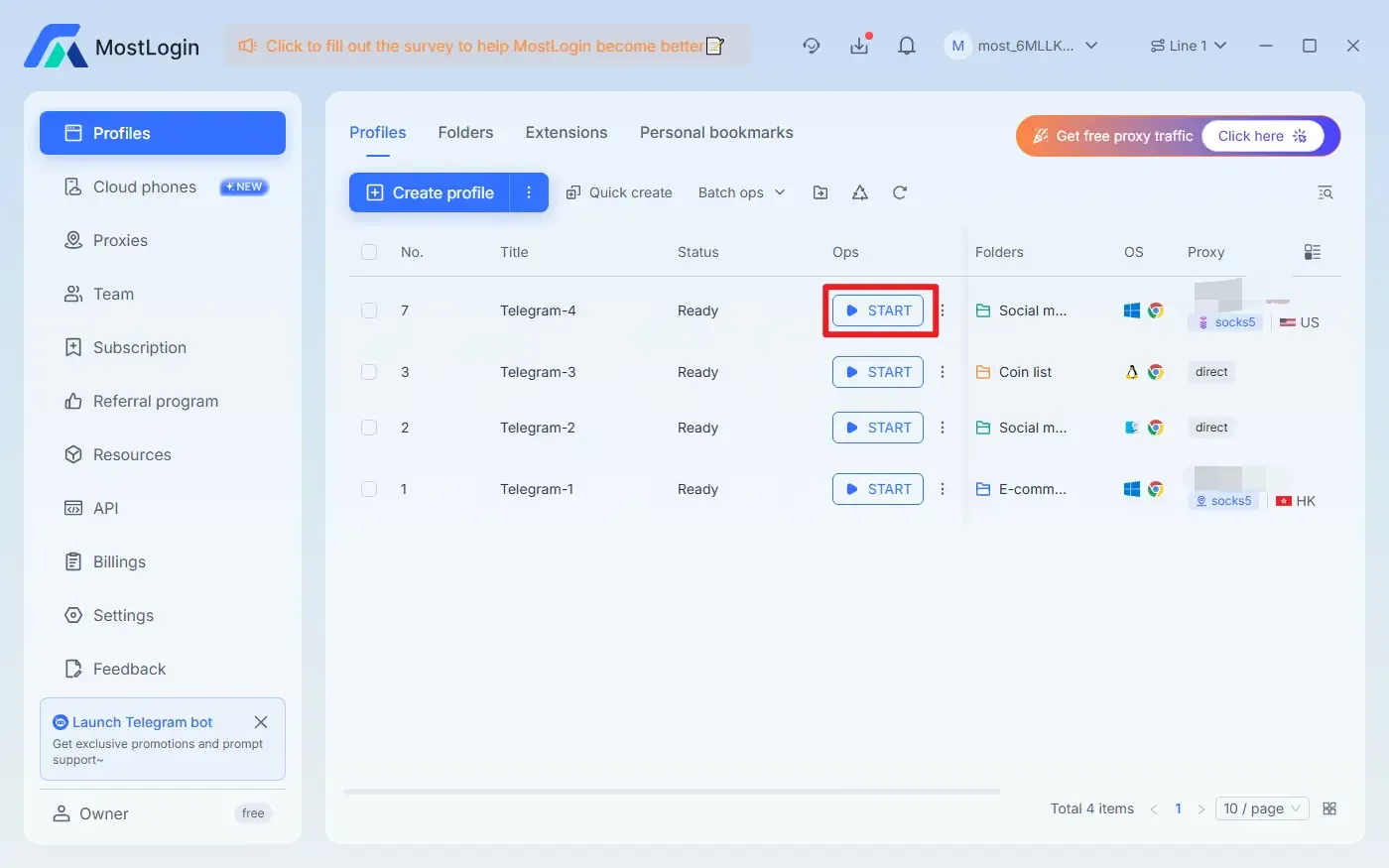
4. Use Virtual Machines or Sandbox Tools
You can use tools like Sandboxie or VMware to run an independent Telegram client in each virtual environment.
Pros & Cons:
Pros: This method works well in specific scenarios, as the Telegram client offers more comprehensive features.
Cons: Virtual machines or sandbox tools may occupy significant system resources, which could lag or fail to run on low-configured computers.
What Are the Advantages of Using a Multi-Account Browser?
Secure Isolation to Prevent Account Linking: Each Telegram account runs in an independent browser window with unique fingerprints, cookies, and caches, preventing platforms from linking multiple accounts via device fingerprinting.
Advanced Proxy for Cross-Regional Operations: Assign different IP addresses and locations to each account to hide your real IP, bypass restrictions and regional blocks, and ensure long-term secure login.
Grouping to Boost Efficiency: MostLogin Multi-Account Browser supports grouping customer service, promotion, and marketing accounts separately, facilitating unified management and automation—ideal for social media and community operations.
Independent Account Data: Each account's data is fully isolated to avoid cross-contamination. It also supports operation auditing and tracking, enhancing security for team collaboration.
Team Scalability: The multi-account browser supports large-scale multi-account operations with automated task scheduling, reducing operational risks and better meeting team needs.
Summary
Overall, managing multiple Telegram accounts on your computer isn't complicated—you just need to choose the right method. With MostLogin Multi-Account Browser, you can rationally plan account purposes, standardize operation workflows, and maintain a stable environment. This reduces misoperation and linking risks, making community management, customer service, and marketing more efficient and secure.
We have two more articles about Telegram accounts: How Can One Person Manage Multiple Telegram Accounts for Team Operations? and What Are the Differences Between Telegram Web and Telegram Desktop on PC?. Feel free to check them out if you're interested!
FAQs
Is Logging Into Multiple Telegram Accounts Safe?
When using official clients and web versions normally, avoid frequent environment switches or abnormal logins. Using a properly configured multi-account browser is even more secure.
Will Using Web and Desktop Versions Simultaneously Interfere With Each Other?
No. Telegram supports multi-device synchronization, and messages are updated in real-time across all devices.
Will Multiple Accounts Lose Chat History?
No. Chat history is stored in Telegram's cloud and syncs automatically after re-login. Login status is synced in real-time when using MostLogin Multi-Account Browser.
How to Prevent Message Interference Between Multiple Accounts?
It's recommended to use separate login environments, clarify account purposes, and avoid frequent account switching in the same interface.
Best Anti-Detection Browser - MostLogin
MostLogin anti-detection browser helps solve common pain points like multi-account operation, environment isolation, and account risk control.
For operational questions, please refer to the Official Help Center