If you regularly create browser profiles, launch different environments, check account statuses, or repeat the same browser operations across multiple accounts, you already know how quickly small manual tasks can add up.
Even with powerful batch tools inside the MostLogin antidetect browser , there are still workflows that require you to move between profiles, menus, browser windows, and automation scripts.
That is exactly why we introduced MostLogin MCP. By connecting MostLogin with an MCP-compatible AI client, you can describe what you want in natural language and let the AI use the available MostLogin tools to complete supported operations.
Instead of manually searching for the right profile or building every workflow from scratch, you can ask your AI assistant/agent to list profiles, launch a browser environment, or help coordinate a multi-step task. It is part of MostLogin's continued investment in automation and workflow optimization .
Example prompts:
“List the browser profiles available in MostLogin.”
“Launch the profile named Amazon-US.”
“Open profiles #1 to #10, and visit Outlook email registration page”
What Is MostLogin MCP?
MCP stands for Model Context Protocol. It provides a standardized way for an AI client to connect with external applications and discover the tools those applications make available.
In a traditional AI conversation, the assistant can explain what to do but cannot directly interact with your local software. With MCP enabled, an AI client can connect to the local MostLogin MCP service and request supported actions through a structured tool interface.
The exact tools available may vary according to your MostLogin client version and MCP implementation. You can ask your AI client to list the available tools after the connection is established.
Before You Start
Before connecting MostLogin MCP to an AI client, make sure the following are ready:
- The latest available version of the MostLogin desktop client is installed (version 2.1.9 and above).
- You are signed in to MostLogin and the desktop client remains open.
- The local MCP service has been enabled or initialized in MostLogin.
- You have an MCP-compatible AI client, such as Codex or another supported application.
- Node.js and NPX are installed if your configuration uses the
mcp-remotebridge.
You can also review the official MostLogin MCP setup guide before starting.
Security Reminder
Your MostLogin authorization value should be treated like a password. Do not publish it in screenshots, public documentation, shared repositories, or support posts. If it is exposed, replace it with a newly generated credential.
How to Connect MostLogin MCP: Step-by-Step
1 | Open MostLogin and Enable the MCP Service Launch the MostLogin desktop client, sign in, and open the API & MCP configuration area. Keep MostLogin running while your AI client is connected because the MCP endpoint is hosted locally on your computer. I will take Codex as an AI agent example.
|
2 | Copy the MostLogin MCP Configuration Copy the MCP configuration shown in MostLogin. A configuration using the local MCP endpoint and the Replace |
3 | Add the Configuration to Your AI Client Open the MCP configuration file or MCP settings area used by your AI client. Paste the configuration and save the changes. Configuration formats vary by client. Some clients use JSON, while Codex uses a TOML configuration file. |
4 | Restart the AI Client Fully close and reopen your AI client so it can reload the MCP configuration. Keep MostLogin open during this process. |
5 | Verify the Connection Ask the AI client: List all tools available from the MostLogin MCP server. If the connection is successful, the AI client should display the tools currently exposed by the MostLogin MCP service. |
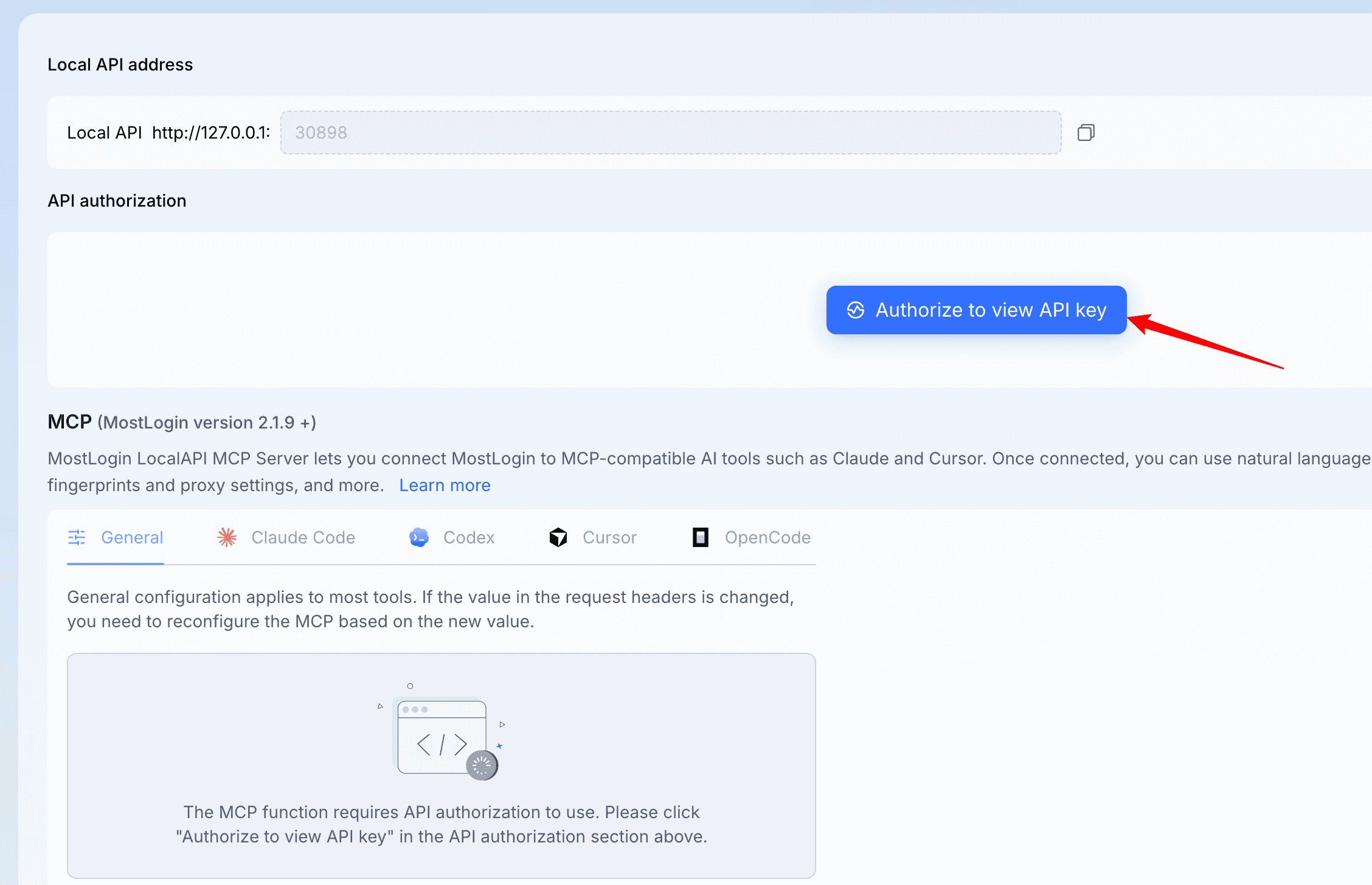
On MostLogin desktop client, we prepared a easy start prompt that users can copy and past into AI agent directly.
How to Connect MostLogin MCP to Codex on Windows
Codex uses a TOML configuration file instead of the JSON format shown above. On Windows, the configuration file is normally located at:
C:\Users\YOUR_USERNAME\.codex\config.tomlAdd the following configuration:
[mcp_servers.mostlogin]
command = "C:\\Program Files\\nodejs\\npx.cmd"
args = [
  "-y",
  "mcp-remote",
  "http://127.0.0.1:30898/mcp",
  "--transport",
  "http-only",
  "--allow-http",
  "--header",
  "Authorization:YOUR_MOSTLOGIN_TOKEN"
]
startup_timeout_sec = 30
tool_timeout_sec = 60
Save the file, keep MostLogin running, and start Codex again. Inside Codex, use the following command to review the MCP connection:
/mcpWindows Tip
If PowerShell blocks npx.ps1, use npx.cmd in the Codex configuration. This calls the Windows command file directly and avoids the PowerShell script restriction.
What Can You Do with MostLogin MCP?
The available actions depend on the tools exposed by your version of MostLogin MCP. Once connected, ask your AI client to list the tools before building a workflow.
| Workflow | Example request | Why it helps |
|---|---|---|
| Profile discovery | “List my available browser profiles.” | Find profiles without manually searching through the workspace. |
| Browser launch | “Launch the profile named TikTok-US.” | Start a specific environment using a natural-language request. |
| Tool discovery | “Show all MostLogin MCP tools.” | Understand what your current MCP version supports. |
| Guided workflows | “Help me launch a profile and verify the browser is running.” | Combine supported tools into a clearer sequence of operations. |
💡 Pro Tip
Start with a read-only request such as “List the available profiles” or “Show the available MostLogin tools.” After confirming that the connection works, move gradually to actions that launch, edit, or otherwise change browser environments.
Troubleshooting MostLogin MCP Connections
MCP configuration problems are often caused by a small formatting mistake, a blocked command, an incorrect file location, or a local service that is not currently running.
| Error | What to check |
|---|---|
| Connection refused | Confirm that MostLogin is open and the local MCP service is running on the configured port. |
| Unauthorized | Check that the authorization value is correct and has no missing characters or extra spaces. |
| Invalid JSON or TOML | Remove Markdown backticks, headings, trailing commas, comments, and any text that is not part of the actual configuration. |
| npm.ps1 is blocked | Use npm.cmd or npx.cmd on Windows. |
| Invalid URL | Make sure you entered the complete MCP URL. Do not use placeholder text such as three dots. |
💡 Pro Tip: Let AI Help You Fix the Connection
If you encounter an error while connecting to MostLogin MCP, take a screenshot and upload it to your AI assistant.
Ask:
AI assistants can often recognize PowerShell restrictions, malformed JSON or TOML, incorrect URLs, and MCP handshake errors directly from a screenshot. Make sure your authorization token is hidden before uploading the image.
Why MostLogin MCP Matters for Multi-Account Workflows
Multi-account operations involve more than creating isolated browser profiles. Teams also need to find the correct environment, launch it at the right time, verify its status, coordinate repeatable processes, and reduce errors across dozens or hundreds of accounts.
For social media management , MCP can make it easier to request operations across organized browser environments without manually navigating every profile.
For e-commerce teams , it can become part of a workflow for locating and launching the correct store environment.
For affiliate marketers and digital advertising teams , AI-assisted tool execution can reduce repetitive setup work before campaign operations begin.
MostLogin MCP also complements existing MostLogin features such as browser profile isolation, proxy configuration, batch operations, team collaboration, and workflow automation.
Frequently Asked Questions
What is MostLogin MCP?
MostLogin MCP is an integration that allows an MCP-compatible AI client to connect with the local MostLogin service and use the tools exposed by MostLogin.
Do I need coding experience to use MostLogin MCP?
Basic setup requires copying an MCP configuration into your AI client. After the connection is established, supported tools can be requested using natural-language prompts. Some troubleshooting may require editing a JSON or TOML configuration file.
Why must MostLogin remain open?
The MCP endpoint runs locally through the MostLogin desktop environment. If MostLogin or its MCP service is closed, the AI client may no longer be able to reach the endpoint.
Can ChatGPT in a web browser connect directly to the localhost MCP address?
A localhost address such as 127.0.0.1 is intended for software running on the same computer. A locally installed MCP-compatible client can access it, while a remote web application generally cannot access that local endpoint directly.
What should I do if the MCP connection fails?
Confirm that MostLogin is open, check the MCP URL and authorization value, validate your JSON or TOML formatting, and restart the AI client. You can also take a screenshot of the error and ask an AI assistant to provide a step-by-step troubleshooting guide.
Is it safe to share my MostLogin MCP configuration?
You should not share a configuration containing your real authorization credential. Replace the credential with a placeholder before sharing code or screenshots. If the value is exposed, generate a new credential.
Ready to connect MostLogin with your AI assistant?
Download MostLogin, enable the local MCP service, and turn natural-language requests into supported browser operations.
Keep Reading
- Explore MostLogin Features — Browser Profiles, Batch Operations, Team Tools, and Automation
- Automate and Optimize Your Multi-Account Workflow with MostLogin
- How to Randomly Assign Proxies to Multiple MostLogin Profiles
- A Beginner's Guide to Setting Up a Proxy in an Antidetect Browser
- How E-Commerce Teams Manage Multiple Store Environments with MostLogin